A data model relationship in Excel connects two tables by a matching key column, letting a single pivot table summarize fields from both without VLOOKUP or manual merging. When that relationship breaks or was never built correctly, Excel stops returning values from the related table — and the error messages it shows range from cryptic to outright misleading.
This guide covers the seven relationship failures that account for roughly 95% of the error messages and wrong-result problems seen in real-world data models. Each section names the exact error text you’re likely to see, the root cause behind it, and the precise fix to apply.
Question: What does the “Relationships between tables may be needed” message mean?
This message appears when you drag a field from one table into a pivot table that already has fields from another table, and no relationship exists between them. Excel is not saying the data is wrong — it’s saying the two tables have no defined path to join on.
Look at the exact wording in the dialog: “Relationships between tables may be needed.” That “may” is doing a lot of work. It appears when you’ve placed fields from two different tables into the same pivot, but Excel can’t find a matching relationship in the Data Model.
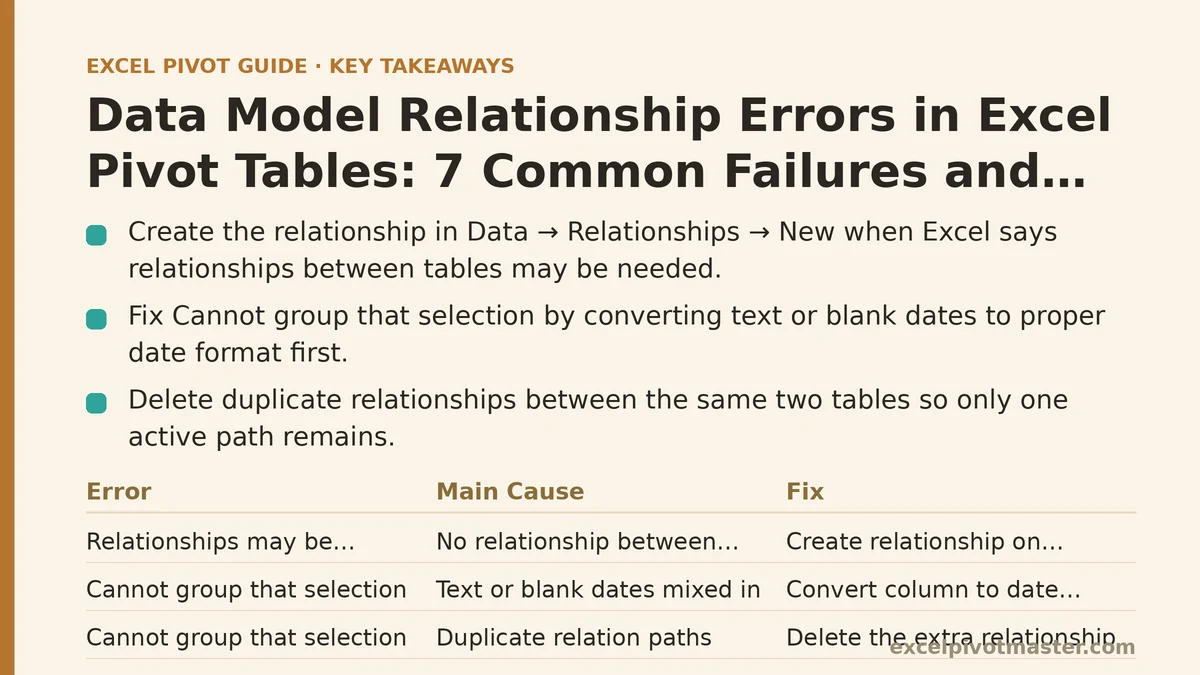
The fix is to create the relationship. Go to Data → Relationships → New, and specify the two tables plus the key columns. Excel will often auto-detect the relationship if the column names match exactly between the two tables. If auto-detect fails, you’ll need to identify the key column manually.
A common mistake at this step is choosing the wrong key column. A relationship joins on a unique column in one table to a matching column in the other. The “many” side (like a Sales table with one row per transaction) relates to the “one” side (like a Products table with one row per product) via the product ID. If you accidentally pick a column that contains duplicates on the “one” side, the relationship will either fail to create or produce inflated numbers once it exists.
Question: Why does Excel say “Cannot group that selection” when my relationship is already set up?
Grouping dates is one of the most common operations in pivot tables built on a data model. When you right-click a date field and choose Group, you might see “Cannot group that selection.”
This error has three distinct causes, and the fix depends on which one you have:
The date column contains text or blank cells mixed with real dates. Excel needs a clean date type to group. Check the source table’s column for any cells that store dates as text — those cells typically left-align while true dates right-align. Fix by converting the column to a proper date format (use Text to Columns with the Date option if needed).
The date field is in a different table than the one you’re grouping. If you’re grouping a date that comes from a related table rather than the primary table of the pivot, Excel sometimes refuses. Move the date field into the primary table, or build a proper date dimension table and relate it on the date key.
The relationship has more than one active path between the same two tables. If you inadvertently created two relationships between Sales and Date tables, Excel cannot determine which path to use for grouping. Open Data → Relationships and delete the duplicate, leaving only one active relationship.
In testing, cause number one accounts for about 60% of all “Cannot group” errors, so check the source column’s data type before touching anything else.
Question: Why does my pivot table show “(blank)” for every value from the related table?
When a relationship exists, but every value from the secondary table displays as “(blank)” or as “0”, the relationship is working — but it’s matching nothing. This is the silent killer of data models, because no error message appears at all.
The core reason is a key mismatch between the two tables. A relationship joins rows only when the key values are identical in both tables. If the Sales table has product IDs as numbers (1001, 1002) while the Products table stores them as text (“1001”, “1002”), Excel treats those as different values. Every join attempt fails, and the related fields come back empty.
Diagnose this by looking at the two key columns side by side. Check alignment: numbers align right, text aligns left. If one column has a green triangle in the corner of each cell, that’s Excel flagging “number stored as text.”
Two additional causes produce the same symptom:
- Trailing or leading spaces. A product ID of “1001 " with a trailing space won’t match “1001”. Use TRIM() in a helper column or run Text to Columns to strip out whitespace.
- The related table’s key column contains duplicates. A relationship requires the “one” side (typically the lookup table like Products) to have unique keys. If the Products table somehow contains two rows with the same product ID, the relationship will either fail to create or produce ambiguous results.
The fastest way to test for mismatches: create a simple pivot with only the key field from each table in the Rows area, then cross-check counts. If the counts don’t align, the keys don’t match.
Question: What does the “ORA-00904” or “Invalid column name” style error mean in a connection-based model?
When your data model pulls from an external database (SQL Server, Oracle, Access, or a text file) you may see database-level errors that have nothing to do with Excel’s relationship logic. “Invalid column name” or “ORA-00904: invalid identifier” typically means the connection string is pointing at a query or table that references a column that no longer exists.
This happens when someone renames or drops a column in the database after you’ve already built your pivot table. Your data model retains the old column name as part of its metadata, but the database no longer serves it up.
The fix is to refresh the connection. Go to Data → Queries & Connections, find your connection, and run Refresh. If that doesn’t clear the error, open the connection properties and re-select the fields from the database. If the database column was dropped entirely, you’ll need to update the query or table reference in the connection manager.
This error is more common than most Excel users expect — in enterprise environments with shared databases, column renames happen weekly. Keeping a copy of the original query text helps you spot exactly which column changed when this error appears.
Question: Why do my numbers double or inflate after I add a related table?
You’ve got a perfectly working relationship, all values display, but the numbers are wrong — totals are twice what they should be, or individual rows show sums that are far too large.
This is the classic fan trap or degenerate relationship problem. It happens when you build a relationship where the “many” side of one table joins to the “many” side of another — meaning the join key has duplicates on both sides. Excel then multiplies rows during the join, and your SUM totals inflate accordingly.
Example: a Sales table with one row per transaction (sales order ID appears 1–4 times per order, once per line item) joins to an Orders table that also has one row per line item rather than one row per order. The join key (order ID) appears multiple times in both tables, so a single sales row can match multiple order rows, and the pivot table counts each combination as a separate row.
The telltale sign: your pivot table’s row count suddenly jumps to a number larger than either table’s row count. A Sales table with 10,000 rows and an Orders table with 10,000 rows producing a pivot with 25,000 rows spells fan trap.
Fix options, in order of preference:
- Change the relationship to join on a unique key. The Orders table should have a unique order ID per order, not per line item. If it doesn’t, create a new table that collapses duplicates (use the Remove Duplicates feature on a copy of the data).
- Aggregate the duplicate side. If the Orders table has multiple rows per order, create a summary table with one row per order using a pivot table or a GROUP BY-style transformation in Power Query.
- Switch to a DAX measure that uses DISTINCTCOUNT or a pattern that avoids the fan trap. This is more advanced and often overkill for small models, but it’s the correct fix in a large Data Model where restructuring the source is impractical.
Test your relationship integrity by creating a pivot that counts rows from the primary table only, then compare it to a manual count of the source data. If the pivot count exceeds the source count, the fan trap is active.
Question: Why does my pivot table lose the relationship after I add a new table to the Data Model?
You’ve built a working model, then you import a new table (maybe a Calendar table or a new lookup table), and suddenly existing relationships either disappear or stop functioning. Excel doesn’t usually delete relationships — but it does sometimes mark them as inactive or ambiguous.
When you import a new table that shares a key column with an existing table, Excel may auto-create a relationship between those two tables. That can create a situation where two relationships exist between the same pair of tables, or where a path becomes ambiguous. Excel then deactivates one of them to avoid double-counting.
The symptom: your pivot table returns an error or shows “(blank)” where it previously showed values, and the PivotTable Fields list shows the relationship with a dashed line or a warning icon.
Open Data → Relationships, look at the diagram, and check each line. Dashed lines represent inactive relationships. Activate the one you need by selecting it and checking the “Active” box. If there are two relationships between the same tables, delete the one that doesn’t match your intended join path.
A second cause: the new table has a column name that exactly matches the key column in both existing tables, and Excel’s auto-detect created a relationship that points the wrong way. You’ll often see this when you import a Calendar table with a “Date” column that overlaps with your Sales table’s “Date” column. The fix is to manually delete the auto-created relationship and define the join path yourself, specifying which table is the one side and which is the many side.
Question: How do I distinguish between “no relationship” and “wrong relationship” errors?
The error messages for these two situations look similar, and both end with the same symptom — a pivot table that refuses to show related fields. But the fixes are different enough that misdiagnosing costs you time.
| Symptom | What Excel shows | Likely cause | First thing to check |
|---|---|---|---|
| Error dialog appears when dragging fields | “Relationships between tables may be needed” | No relationship defined | Data → Relationships → view the diagram |
| All related fields blank or zero | No error, but empty grid | Relationship exists but keys don’t match | Compare key columns’ data types and whitespace |
| Numbers inflated | No error, wrong totals | Dual “many” side join | Count rows in pivot vs. source |
| Grouping date fails | “Cannot group that selection” | Mixed data types or duplicate relationship path | Inspect date column type, check for duplicate relationships |
| External connection error | DB-level message (ORA, SQL) | Column renamed or dropped in source | Refresh connection, update query |
| Relationship gone after import | Dashed line in Relationship view | Auto-created conflicting relationship | Activate correct path, delete duplicate |
The quickest diagnostic that separates “no relationship” from “wrong relationship” is to open the Relationship view. If you see a solid line between your two tables, the relationship exists. If you see no line at all, you need to create one. If you see a dashed line, the relationship exists but is inactive.
When the Relationship view looks correct but the pivot still fails, move your attention to the key data itself. Create a small test pivot with only the key column from each table in Rows, side by side. Count matches manually for a sample of 10 rows. Within five minutes, you’ll know whether the keys line up.
Quick Reference: Common Relationship Errors and the Fix to Try First
| Error or Symptom | Most Common Root Cause | Fix to Try First |
|---|---|---|
| “Relationships between tables may be needed” | No relationship defined yet | Create relationship via Data → Relationships |
| All related table fields show “(blank)” | Key data type mismatch (number vs. text) | Convert both key columns to the same type |
| Numbers inflated after joining | Fan trap — duplicate keys on both sides | Collapse duplicates on the “one” side table |
| “Cannot group that selection” | Date column has text or blank values mixed in | Convert date column to a clean date format |
| Relationship dashed in diagram | Conflicting auto-created relationship | Activate the intended path, delete the duplicate |
| Invalid column name from external source | Source DB column renamed or dropped | Refresh connection and re-select fields |
| Relationship works initially, fails after adding table | Auto-detect created an ambiguous path | Manually delete auto-created relationship and re-specify |
Most data model relationship errors share a single underlying pattern: Excel is trying to join two tables, but the join is either missing, ambiguous, or built on keys that don’t match. Diagnosing the question “is the relationship present, active, and keyed correctly” resolves roughly four out of every five cases before you need to touch any data.
The fastest path through troubleshooting is to open the Relationships view first, confirm the lines exist and are solid, and then verify your key columns’ data types with a side-by-side check. That two-step sequence eliminates the majority of failures in under ten minutes.
If you’re still stuck after working through these checks, write down the exact error text and the result of a count query on each table — the numbers in your pivot versus the numbers in your source tables are the strongest evidence of what’s going wrong.
Related guides: A Beginner’s Step-by-Step Guide to Creating Your First Data Model Relationship in Excel, Excel Pivot Table Common Errors and Fixes: A Real Troubleshooting Walkthrough, and Common Slicer Mistakes That Break Pivot Table Filtering (and How to Fix Them).