I was once helping a finance analyst who was manually summing pivot table rows on a scratchpad. He needed to report on a “Coastal” region, which for his company meant combining the “East” and “West” regions. Every time he refreshed the data, he would find the new East and West totals and add them together. When I showed him how to create a “Coastal” region inside the pivot table in about 30 seconds using a Calculated Item, his jaw dropped.
But a few weeks later, he called me in a panic. His Grand Totals were completely wrong, and he couldn’t figure out why. The culprit was that same Calculated Item.
This is the central story of Calculated Items: they are either a brilliant shortcut or a hidden trap, depending entirely on how well you understand their limitations. They are not a beginner feature masquerading as an advanced one; they are a simple feature with advanced consequences.
Part 1: The Beginner’s View — Calculated Items as a Quick Grouping Tool
For quick, informal analysis, Calculated Items are one of the fastest ways to group existing items in a pivot table field without touching your source data.
What is a Calculated Item? (And How It’s Not a Calculated Field)
This is the most common point of confusion. The two features sound similar but do completely different things.
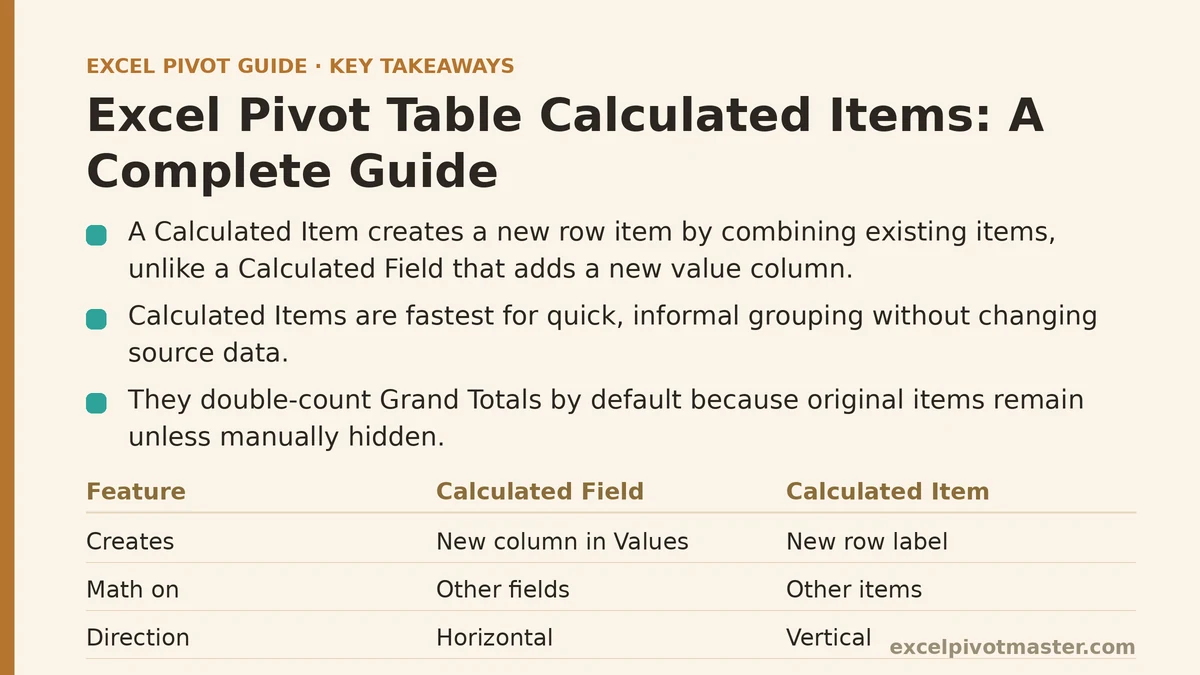
- A Calculated Field creates a new column in your pivot table by performing math on other fields. A classic example is
='Sales' / 'Units'to create a new “Price Per Unit” field. It operates horizontally across your data. - A Calculated Item creates a new row item within an existing field by performing math on other items. The example from my intro,
='East' + 'West', creates a new item called “Coastal” within the “Region” field. It operates vertically on the members of a category.
Think of it this way: a Calculated Field adds a new column to the Values area, while a Calculated Item adds a new label to the Rows or Columns area.
Creating Your First Calculated Item: A Step-by-Step Guide
Let’s build that “Coastal” region item.
- Click on any of the row labels in the field you want to modify (e.g., click on the cell that says “East” or “West” in your Region field).
- Go to the PivotTable Analyze tab on the ribbon.
- Click Fields, Items, & Sets, and then select Calculated Item….
- In the dialog box, give your new item a Name, like “Coastal”.
- In the Formula box, you build the formula by referencing the other items. You can double-click them from the “Items” list below. Your formula would look like this:
='East' + 'West' - Click Add, then OK.
Instantly, a new “Coastal” row appears in your pivot table, showing the sum of the East and West regions’ data. It feels like magic, and for a simple visual grouping, it is.
Part 2: The Advanced Perspective — The Hidden Dangers and Limitations
That magical feeling disappears the moment you use Calculated Items in a formal report without understanding their serious side effects.
The Grand Total Trap: Double-Counting is the Default
When you create the “Coastal” item, Excel does not automatically hide the original “East” and “West” items. This means your Grand Total is now incorrect because it is summing East, West, North, South, and your new Coastal item (which is just East and West again).
How to fix this: You must manually filter the Region field to hide the original items (“East” and “West”) from view. This corrects the Grand Total, but it creates a new problem: it’s not obvious to anyone else looking at the pivot table that two regions are being hidden because they are rolled up into a third. This makes the report less transparent.
Furthermore, Calculated Items always perform a SUM on the underlying data, even if your value field is set to show a Count, Average, or Max. If your pivot table shows an average sale price, a calculated item combining two regions will show the sum of their averages, which is a statistically meaningless number. This is a critical and dangerous flaw.
The Brittleness Problem: Why Calculated Items Break
A calculated item’s formula is hard-coded. If your formula is ='East' + 'West' and someone changes the source data so the region is now labeled “Eastern”, the formula will break on the next refresh because the item “East” no longer exists.
The pivot table will show a #N/A or #REF! error, and you will have to manually edit the calculated item formula to fix it. This makes any report using them fragile and high-maintenance.
When to Avoid Calculated Items Entirely
Despite their initial appeal, I advise against using Calculated Items in any dashboard or recurring report. The risk of incorrect totals and broken formulas is too high.
The better, more robust solution is almost always to add a helper column in your source data.
Instead of a calculated item, go back to your raw data table. Add a new column called “Reporting Region”. Use a simple IF formula like =IF(OR([@Region]="East", [@Region]="West"), "Coastal", [@Region]).
Building your pivot table from this new helper column is superior in every way:
- The logic is stored in the source data, making it transparent and easy to audit.
- It will never break if a region name changes (unless the core logic changes).
- It calculates correctly with any aggregation (Average, Count, etc.).
- Grand Totals are always correct without any manual filtering.
- It works with more advanced features like the Data Model.
A Calculated Item is a quick sketch. A helper column is a permanent blueprint.
The Final Verdict: A Sharp Tool for Quick Analysis Only
Calculated Items are a perfect example of an Excel feature that is useful for the person who built it, but dangerous for the people who consume the report. Use them for your own ad-hoc, throwaway analysis when you need to quickly group a few things and you understand the risk of the Grand Total being wrong.
But the moment a report needs to be shared, refreshed, or relied upon for decision-making, abandon Calculated Items. Take the extra three minutes to add a helper column to your source data. It is a more stable, transparent, and reliable solution that will save you from that panicked phone call I received from the analyst.
Are you trying to create a temporary, one-off grouping for your own analysis, or are you building a long-term, shareable report? The answer directly tells you whether a Calculated Item is the right tool or a future headache waiting to happen. Related guides: Customer Segmentation with Pivot Tables: A Beginner-to-Advanced Roadmap, Pivot Tables from Multiple Tables: 3 Methods Ranked, and Excel Pivot Table Calculated Fields Explained: A Practical Guide.