By the end of this post, you’ll be able to recognize six of the most common pivot table errors on sight, understand why each one happens, and fix it without rebuilding the report from scratch. More importantly, you’ll know the order to check things in, because these errors rarely show up one at a time — they show up in sequence, each one exposing the next.
To make that concrete, let’s walk through a single workbook from start to finish: a quarterly regional sales report, built from a raw transaction export, refreshed monthly, and shared with three other people who each add their own filters and formulas on top of it. This is the exact kind of workbook where every one of these errors tends to surface, usually within the first month of real use.
The Source Data: 14,000 Rows, One Missing Header
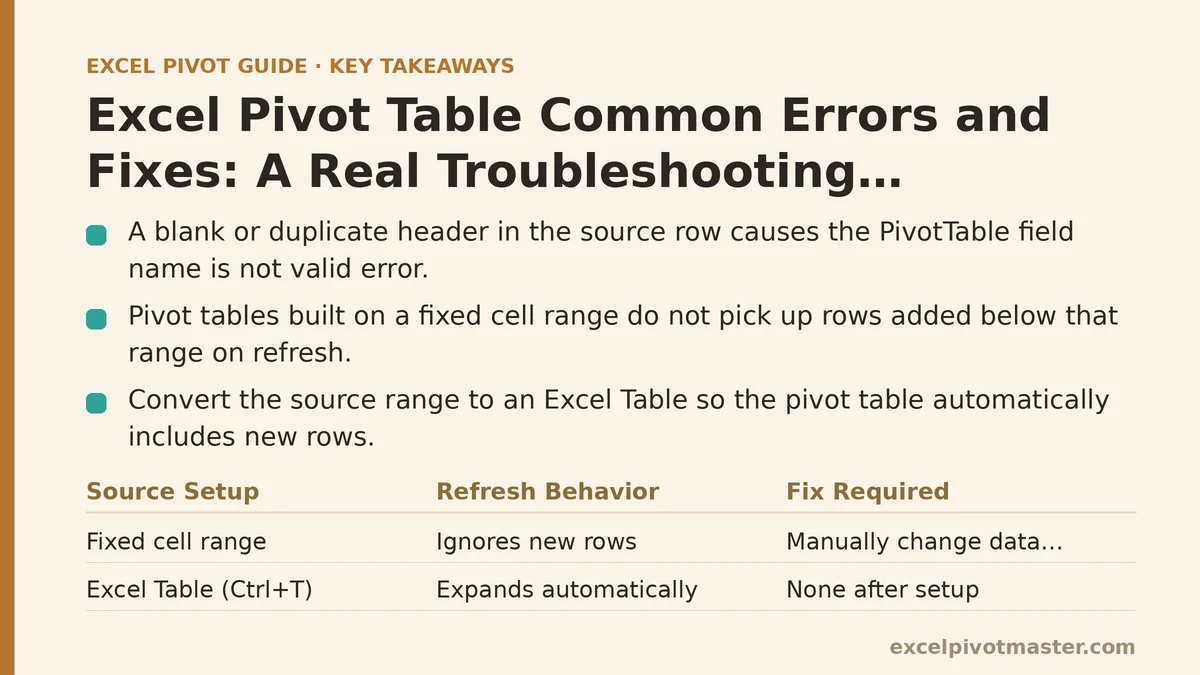
The report starts with a transaction export dropped into a sheet called RawData. Columns for Date, Region, Product, Units, and Revenue, roughly 14,000 rows. The first attempt to build a pivot table from this range throws an error immediately: “A PivotTable field name is not valid.”
This error has exactly one real cause worth checking first: a blank or duplicate header somewhere in the row you selected as your field names. In this case, column F had a header cell that had been deleted at some point, leaving data underneath it with no label above. Excel refuses to build a pivot table on a field it can’t name.
The fix is always the same: scroll across the top row of your intended source range and confirm every single column has a non-blank, unique header. Fill in the missing one — here, it turned out to be a “Discount” column — and the error disappears the moment you rebuild the field list.
Worth noting: this error has nothing to do with the pivot table itself. It’s a source data problem that happens to only reveal itself at the moment you try to create the pivot, which is why it so often gets misdiagnosed as a pivot table bug when it isn’t one.
Refreshing Doesn’t Pick Up New Rows
A month later, another 900 rows get appended to the bottom of RawData for the new period, and the report gets refreshed. The pivot table updates its numbers, but the new month never appears as a category. Nothing about the refresh looks broken — no error message, just quietly incomplete data.
This is a range problem, not a refresh problem. The original pivot table was built against a fixed range — RawData!A1:F14000 — and Excel refreshes exactly that range, nothing more, regardless of how much data now sits below row 14000. Right-clicking and choosing Refresh doesn’t expand the boundary; it just recalculates the same fixed rectangle.
The lasting fix is to convert the source range into a proper Excel Table before building the pivot (Ctrl+T), since Tables expand automatically as rows are added and any pivot table built on a Table reference grows with it. For this workbook, that meant deleting the pivot table’s connection to the static range, converting RawData into a Table named SalesData, and rebuilding the pivot source reference to point at the Table name instead of the cell range. After that change, every future refresh picks up new rows automatically, with no manual range editing required.
If converting to a Table isn’t an option for some reason, the fallback is to manually edit the source range under PivotTable Analyze → Change Data Source every time rows are added — workable, but it depends on someone remembering to do it, which is exactly the kind of manual step that eventually gets skipped.
A Column Gets Deleted and Every Report Formula Breaks
Three weeks in, someone cleans up the raw data sheet and deletes a column that seemed unused — except it wasn’t unused. It was feeding the pivot table’s Values area. The pivot table itself doesn’t crash, but every GETPIVOTDATA formula referencing that field on the summary sheet returns #REF!.
This is one of the more disruptive errors because it doesn’t stay contained to the pivot table — it cascades into every formula built on top of it. GETPIVOTDATA locks in a reference to a specific field by name at the moment the formula is written, and if that field no longer exists anywhere in the source data, there’s nothing left for the formula to point to. Excel can’t guess what you meant; it just returns the error.
There are two layers to the fix. First, restore the deleted column in the source data if the field is still needed — undo, or re-add it from a backup copy of the export. Second, once the field exists again and the pivot table has been refreshed, the #REF! errors in the GETPIVOTDATA formulas resolve on their own, since the formulas were never broken internally; they were pointing at something that had stopped existing.
If the column really was meant to be removed permanently, the correct move isn’t to leave the #REF! errors sitting there — it’s to rewrite the formulas to reference a field that still exists, since a formula error left unaddressed tends to get copied into new sheets by whoever inherits the workbook next, spreading the problem instead of fixing it.
Grouping by Date Fails With “Cannot Group That Selection”
The report needs a monthly rollup, so the Date field gets right-clicked and Group is selected — and Excel responds with “Selection cannot be grouped.” No further explanation.
This message almost always comes down to one of two things, and it’s worth checking both rather than guessing. The first possibility is that the Date field isn’t stored as an actual date — it’s text that merely looks like a date, often because the original export came from a system that formatted dates as strings. The second possibility, easy to miss, is that one or more cells in that field are blank, and a single blank cell anywhere in the range is enough to block grouping across the entire field.
In this workbook, it turned out to be the first cause: dates imported from the export system as text, left-aligned in the cells rather than right-aligned the way genuine dates display by default. Selecting the column, running Data → Text to Columns, and stepping through the wizard with Date selected as the column format converted the text strings into real date values. Refreshing the pivot table and trying Group again worked immediately once that conversion was in place.
If blank cells turn out to be the cause instead, the fix is to either fill in the missing dates in the source data or filter out incomplete rows before grouping, since Excel needs a fully populated date field to build month and quarter groupings from it.
The Regional Percentage Column Doesn’t Add Up to 100%
With the structure stable, a calculated field gets added to show each region’s revenue as a percentage of total revenue. The formula divides Region Revenue by Total Revenue, but the resulting percentages across all regions add up to something like 340%, not 100%.
This is a calculation-order problem, and it’s one of the more conceptually confusing pivot table errors because the formula itself isn’t wrong — it’s just being evaluated at the wrong level. A pivot table calculated field computes its formula on the summarized values in every single row and column combination first, then subtotals and totals are calculated by summing those already-computed results. So instead of dividing each region’s total by the grand total once, the formula was dividing at every row-level intersection and then adding up a stack of already-divided percentages, which inflates the sum well past 100%.
The fix here isn’t a calculated field at all — it’s Show Values As → % of Grand Total, applied directly to the Revenue field in the Values area rather than through a custom formula. That setting calculates the percentage after the aggregation happens, at the total level, which is the behavior the report actually needed. Calculated fields are the right tool for combining two fields that both exist as columns in the source data — profit divided by cost, for instance — but they’re the wrong tool for expressing one summarized value as a share of another summarized value.
Filtering One Slicer Changes Numbers on a Connected Pivot Table That Wasn’t Touched
The last issue surfaces once the report has slicers connected to it. Filtering the Region slicer to a single region unexpectedly changes the numbers on a second pivot table on another sheet — one nobody touched, built from what looked like an entirely separate data range.
This happens when two pivot tables share the same pivot cache, which occurs whenever a second pivot table is built by copying an existing one, or built from the same source range through Excel’s default behavior of reusing a cache instead of creating a fresh one. Slicers are connected to specific pivot tables through the cache, and if both tables share that cache, a slicer built to control one can end up filtering the other as an unintended side effect.
The fix depends on the intended behavior. If both tables are genuinely meant to move together, this isn’t a bug — the slicer just needs to be explicitly connected to both tables via Slicer → Report Connections, so the linkage is deliberate rather than accidental. If the two tables are supposed to be independent, the second one needs to be rebuilt from a separate call to PivotTable → From Range/Table rather than copied from the first, which forces Excel to generate its own distinct cache instead of inheriting the original one.
The Diagnostic Order Worth Remembering
Every one of these six errors traces back to a small number of root causes, and they tend to surface in roughly this order as a report matures from a first draft into something shared across a team:
- Missing or duplicate headers in the source range — checked at build time.
- A static range that doesn’t grow with new data — checked at first refresh after new rows arrive.
- A deleted or renamed source column breaking downstream formulas — checked whenever the raw data sheet gets edited.
- Text-formatted dates or blank cells blocking grouping — checked whenever a new date-based rollup is added.
- Calculated fields applied at the wrong aggregation level — checked whenever a percentage or ratio column produces implausible totals.
- Shared pivot caches causing cross-table filtering — checked whenever a slicer affects a table it shouldn’t.
None of these require advanced Excel knowledge to fix once identified — every one of them is a two- or three-click correction. The actual skill is in the diagnosis: knowing that a #REF! error in a formula points back to the source data rather than the formula itself, or that a percentage summing to 340% means the calculation happened at the wrong level rather than the formula being written incorrectly. Get the diagnosis right, and the fix is almost always the easy part.
Related guides: Pivot Table Not Refreshing: Common Causes and Fixes, Fixing Pivot Table Refresh Errors and Stale Data Problems, and How to Remove Blanks from Excel Pivot Tables: Every Cause and Fix.