Grouping in an Excel pivot table is the act of combining many individual field values into a smaller set of buckets — months instead of individual dates, tens or hundreds instead of single amounts — so the table summarizes at a useful level rather than listing every distinct value. Without grouping, a field of 3,000 transaction dates produces 3,000 row labels and a pivot that is technically correct and practically unreadable. Grouping is not a formatting trick layered on top; it changes how the field is stored inside the pivot and how every calculation below it rolls up.
This tutorial walks through grouping in a ranked order: the five capabilities that matter most, from automatic date grouping (the one that saves the most time) down to the manual and troubleshooting skills that prevent the common failures. Work through them in that sequence and you will cover the whole feature set in one pass.
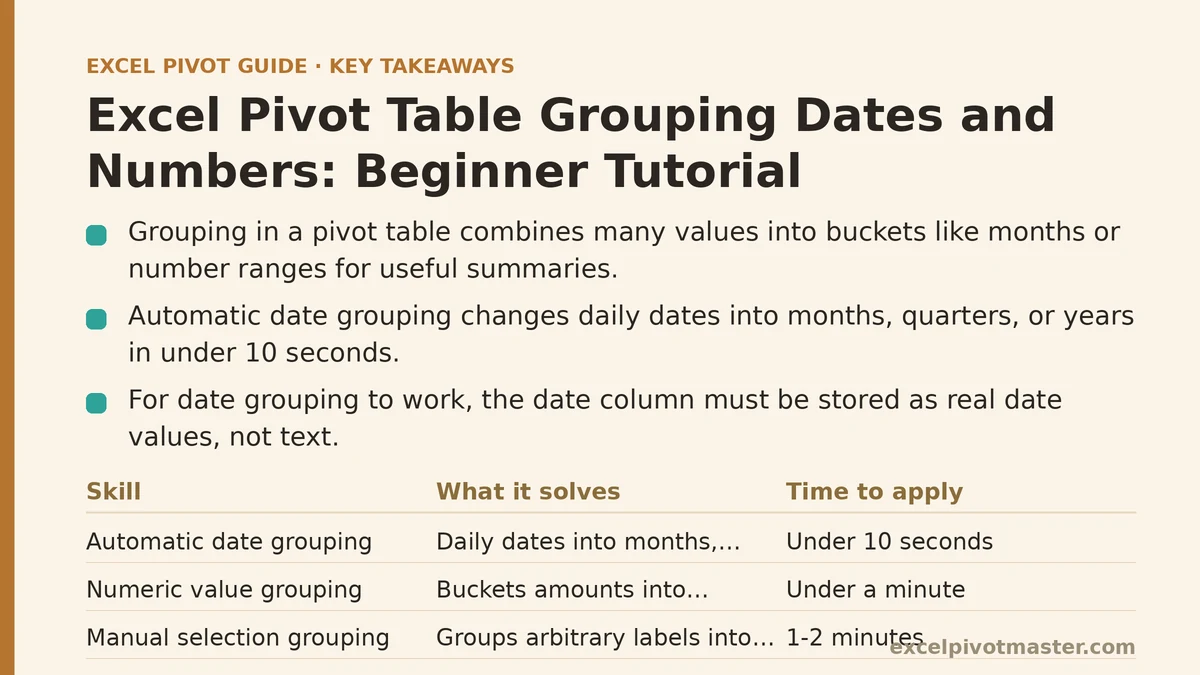
The Five Grouping Skills, Ranked by What Delivers the Most First
| Rank | Skill | What it solves | Time to apply | Difficulty |
|---|---|---|---|---|
| 1 | Automatic date grouping | Turns daily dates into months, quarters, years | Under 10 seconds | Beginner |
| 2 | Numeric value grouping | Buckets amounts into ranges (0–100, 100–200…) | Under a minute | Beginner |
| 3 | Manual selection grouping | Groups arbitrary labels (regions, categories) into sets | 1–2 minutes | Beginner |
| 4 | Custom intervals and starting points | Groups dates in weeks, or numbers in non-default steps | 1–2 minutes | Intermediate |
| 5 | Fixing grouping that won’t work | Recovers when Group Field is greyed out or fails | Varies | Intermediate |
If you only learn one, learn automatic date grouping — it is the change most readers get the largest readability improvement from, and it takes seconds.
1. Automatic Date Grouping (Start Here)
What it is: When Excel recognizes a field as a date, it lets you roll the field up to a coarser unit with a right-click. The pivot adds a new grouped field with values like months, quarters, and years, and every value below it sums or counts at that level.
How to apply it:
- Drag your date column into the Rows area. The pivot will initially show every distinct date — often hundreds of rows.
- Right-click any one of those date labels (not the row header, but a specific date value).
- Choose Group, then select the units you want: Months, Quarters, Years, and optionally a starting and ending date.
- Click OK. The row labels collapse into the chosen units.
A pivot that shows individual days for a full year typically collapses to 12 monthly rows. Numbers that once spanned a hundred screen rows become readable at a glance.
What to watch: If you see a separate Years and Months field appear after grouping, drag the Years field into the Columns area. That gives you a month-across, year-down matrix — a format most monthly reports use. If you skip this, the row labels will show months without the year context, and January of two different years will not be distinguishable.
The critical prerequisite: the date column must be stored as a real date value, not text. A cell displaying “2026-01-15” can be genuine date data or a text string that happens to look like a date. If the field is text, the Group option stays unavailable. Excel’s own diagnostics: a real date aligns right by default in a general-format cell, while text aligns left. Use ISNUMBER() on the cell to confirm — a date returns TRUE because dates are stored as numbers. A quick conversion is DATEVALUE() or Text to Columns with a date format.
2. Numeric Value Grouping
What it is: Instead of listing every distinct number in a column — scores, prices, quantities — grouping collects them into ranges you define.
How to apply it:
- Put a numeric field in the Rows area. The pivot initially lists every distinct value.
- Right-click a value and choose Group.
- Set the Starting at, Ending at, and By values. “By” is your bucket width — for example, 10 groups numbers into 0–10, 10–20, 20–30.
- Click OK. The row labels become ranges.
When this pays off: A column of order values ranging from $0 to $5,000 lists hundreds of distinct amounts ungrouped. Grouping By 500 produces eleven buckets and an instantly readable distribution. The default “By” value is often the smallest gap between values, which is usually too fine — set it deliberately to a round number that matches the decision you are making (500 for dollars, 10 for test scores, 5 for items per order).
What to watch: Mixing positive and negative numbers (refunds alongside sales, for example) requires setting the Starting at value manually and negative. Left at default, negative values can be silently omitted from the buckets. Confirm the count above the grouped rows matches the count in the source.
3. Manual Selection Grouping
What it is: When a field is not a date or a number — say, a list of twelve sales regions — you can group selected items into custom sets like “North” and “South.”
How to apply it:
- In the pivot’s row labels, hold Ctrl and click each item you want in one group (for example, three specific regions).
- Right-click the selection and choose Group.
- Excel creates a new grouped field containing one item called “Group1.” Rename it in the formula bar to “North.”
- Select the remaining items, group them again, and rename to “South.”
What to watch: Do not leave items ungrouped by accident. Excel typically requires every item in the field to fall into a group; items you leave out will appear individually under a separate “Other” label or be excluded. Select all items before the first grouping if you want clean coverage, then split.
4. Custom Intervals and Starting Points
What it is: The defaults for date and number grouping can be overridden. For dates you can set a specific starting date, ending date, and group by days, months, quarters, or years; for numbers you can set any starting point and step.
When you need a custom start date: Grouping by calendar month starts on the first of each month. If your reporting weeks are Monday-start, or your fiscal year begins in April, the default month grouping breaks the alignment. Set the starting date to your fiscal-year start and grouping by months will produce twelve buckets aligned to your year, not Excel’s default.
When you need a custom number step: Grouping by 7, for example, produces buckets at 0, 7, 14, 21. Grouping by the size of a packaging unit (a case of 24, a pallet of 500) lets the pivot express stock movement in whole shipping units rather than individual pieces.
What to watch: A custom start date earlier than your earliest data creates empty buckets at the front of the list — cosmetically odd but not wrong. Set the start date to the earliest date present unless you deliberately want the empty leading periods.
5. Fixing Grouping That Won’t Work
The Group option is the one pivot feature that fails silently and often. Here are the causes, in order of frequency.
Symptom: “Group” is greyed out when I right-click a date field.
- Cause 1: The field is text, not a real date. Confirm with
ISNUMBER(). Fix: convert the column to genuine dates —DATEVALUE(), or Text to Columns specifying Date, or Paste Special multiply by 1 if the strings are clean numeric-looking dates. - Cause 2: The field is in the Values area, or you selected the wrong cell. Grouping only works on row or column fields. Move the field to Rows first, then right-click a value beneath it.
- Cause 3: Blank cells in the source. A blank date cell in the source range can prevent grouping. Filter out blanks, fill them with a placeholder date, or exclude them from the source range.
- Cause 4: The source has been renamed or moved. Check Change Data Source; a broken source can disable manual pivot operations including grouping.
Symptom: “Cannot group that selection” error even on a clean-looking date column.
Mixed data types are the usual culprit — a date column where several cells were entered as text. A source row with a text-only date will break grouping for the entire column. Use ISNUMBER() on a sample of the column to locate the offenders, fix them, then group again.
Symptom: Grouping worked, but now slicers or filters no longer list individual dates.
This is expected. Grouping removes the individual items from the filter and slicer lists by design. To filter at the individual level, either leave the field ungrouped, or add a copy of the date column (via the source helper column) alongside the grouped one.
If grouping must be undone: Right-click any grouped value and choose Ungroup to collapse that level, or Ungroup repeatedly to peel the grouping off entirely. Note that ungrouping does not restore original label formatting — plan grouping once and keep a copy of the workbook before making deep changes.
Before and After: What Grouping Changes at the Table Level
| Aspect of the pivot | Ungrouped field | Grouped field |
|---|---|---|
| Row labels for a date column | One row per distinct date (often 200+) | One row per month, quarter, or year |
| Numeric field | Every distinct amount listed | Bucketed ranges (e.g. 0–100, 100–200) |
| Sort order | Source order | Grouped order, typically chronological or numeric |
| Filter and slicer items | Individual values | Grouped values only |
| Underlying calculations | Unchanged | Unchanged — the totals are the same, the grouping is presentation |
A useful way to think about it: grouping does not change what the pivot computes. It changes the size of the buckets the computation rolls into.
Common Mistakes That Break Grouping
- Grouping while the source field is a text column. Grouping fails silently. Confirm date and number types with
ISNUMBER()before starting. - Leaving the Years field out of the Columns area. Row labels may read “1, 2, 3…” rather than “Jan, Feb, Mar…”, because the field is showing month index within year without the year itself. Drag Years to Columns to see month names.
- Setting a custom “By” step too small. A pivot grouped by 1 on a column spanning 0–5,000 produces 5,000 rows — no better than ungrouped. Pick a step that produces a readable bucket count (roughly 5–30 buckets).
- Forgetting that grouping is a pivot-layer change. Editing the source data, adding rows outside the cached range, refreshing — each can require regroups or refresh cycles. After a data refresh, check that grouping still holds; adding rows can break the cached group definitions.
- Undoing a group by deleting the field from Rows. Removing and re-adding a grouped field typically resets it to ungrouped, losing the setup. Use Ungroup instead.
What to Do Next
Pick a pivot that currently lists one row per date or per transaction amount, and spend ten minutes on these three tasks today:
- Group the date field by Months and move Years to Columns. Confirm the row count collapses from hundreds to twelve and that the totals still match the ungrouped version.
- Group a numeric field by a round step. Choose a bucket width that matches the decision you are making — 500 for order amounts, 10 for scores, 100 for quantities.
- Run
ISNUMBER()on the suspected text column that refused to group. Find the offending cells, convert them with Text to Columns orDATEVALUE(), then regroup.
If grouping remains unavailable after these checks, inspect the source range in Change Data Source and confirm it is the right rectangle — a missing source is the one cause that stops every pivot operation at once, grouping included.
Related guides: Pivot Table Not Refreshing: Common Causes and Fixes, Fixing Pivot Table Refresh Errors and Stale Data Problems, and Pivot Table Not Showing All Data: Fix Guide for Every Cause.