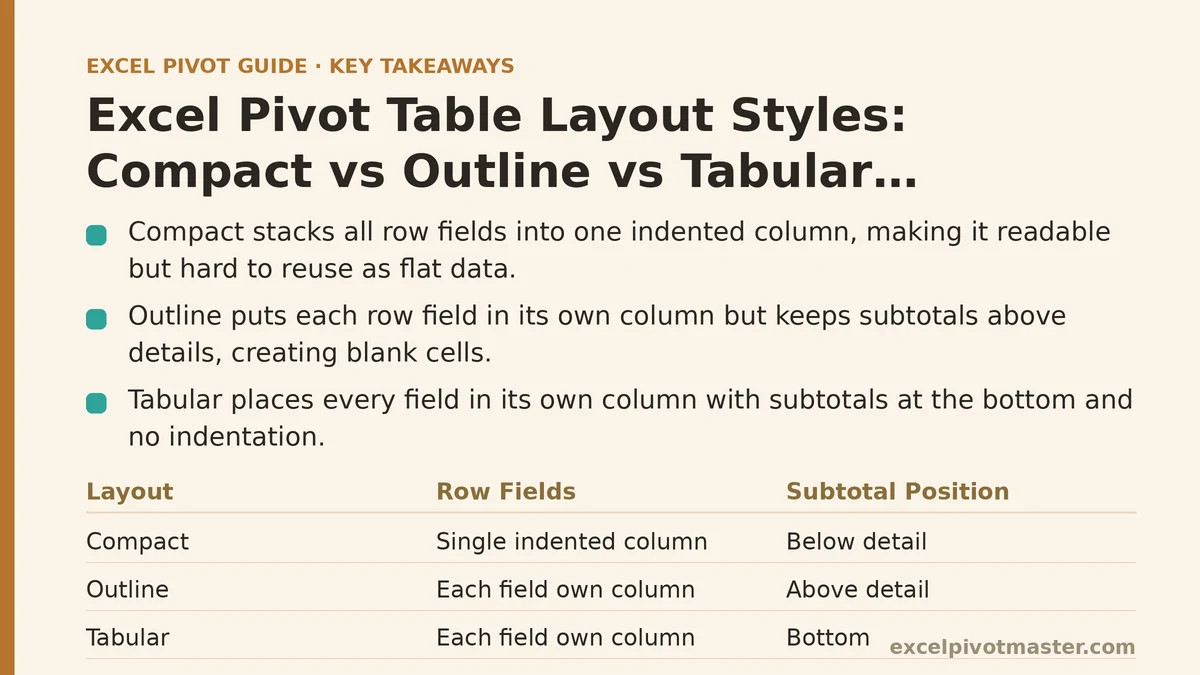
Compact, Outline, and Tabular are the three layout options available under PivotTable Tools → Design → Report Layout, and each one arranges row fields, subtotals, and indentation differently enough that the same dataset can look like three unrelated reports depending on which one you pick. Compact stacks every row field into a single indented column. Outline spreads each row field into its own column but still groups subtotals above their detail rows. Tabular puts every field in its own column with subtotals at the bottom and no indentation at all. None of them changes the underlying numbers. All three change how usable the output is for whatever you’re about to do with it next.
That last part is the piece people miss. The layout you choose determines whether the pivot table reads well on screen, whether it can be copied into another sheet as flat data, and whether the subtotal rows help or get in the way. I want to walk through a real case where all three layouts got tested on the same report, because the differences only become obvious once you see them applied to actual data rather than a description of what each one does.
The Report: Regional Sales Broken Down by Salesperson and Product
The scenario: a sales manager needed a pivot table summarizing revenue by Region, then by Salesperson within each region, then by Product within each salesperson. Three row fields, nested three levels deep, with monthly revenue in the Values area. The manager’s first attempt used whatever layout Excel defaults to for a new pivot table, which is Compact — and the initial result looked reasonable enough that nobody thought to question it.
Here’s what Compact layout produced. A single column labeled “Row Labels” contained everything: Region names, indented Salesperson names beneath each region, and further-indented Product names beneath each salesperson. Subtotals for each salesperson appeared directly below that salesperson’s product list, and a grand total sat at the bottom. Visually, it read like an organized outline — collapsed and expanded with the little plus and minus toggles, easy to scan top to bottom.
The trouble surfaced when the manager tried to copy that pivot table’s values into a separate worksheet to build a chart comparing product performance across regions. Region, Salesperson, and Product were all crammed into one column, so there was no clean way to filter or sort by Product alone without first parsing out which indentation level a given cell belonged to. Compact is built for readability, not for reuse. Once you need the underlying rows as flat, filterable data, that single merged-looking column becomes an obstacle rather than a convenience.
Switching to Outline: Same Data, Different Problem
The next attempt used Outline layout. This splits Region, Salesperson, and Product into three distinct columns, so each field finally has its own header and its own column of values — a meaningful improvement if the goal is treating the pivot output as a data table. Subtotals still appear, but now they sit on their own row above the detail, with the subtotal label occupying the Salesperson column while Region and Product columns for that row remain blank.
This is where the manager ran into a different snag. Copying the data into a new range for a chart, then trying to build a simple bar chart of revenue by Product, produced gaps — because roughly a third of the rows were subtotal rows with blank Product entries, and blank cells don’t plot cleanly on a category axis. The subtotal rows that made the report readable in its pivot form became noise the moment the data needed to be flattened for something else.
Outline also has a habit worth knowing about: unlike Compact, it doesn’t nest Region and Salesperson labels visually through indentation once they’re split into their own columns, but it also doesn’t repeat the Region label down every row for that region’s Salespeople — the Region cell only appears once, on the first row of that group, then goes blank for subsequent rows until the next region starts. That blank space is exactly what causes filtering headaches, since a filter on the Region column will only catch the row where the label happens to sit, not the full block of rows that logically belong to that region.
Tabular Layout Solves the Filtering Problem, at the Cost of Compactness
The third attempt used Tabular layout, and this is where the report finally became usable outside the pivot table itself. Tabular puts Region, Salesperson, and Product each in their own column — same as Outline — but subtotals move to the bottom of each group instead of the top, and there’s an additional setting worth turning on alongside it: Design → Report Layout → Repeat All Item Labels.
With that option enabled, every row carries its own Region and Salesperson value, even when several consecutive rows belong to the same group. No more blank cells scattered through the middle columns. That single change is what made the sales manager’s chart-building task straightforward: select the range, and every row is a complete, self-contained record — Region, Salesperson, Product, and revenue, all present on every line, ready to be pivoted again elsewhere, dropped into a Power Query step, or used as the source for a completely different chart without any cleanup first.
The tradeoff is length. A pivot table with three nested row fields, repeated labels, and subtotals after every group takes up considerably more vertical space in Tabular than the same data does in Compact. For a report meant to be scanned on screen or printed on a single page, that extra length works against you. For a report meant to feed another process, it’s exactly what you want.
What Changed Between the Three Attempts, and Why
Running the same dataset through all three layouts side by side made the underlying logic clear in a way that reading a features list never quite does.
Compact prioritizes vertical density and on-screen scanning. Everything nests into one column, indentation substitutes for separate headers, and the collapse/expand toggles make it fast to drill into one region without wading through the rest. This is the right choice for a report a person will read directly in Excel, especially one with more than two or three levels of row nesting, since additional levels in Outline or Tabular quickly consume a wide swath of columns that Compact keeps contained.
Outline is a middle position that rarely turns out to be anyone’s ideal choice, but it does have a legitimate use: reports where you want distinct columns per field for clarity, without repeating every label on every row, because the subtotal-above-detail arrangement mirrors how a traditional financial outline is formatted. Accounting-style reports, where a reader expects to see a subtotal heading before the line items it covers rather than after, tend to fit Outline’s structure more naturally than Tabular’s.
Tabular is the layout for anything downstream of the pivot table itself — a chart, a VLOOKUP or XLOOKUP reference, a second pivot table built from this one’s output, a Power Query refresh. Once repeated labels are turned on, a Tabular pivot table behaves like a proper flat table, which is precisely the format nearly every other Excel feature expects as its input. The one thing Tabular gives up is compactness; a report with several row fields and frequent subtotals in Tabular form can run several times longer than the same data in Compact.
Applying This Beyond the Case Study
The sales manager’s report settled on Tabular with repeated labels, because the end goal was reuse rather than on-screen reading. But the deciding question isn’t “which layout looks best” — it’s “what happens to this data after it leaves the pivot table.”
If a report exists purely to be read by a person, directly in Excel, with expand and collapse used to explore different regions on demand, Compact will almost always beat the alternatives. If a report is headed toward a chart, a formula reference, or a second data process, Tabular with repeated labels removes friction that would otherwise need to be cleaned up by hand every single time the pivot table refreshes. Outline is worth reaching for specifically when the output needs to resemble a traditional subtotal-first financial statement, and not much beyond that narrow case.
One habit worth building regardless of which layout you land on: check the layout again after adding a new row field to an existing pivot table. A report set up correctly in Tabular with three row fields can behave unexpectedly once a fourth field gets added, since deeper nesting interacts with repeated labels and subtotal placement in ways that aren’t always obvious until you look at the rows directly.
Before your next pivot table, ask which of these three jobs it’s actually doing — a report for a human reader, a feed for another Excel process, or a document meant to resemble a formatted statement — and let that answer choose the layout instead of picking whatever Excel opened with by default. Related guides: Pivot Table Grand Total and Subtotal Customization: Myth vs. Reality, Excel Pivot Table Common Errors and Fixes: A Real Troubleshooting Walkthrough, and Excel Pivot Table Slicers: Beginner Tutorial with Timeline Filters.