By the end of this tutorial you will be able to take any PivotTable value field and express it as a percentage of its parent row, its parent column, or the grand total — and you will know which of those three options produces the number your report needs. The steps are short: right-click a value, open Show Values As, pick a calculation, set the base field. The difficulty is in the last part, because the option names look interchangeable when they are not, and a wrong base field quietly produces a table that adds up to something other than 100%.
The walkthrough below organizes the topic as a series of beliefs that commonly trip people up, set against what the feature does in practice. Work through them in order and you will avoid the two failures that account for most broken percent tables: choosing the wrong parent direction, and leaving the base field at whatever Excel picked automatically.
How the Feature Is Structured
Every Show Values As option works the same way underneath. You select a value field, choose a calculation type, and then tell Excel which field supplies the “parent” whose subtotal becomes the denominator. That third input — labeled Base field (and, for the level-aware options, Base item) — is the one that decides whether your percentages are meaningful.
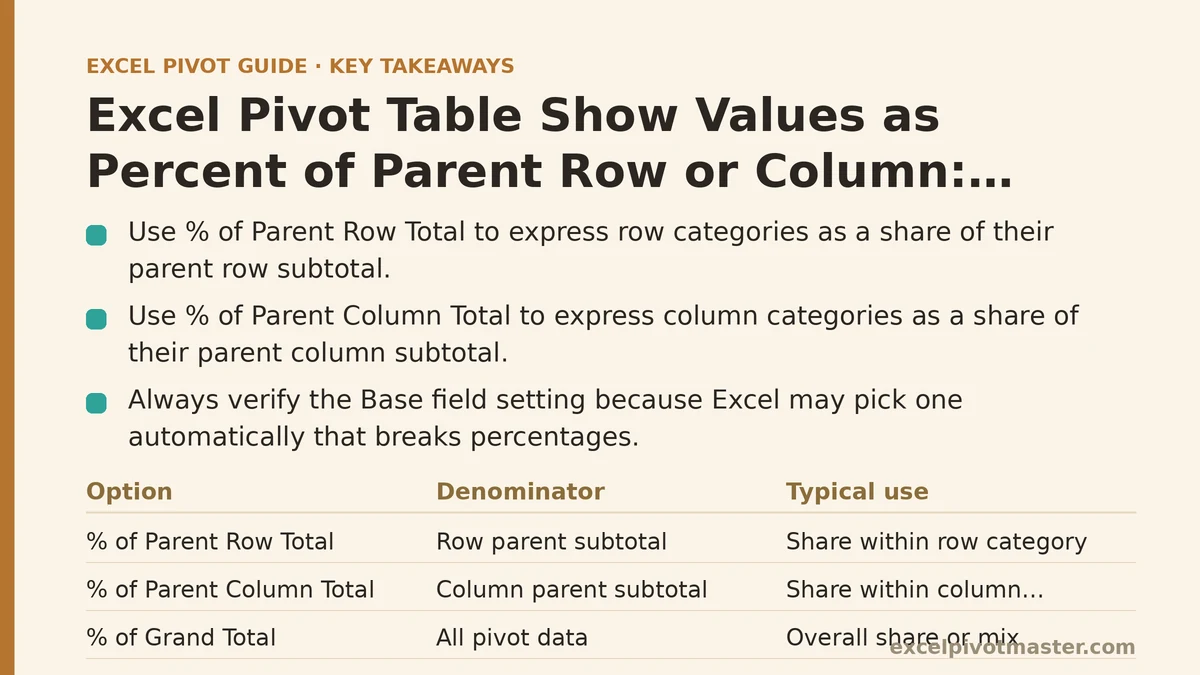
The percent-of-parent family has three members, and they are defined entirely by direction of the comparison:
| Option | Denominator is | Adds up to 100% across | Typical use |
|---|---|---|---|
| % of Parent Row Total | The subtotal of the row’s parent category | Row categories at the chosen level | Share of a region within a country |
| % of Parent Column Total | The subtotal of the column’s parent category | Column categories at the chosen level | Share of a month within a quarter |
| % of Parent Total | The subtotal at a level you specify | Whichever dimension you nominate as base | Flexible; used when you need one specific ancestor |
| % of Grand Total | All data in the pivot | The whole table | Overall market share / mix |
Two more options sit in the same menu — % of Parent Row Total and % of Parent Column Total — and they are the two people ask about most. A fourth, % of Parent Total, is the general version of both: you name the base field and choose the level explicitly, so it can reproduce either behavior or target an intermediate ancestor.
Myth: “Parent Row” and “Parent Column” refer to the axis you are looking at
Reality: They refer to the direction the percentage rolls up, and the wording is inverted relative to how most people read a table.
This is the single most common source of wrong results, so it is worth stating plainly. % of Parent Row Total divides each value by the total of the category it sits under in the row labels. If your rows are Country → City, then each city’s value is divided by its country subtotal, and the cities within a country sum to 100%. It is a vertical roll-up.
% of Parent Column Total divides each value by the total of the category it sits under in the column area. If your columns are Year → Quarter, each quarter’s value is divided by its year subtotal, and the quarters within a year sum to 100%. It is a horizontal roll-up.
The confusion arises because “parent row total” describes the parent located in the rows, not the parent of the row you clicked. If you have a matrix with regions down the side and months across the top and you want each region’s share of its country, you reach for Parent Row Total even though the denominator is a subtotal sitting in the same row block. Direction, not position, is the deciding factor.
Step-by-Step: Applying the Calculation
The mechanics are identical for all three options.
- Click any value cell in the PivotTable (not a row or column header).
- Open the Show Values As menu. In current Excel versions this lives on the PivotTable Analyze ribbon under Show Values As, and it is also reachable by right-clicking the value field header and choosing Show Values As.
- Pick % of Parent Row Total, % of Parent Column Total, or % of Parent Total.
- In the dialog, set Base field to the outer category you want as the denominator — for Country → City, that is Country.
- Set Base item if the option exposes one. Leave it at (previous) only when you intentionally want a level-relative calculation; otherwise choose the specific parent level.
- Click OK and check that each parent group sums to 100%.
The base field must be one of the fields currently placed in the row or column area. Excel will not accept a field that has been removed from the layout, which is why a calculation can suddenly break after you drag a field out of the PivotTable.
Myth: The Base Field is optional and Excel picks a sensible one
Reality: Excel does pick a default, and it is frequently the wrong one for your layout.
When you apply a Show Values As calculation, the base field defaults to whichever field it considers the outermost. In a simple one-field layout that default is often correct. In a two- or three-level layout — Product → Subcategory → Item, or Region → Country → City — the default tends to land higher or lower than the level you intended, and the resulting percentages either sum to 100% at a level you did not want or fail to sum to 100% anywhere.
The check that catches this: collapse the pivot to show only the level you care about. If the visible children under each parent sum to 100%, the base field is right. If they sum to something like 340% or 12%, it is wrong, and you need to reopen the dialog and repoint the base field.
There is a second trap here worth knowing. If you change the row/column layout after applying the calculation — swapping two fields, removing an intermediate level — the stored base field reference can become invalid. Excel usually shows a #N/A or #VALUE! in the value cells rather than an error dialog. Reapplying the calculation after any layout change is the reliable fix.
Myth: Adding a subtotal row to a percent table is harmless
Reality: It double-counts, because the percentages are already relative to the subtotal.
When every child under a parent is expressed as a percentage of that parent, the children already sum to 100%. If you then enable subtotals or a grand total on the same field, the subtotal row shows 100% and the grand total shows the sum of several 100% values — a figure well above 100% with no meaning.
The cleaner layout for a percent table is to hide the subtotals for the parent level entirely. Right-click the field, open Field Settings, choose None under Subtotals, and the percentage children stand on their own. If you need both the raw currency totals and the percentages, the standard solution is to add the value field a second time — once as a plain sum, once with Show Values As applied — so the two sit side by side rather than fighting over the same column.
The Levels Argument: When “Parent” Is Not the Immediate Parent
Excel lets you target an ancestor above the immediate parent by using the Base item field in the dialog, or, for more control, the optional fourth argument in a calculated item. In practice the dialog is enough for most work: when you apply % of Parent Total, Excel exposes a base item list that includes each level of the field hierarchy.
Consider a layout with Region → Country → City. If you want each city as a percentage of its region rather than its country, choose % of Parent Total, set the base field to Region, and every city is divided by the region subtotal. The cities no longer sum to 100% within a country — they sum to the country’s share of the region — which is exactly the intended behavior for a contribution analysis.
The hierarchy level is capped by how many fields are nested. A two-level layout gives you two possible denominators; a three-level layout gives three. Excel will not let you reach above the outermost field, because there is no subtotal there to divide by.
Myth: The percentage format will be applied automatically
Reality: Show Values As changes the value, not the cell format.
After applying the calculation, the cells contain decimal fractions — 0.25 rather than 25%. If the column was previously formatted as currency or general, you will see values like 0.2534 and may assume the calculation failed. It did not; the number is correct and only the display is wrong.
Select the value cells, open Format Cells (Ctrl+1), and choose Percentage with one or two decimal places. Set the format after applying Show Values As, not before, because reapplying the calculation can reset formatting in some Excel versions.
A related display issue: very small percentages show as 0.0% when the format has one decimal place, which can hide the existence of small categories. Two decimal places is the safer default for any percent table built on granular data.
Before and After: What a Correct Percent Table Looks Like
| Check | Wrong setup | Correct setup |
|---|---|---|
| Base field | Left at the automatic default | Set to the specific parent level |
| Parent groups sum to | 340%, 12%, or other non-100 totals | 100% per parent group |
| Subtotal rows | Enabled, showing 100% and inflated grand totals | Disabled for the parent level |
| Number format | General, showing 0.2534 | Percentage, two decimals |
| After layout change | #N/A or #VALUE! in cells | Calculation reapplied; sums to 100% |
Run every row of the right-hand column as a checklist after you build a percent table. Any row where the left side still matches is a table that will be misread.
Common Mistakes and How to Recover
- Wrong direction chosen. If your row-level children are summing to 100% of the grand total rather than of their parent, you likely applied % of Grand Total where you wanted Parent Row Total. Reopen Show Values As and switch the calculation.
- Base field points at a removed field. Dragging a field out of the layout invalidates any calculation that referenced it. Drag the field back or reapply the calculation with a base field that still exists in the layout.
- Percentages do not add up to 100% and you cannot see why. Filtering is the usual culprit — a filter on the parent field changes the denominator. Clear filters on the base field and recheck.
- The table shows raw numbers again after a refresh. Refresh recalculates values but does not always preserve Show Values As across a structural change to the source. Recheck the value field settings after any significant source reshuffle.
- Mixing a sum and a percent in one field. A single field can carry only one Show Values As setting. Add the field twice if you need both views side by side.
Which Option to Reach For: A Quick Decision Path
- Want each child as a share of its parent in the row labels? Use % of Parent Row Total, base field set to the parent category.
- Want each child as a share of its parent in the column labels? Use % of Parent Column Total with the column parent as base field.
- Want a share of a higher ancestor, not the immediate parent? Use % of Parent Total and pick the ancestor level in base item.
- Want overall share across the whole pivot? Use % of Grand Total — no base field needed.
- Unsure which of the three you need? Build the pivot with one row field and one column field first, apply % of Grand Total to confirm the format and number behavior, then switch to the parent option once you understand the direction of the roll-up.
What to Do Next
Open the PivotTable you most recently built and run this three-minute sequence today:
- Add the value field a second time so you keep the raw total visible beside the percentage.
- Apply % of Parent Row Total (or Column, depending on your layout orientation) to the second copy and set the base field explicitly — do not accept the automatic default.
- Collapse to a single parent group and confirm the children sum to 100%. If they do not, reopen the dialog and fix the base field before doing anything else.
- Format the percentage column with Ctrl+1, Percentage, two decimals.
- Disable subtotals for the parent level so the sum-of-percentages problem disappears.
Once those five steps are done, the table is ready to paste into a report without arithmetic on your part. If a later layout change breaks the calculation, the recoverable fix is always the same: reopen Show Values As, repoint the base field, and recheck the 100% sum.
Related guides: Excel Pivot Table Calculated Fields: When They Help and When They Break, Pivot Table Show Values As: Every Option Explained, and Formatting Pivot Tables for Clean Reports: A Practical Checklist.