Say you are pulling together a monthly summary, you update the source sheet, you hit Refresh, and the grand total on screen is still the number you saw twenty minutes ago. You refresh again. Nothing moves. Or worse — the totals do change, but a region you deleted last week is still sitting in the row labels, quietly inflating the sum you are about to paste into a report. Either way, the pivot table is now telling you something about a version of your data that no longer exists.
That gap between what the pivot table displays and what the source data contains is the whole problem. Refresh issues are rarely about Excel being broken. They are usually about a chain of settings, ranges, and caches that each have their own rules for what counts as “current.” Below, the most common beliefs about refreshing are lined up against what is really happening, followed by what to check in what order.
Myth: Refresh pulls in whatever is in your source sheet
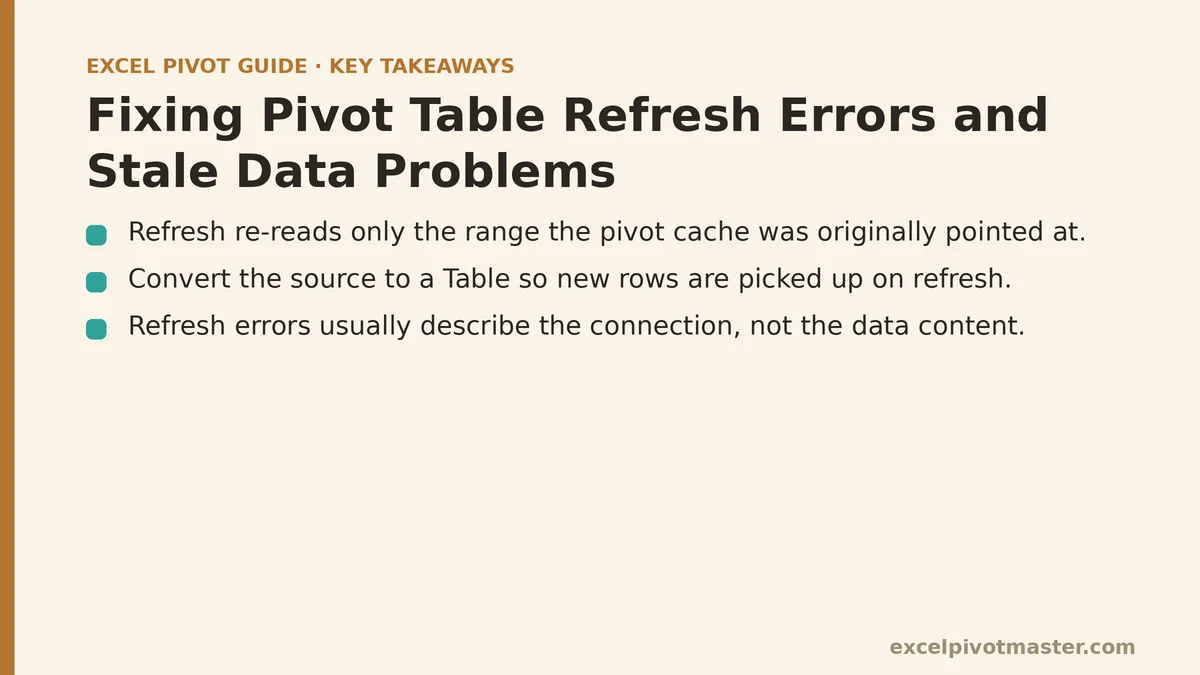
Reality: Refresh re-reads only the range the pivot cache was originally pointed at.
A pivot table is not connected to your worksheet in a live sense. When you first built it, Excel captured a snapshot of a specific cell range — say Sheet1!$A$1:$F$400 — and stored it in a hidden cache object. Every refresh since then re-queries that same rectangle. If you have since added data in column G, or appended 200 rows below row 400, those additions sit outside the rectangle and will never appear, no matter how many times you click Refresh.
This is the most common cause of “my new rows won’t show up,” and it is entirely invisible on screen. The pivot table looks fine. It simply has no awareness that the range moved.
The fix, if your data is a formatted Excel Table: Convert the source to a Table first (select the range, press Ctrl+T, confirm the header row). Tables expand automatically as you type below the last row, and a pivot table built on a Table name picks up the growth on refresh without any manual step. This is the single change that eliminates the majority of range problems permanently.
The fix, if you are stuck with a plain range: Go to PivotTable Analyze → Change Data Source, and reset the range to cover the full extent of your data with room to spare — for example, extend the endpoint to row 5000 even if you only have 400 rows today. Excel accepts blank rows inside the referenced range without complaint, so over-provisioning costs nothing and buys you years of headroom.
Myth: A refresh error means the data is broken
Reality: Most refresh errors are connection or permission messages, not data messages.
When a refresh fails, Excel shows a dialog with a message that sounds alarming — “reference is not valid,” “data source could not be found,” “initialization of the data source failed.” These describe the connection, not the contents of your cells. The underlying values are almost never the issue. Before you start hunting for corrupted rows, read the error for which of these three families it belongs to:
- Range or source missing — the sheet, workbook, or table the cache points at has been renamed, deleted, or moved. Restoring the original name resolves it; so does repointing the cache via Change Data Source.
- External connection failure — the pivot is fed from a database, a CSV on a network share, or another workbook that is currently closed, offline, or password-protected. Reopen the source, confirm credentials, then refresh.
- File locked or read-only — a second user or process has the source workbook open, or the file sits on a share where you lack write permission. Excel needs to write back into the cache during refresh.
Work the family first, then the specific message. Jumping straight to the cell contents wastes the most time in this whole process.
Myth: If Refresh changes the numbers, the table is fine
Reality: A refresh can update totals while stale items stay behind in the cache’s item list.
This is the failure that causes real damage, because it survives a refresh and looks correct. Here is the sequence: you build a pivot table summarizing sales by Region. Later you delete two regions from the source data because they were entered in error. You refresh. The row labels still list those two regions — under them, every value cell is now blank or zero. Your grand total is right. Your row list is wrong, and anyone reading the report believes those regions still exist at some level of activity.
The cause is a pivot cache setting called Number of items to retain per field, which defaults to Automatic. In that mode, Excel keeps old field items in the cache list so that filters and layouts do not break when data shifts. It is a durability feature that doubles as a staleness trap.
The fix: Right-click the pivot table → PivotTable Options → Data tab → change “Number of items to retain per field” from Automatic to None. Click OK, then refresh. The orphan items disappear from the row labels and filter dropdowns. Set this at build time on any pivot table whose source data gets rows deleted, not just appended.
Myth: One refresh covers every pivot table in the workbook
Reality: Refresh applies to the cache the table is built on, and multiple pivot tables can share or not share that cache depending on how they were created.
If you built three pivot tables by copying and pasting the first one, or by using the same source range through the PivotTable wizard, they typically share a single cache — refresh one and the others follow. If you built them independently at different times, each has its own cache reading the same range. Refresh one and the other two go stale silently. The workbook looks internally consistent and is not.
How to check: Select a cell in each pivot table in turn and look at the PivotTable Analyze ribbon. Use Change Data Source to see what range each one points at, or use PivotTable Options → Data to see the cache behavior. If you want to force unification, delete the extra tables and rebuild them from the first one by copying the finished table and re-pointing it.
The shortcut for a workbook-wide refresh: Press Alt+F5 (or Ctrl+Alt+F5 for a full refresh including all caches) to refresh every pivot table in the workbook at once. This is worth knowing even if you only have one table today.
Myth: Unchecking “Refresh data when opening the file” saves time
Reality: It saves a few seconds at open and costs you the guarantee that the numbers are current.
PivotTable Options → Data → Refresh data when opening the file is off by default in some setups. Leaving it off means the table shows whatever was in the cache the last time you saved — which could be weeks old. If you share the workbook, colleagues open it and read stale totals without any warning on screen. The setting is the difference between a report and a snapshot.
Turn it on for any pivot table that lives in a file someone else opens. The cost at open is proportional to the size of the source range — a few thousand rows refreshes in well under a second; a hundred thousand rows may take a noticeable pause, but a pause is preferable to a wrong number.
Myth: Refreshing is enough — the chart will follow
Reality: Pivot charts and linked slicers do not always refresh in step with their source table.
A pivot chart built directly on a pivot table generally updates when the table does. A regular chart whose series happen to reference pivot output cells is a different animal — it reads the cells, and if the pivot table’s row count changed (three regions last month, five this month), the chart’s series range may not have grown to cover them. The chart will show the old shape of the data while the table beside it shows the new one.
The check: After every refresh, look at the axes and legend of any chart sitting next to a pivot table. If the category count does not match the pivot’s row count, reset the chart’s source range. Slicers connected to a pivot table refresh with the table, but slicers connected to a different cache in the same workbook do not — the same shared-versus-separate-cache logic from above applies.
A Decision Path for “My Refresh Isn’t Working”
Work these in order. Each one eliminates a block of possible causes.
- Did the numbers change at all? If no — the range is wrong or the source is unreachable. Check Change Data Source and confirm the file or connection is live.
- Did the numbers change but new rows are missing? The data lies outside the cached range. Convert to a Table or extend the range.
- Did the numbers change but old items remain in labels or filters? The cache is retaining stale items. Set “Number of items to retain per field” to None and refresh again.
- Do other pivot tables in the workbook disagree? They have separate caches. Refresh all with Ctrl+Alt+F5, then consider unifying them.
- Does an error dialog appear before anything changes? It is a connection, permission, or file-lock problem. Resolve the source access first; the data contents are not implicated.
- Do charts or slicers lag behind the table? Reset chart source ranges; rebuild slicer connections so they share the pivot’s cache.
Before and After: What Correct Refresh Behavior Looks Like
| After updating source data and refreshing | Stale table | Correctly configured table |
|---|---|---|
| New rows appended below the old range | Do not appear | Appear immediately |
| Deleted categories | Still listed in row labels | Removed from row labels and filters |
| Error dialog | Appears if source is unreachable | Same — this is a source problem, not a fixable cache setting |
| Shared workbook opened by a colleague | Shows last-saved numbers | Shows current numbers (if “refresh on open” is on) |
| Pivot chart next to the table | May show old category count | Matches the table row-for-row |
The right-hand column is what you should be seeing after every refresh. If any row on the left matches your situation, work the decision path above until it moves across.
What to Do Next
Open the workbook you refreshed most recently and check three settings in this order, today:
- Change Data Source — confirm the pivot is pointed at the full current range, or better, at a named Excel Table.
- PivotTable Options → Data → Number of items to retain per field — set to None on any table whose source data has rows deleted.
- PivotTable Options → Data → Refresh data when opening the file — turn on if the file is shared.
Those three checks take under a minute each and close the most common paths by which a pivot table quietly serves old numbers. If a refresh problem persists after all three, note which step in the decision path it fell into and what the error message said — that combination points to the specific cause faster than rechecking settings you have already ruled out.
Related guides: Excel Pivot Table Common Errors and Fixes: A Real Troubleshooting Walkthrough, Pivot Table Not Showing All Data: Fix Guide for Every Cause, and Pivot Table Not Refreshing: Common Causes and Fixes.