Plenty of Excel users drop a field into the Values area, see it labeled “Count of Customer” or “Count of Order ID,” and assume the number staring back at them represents how many distinct customers or orders exist in the dataset. It doesn’t. That number is a count of rows — every occurrence, duplicates included. If the same customer placed six orders, they get counted six times, and the resulting total tells you almost nothing about how many unique customers you actually have.
This mismatch between what people expect and what the pivot table delivers causes more confusion than almost any other pivot table behavior. Below, we’ll walk through the most common myths about counting unique values in pivot tables, correct each one, and show the fixes that actually solve the problem rather than just producing a different wrong number.
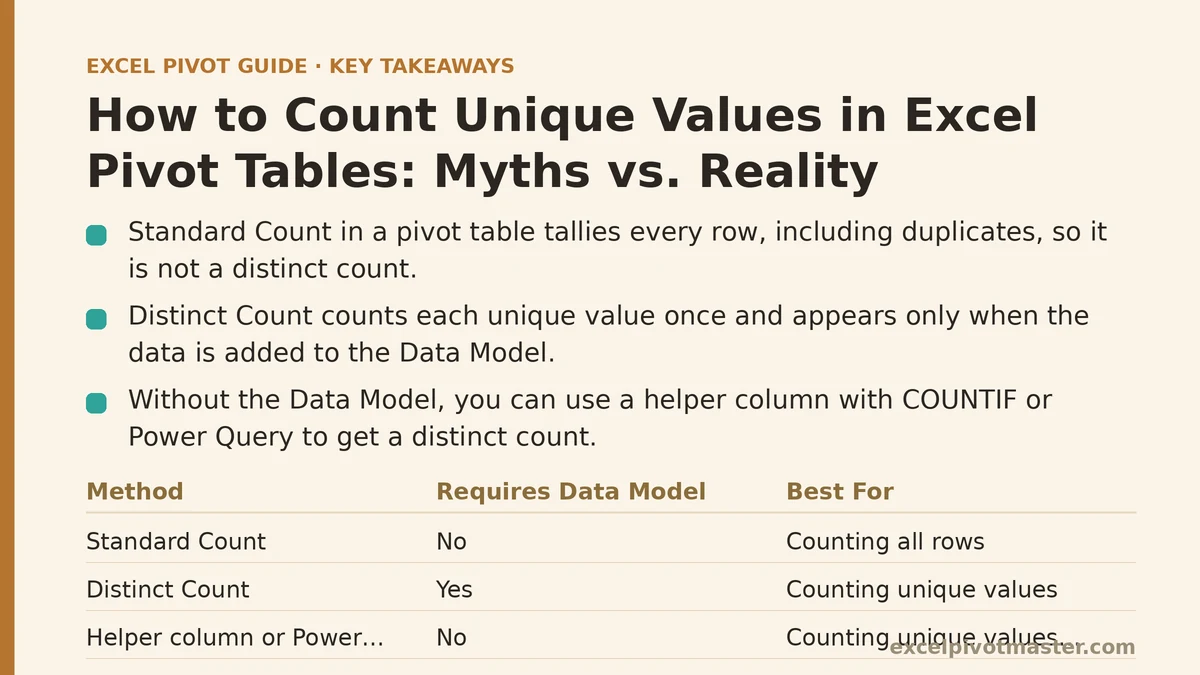
Myth: “Count” and “Distinct Count” are the same calculation with different names
Reality: They measure entirely different things, and Excel treats them as separate value field settings for good reason.
Standard “Count” — the one available by default when you drop a text or mixed field into the Values area — tallies every row that contains a value in that field. Ten transactions from the same customer produce a count of ten, not one. It’s answering “how many records are here,” not “how many distinct entities are represented.”
“Distinct Count,” by contrast, counts each unique value exactly once regardless of how many times it repeats in the source data. That customer with six orders contributes a single unit to the distinct count of customers, while still contributing six units to a plain count of orders. Confusing the two leads to wildly inflated numbers — a report claiming three hundred unique clients when the real figure is closer to eighty.
Myth: Distinct Count is a standard option available in every pivot table
Reality: It only shows up once your data has been added to the Data Model, which is not the default state for a pivot table built from a normal Excel range.
When you build a pivot table the ordinary way — select your range, insert a pivot table, leave the checkbox for “Add this data to the Data Model” unchecked — Excel gives you the usual lineup of summary functions: Sum, Count, Average, Max, Min, and a handful of others. Distinct Count isn’t among them. It requires the underlying data to live in the Data Model, which is Excel’s Power Pivot engine running quietly in the background.
To get there, either check that Data Model box at the moment you create the pivot table, or select your range, go to Insert, and choose PivotTable, making sure the Data Model option is enabled before you click OK. Once the data lives in the model, right-click any value field, choose Value Field Settings, and Distinct Count will appear in the list of summary functions alongside the familiar ones.
Myth: If you skip the Data Model, you’re stuck with no way to count unique values
Reality: There are two workable paths that don’t require the Data Model at all — one uses a helper column, the other uses Power Query.
The helper column approach works well for smaller datasets. In your source data, add a column with a formula like =IF(COUNTIF($A$2:A2,A2)=1,1,0), which flags the first occurrence of each value with a 1 and every repeat with a 0. Drop that helper field into your pivot table’s Values area, set it to Sum, and you get a distinct count without touching the Data Model.
For larger datasets, or ones that need to refresh regularly, Power Query’s Group By feature is the sturdier option. Load your data into Power Query, use Group By on the field you want to analyze, and choose “Count Distinct Rows” as the aggregation. This produces a clean, pre-aggregated table you can then feed into a pivot table or use directly, and it handles large volumes far more efficiently than a row-by-row helper column formula.
Myth: Once set up, Distinct Count always reflects the full dataset
Reality: Distinct Count recalculates within whatever filter context is currently applied, the same way any other pivot table value does.
Add a slicer for Region, select just one region, and the distinct count of customers updates to reflect only the customers who appear within that filtered slice — not the total across your entire dataset. This is exactly the behavior you want most of the time, since a report titled “Unique Customers by Region” should show a number specific to each region rather than a repeated grand total. But it catches people off guard when they expect a fixed reference number and instead see it shift every time they touch a filter or slicer.
If you need a distinct count that stays anchored to the full dataset regardless of what’s filtered elsewhere in the report, that calls for a DAX measure using CALCULATE combined with DISTINCTCOUNT, explicitly removing filters with ALL on the fields you want excluded from the filter context. The default behavior is filter-sensitive by design; overriding it takes an intentional DAX formula, not a setting you toggle.
Myth: Blank cells, spaces, and capitalization don’t affect a distinct count
Reality: All three can quietly inflate the number, and none of them announce themselves as the cause.
A blank cell in the field you’re counting distinctly is usually treated as its own unique value, meaning a column with two hundred filled entries and five blanks might report two hundred and one distinct values instead of two hundred, since every blank collapses into a single counted category rather than disappearing. That’s often the intended behavior, but only if you know it’s happening.
Trailing or leading spaces cause a subtler problem: “Chicago” and “Chicago " with an invisible space at the end read as two different values to a distinct count, even though a human glancing at the list would see one city. The same goes for inconsistent capitalization in some contexts, depending on how the values were entered. Before trusting a distinct count that looks suspiciously high, run TRIM across the source column to strip stray spaces, and scan for near-duplicate entries that differ only in formatting rather than substance.
Choosing the Right Approach for Your Situation
| Situation | Recommended Method |
|---|---|
| Small dataset, one-time analysis | Helper column with COUNTIF |
| Large dataset, needs regular refresh | Power Query Group By with Count Distinct Rows |
| Ongoing reporting with slicers/filters | Data Model with Distinct Count field |
| Need a distinct count unaffected by filters | DAX measure using DISTINCTCOUNT with CALCULATE and ALL |
None of these methods is universally “better” than the others — they’re suited to different constraints. A helper column costs nothing in setup time but doesn’t scale gracefully past a few thousand rows. The Data Model route takes a couple of extra clicks up front but pays off the moment you need the number to update automatically as filters change.
What does your dataset look like right now — a one-off report you’ll build once, or a recurring dashboard that needs to stay accurate as new data comes in? That distinction alone will usually point you to the right method before you write a single formula.
Related guides: Pivot Tables vs. SUMIF Formulas: A Beginner’s Guide to Building Your First Pivot Table in Excel, Power Query vs Pivot Tables: When to Use Each (Ranked by Task), and How to Create Percentage of Total in Excel Pivot Tables (And Fix It When It’s Wrong).