Most people assume that connecting a pivot table to an external source — another workbook, a database, a text file, a SharePoint list — works the same way as building one from a normal Excel range, just with an extra step to point it at the file first. It doesn’t. A pivot table built on a local range and a pivot table built on an external connection are fundamentally different objects under the hood: one stores its data in a pivot cache that lives entirely inside the workbook, and the other stores a connection string and query definition that has to successfully re-execute every single time you refresh.
That difference is the reason external-source pivot tables break so much more often than ordinary ones. The pivot table itself isn’t fragile — the connection is. Below are the questions that come up most often when people set this up for the first time, in roughly the order they surface.
What actually happens when I connect a pivot table to an external source?
When you go to Insert → PivotTable and choose an external data source instead of a range already in your workbook, Excel creates a connection object — either a legacy connection or, in newer versions, a Power Query query — that stores the location of the source, the credentials or authentication method needed to reach it, and (for databases) the query used to pull the data.
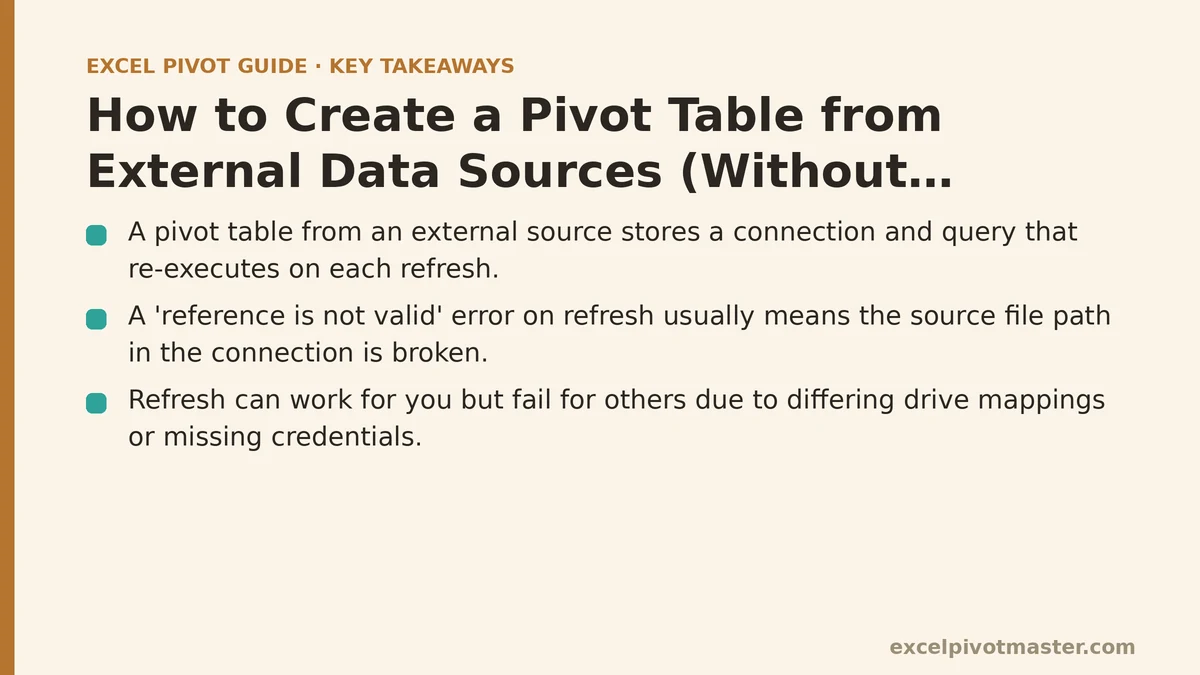
The pivot table itself is built from whatever that connection returns the moment you create it. From that point forward, refreshing the pivot table doesn’t reread anything already inside the workbook — it re-runs the connection from scratch, reaches out to the external file or server, pulls a fresh copy of the data, and rebuilds the pivot cache from that result. Every failure mode covered below traces back to some part of that round trip breaking.
Why does my pivot table say “reference is not valid” when I try to refresh it?
This is almost always a path problem. If your source is another Excel workbook and that workbook has been moved, renamed, or deleted since the connection was created, Excel has no way to locate it — the connection string points to an address that no longer resolves to anything.
Check this by opening Data → Queries & Connections, right-clicking the connection, and choosing Properties. The Definition tab shows the exact file path Excel is trying to reach. If that path points to a location the file no longer occupies — a folder that got reorganized, a file moved to a different drive, a workbook renamed — update it there and refresh again.
A related version of this problem shows up with networked files. If the source lives on a shared drive or SharePoint site and the mapped drive letter differs between your machine and a colleague’s, the same workbook will refresh fine for one person and fail for the other, even though nothing about the source file itself has changed.
Why does the refresh work for me but fail for someone else who opens the same workbook?
This is one of the more frustrating issues, and it’s rarely about the pivot table at all. Three things typically cause it:
The first is drive mapping, as mentioned above — a path like Z:\Reports\data.xlsx only resolves correctly on machines where Z: happens to point to the same shared location.
The second is credentials. Connections to databases, and to some cloud sources, can store or prompt for authentication, and if a colleague doesn’t have the same access rights to the underlying source, the connection will fail for them even though the workbook opens without issue.
The third is a missing driver or provider — an ODBC or OLE DB driver that’s installed on your machine but not on theirs, which is common when the data source is an older database format or a specialized system that isn’t part of a standard Office install.
If a refresh fails inconsistently across different machines, check these three in order: path, credentials, driver. One of them is almost always the cause.
How do I stop the pivot table from erasing my custom column widths and number formats every time I refresh?
This happens because of a setting that controls how much of the pivot table’s appearance gets rebuilt from scratch on each refresh, and it’s easy to fix once you know where it lives.
Right-click inside the pivot table, choose PivotTable Options, and go to the Layout & Format tab. Uncheck “Autofit column widths on update” and make sure “Preserve cell formatting on update” is checked. With both set correctly, a refresh pulls in new data without resetting the visual work you’ve already put into the report.
Skip this step and every refresh quietly undoes your formatting, which trains people to distrust the refresh button entirely — nobody wants to click something that wrecks their layout, so they stop refreshing, and the report goes stale without anyone deciding that should happen.
Why do new columns in my source data not show up in the pivot table’s field list?
If the external source is a growing table — new columns added periodically, not just new rows — the pivot table needs to know the data’s shape has changed, not just its content.
For a connection built on a defined table or named range, adding a column beyond what was originally captured means the connection’s query doesn’t know that column exists. Refreshing the pivot table refreshes the data within the previously defined boundaries, but a new column sitting outside that boundary gets silently ignored.
The fix depends on how the connection was built. If it’s a Power Query connection, open the query editor, and check whether the source step references a fixed range or an actual Excel Table — a proper Table object expands automatically to include new columns, while a fixed range does not. If it’s a legacy connection built directly on a range, redefine the source to point at an Excel Table instead, since Tables are the one structure in Excel designed specifically to grow without needing manual redefinition.
Why does refreshing sometimes take dramatically longer than it used to, with no obvious change to the data?
A slow refresh on an external source usually comes down to one of two things: the amount of data being pulled has grown substantially since the connection was set up, or the query itself is doing more work than it needs to.
Check first whether the source has simply grown — a database table with a few thousand rows a year ago might hold a few hundred thousand now, and no connection setting fixes that; it’s a genuine increase in the volume being transferred.
If the data size hasn’t grown proportionally to the slowdown, look at the query. A connection that pulls every column and every row from a source table, only to have the pivot table use a fraction of those fields, is doing unnecessary work on every refresh. Trimming the query — whether that’s a SQL statement limiting columns and applying a WHERE clause, or a Power Query step removing unused columns before the data reaches the pivot cache — often cuts refresh time significantly, since the heavy lifting happens before the data ever reaches Excel.
Should I use “Refresh on Open” or leave refresh entirely manual?
It depends on how current the data needs to be and how reliable the connection is.
Refresh on Open (found in Connection Properties, under the Usage tab) makes sense when the source updates frequently and stale data would actually mislead whoever opens the report — a daily sales dashboard pulling from a live database is a reasonable candidate. The tradeoff is that if the connection is unreliable or slow, every person opening the file experiences that delay or failure, whether or not they need fresh data at that moment.
Manual refresh makes more sense when the source updates infrequently, when the connection is known to be flaky, or when the workbook gets opened often just for reference rather than for the latest numbers. In that case, a clearly labeled “Data as of [date]” note near the pivot table communicates the same thing Refresh on Open would attempt automatically, without the risk of the file hanging on open if the source happens to be unreachable.
Is there a way to make the refresh fail gracefully instead of throwing an error that confuses people?
Not entirely — Excel doesn’t offer a built-in “try to refresh, and if it fails, quietly skip it” option for standard pivot table connections. But you can reduce how disruptive a failure looks.
In Connection Properties, under the Usage tab, there’s an option to control background refresh behavior. Enabling “Enable background refresh” lets the workbook remain usable while a refresh is in progress, rather than freezing the interface, which at least prevents a slow or hanging connection from making the whole file appear unresponsive.
Beyond that, the more durable fix is documentation, not settings: a note near the pivot table naming the source, the expected refresh cadence, and who to contact if a refresh fails — so that when someone does hit an error, they have context for what’s broken instead of guessing at a connection they’ve never seen configured.
Quick Reference: Common External Source Refresh Problems
| Symptom | Likely Cause | Fix |
|---|---|---|
| “Reference is not valid” on refresh | Source file moved, renamed, or deleted | Update the path in Connection Properties |
| Works for you, fails for a colleague | Drive mapping, credentials, or missing driver | Check path, access rights, and installed drivers in that order |
| Formatting resets after every refresh | Autofit/formatting options in PivotTable Options | Uncheck autofit, check “Preserve cell formatting” |
| New source columns don’t appear | Connection built on a fixed range, not a Table | Rebuild the source reference as an Excel Table |
| Refresh has slowed down significantly | Data volume growth or an inefficient query | Trim the query to needed columns and rows before it reaches Excel |
A pivot table built on an external source is only as dependable as the connection feeding it, so most of the troubleshooting above isn’t about the pivot table at all — it’s about the path, the credentials, and the query sitting underneath it. Get those three things stable, and the pivot table on top tends to take care of itself.
What kind of external source are you connecting to — another workbook, a database, or something cloud-based? The failure points differ enough between them that it’s worth narrowing down before chasing the wrong fix. Related guides: Pivot Table vs Power Query: When to Use Which, Power Query Group By Beginner Tutorial: Summarize Data Like Pivot Tables, and Power Query Unpivot Columns: A Beginner Tutorial for Pivot-Ready Data.