A lot of people assume a running total inside a pivot table requires a helper column in the source data — some kind of SUMIF formula that adds up everything up to and including the current row, calculated before the data ever reaches the pivot table. That workaround exists because plenty of Excel users never discover the alternative, but it isn’t necessary. Pivot tables have a running total calculation built directly into the Value Field Settings, no helper column required, and it updates automatically every time the underlying data changes or the report gets refreshed.
The feature works well once it’s set up, but it has several failure points that trip people up almost every time: totals that reset unexpectedly partway down the list, numbers that shift when a filter gets applied, and running totals that only make sense if the rows are sorted in a particular order first. Below are the questions that come up most often, answered in the order you’d likely run into them.
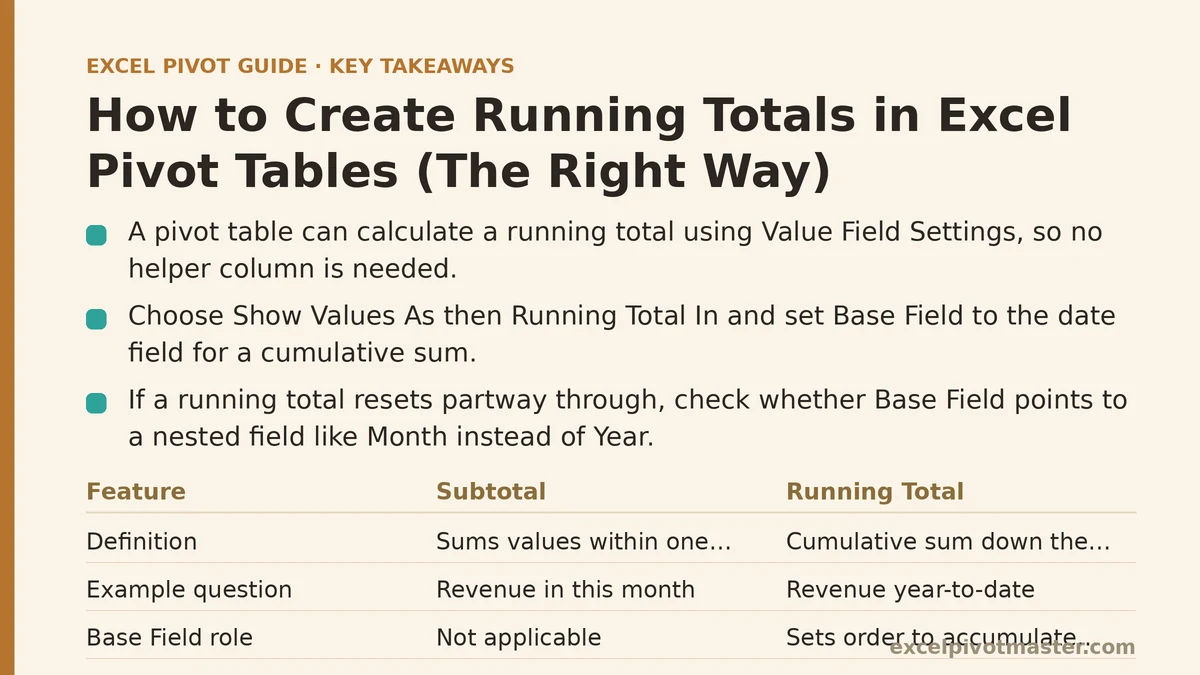
What’s the difference between a running total and a regular subtotal?
A subtotal sums the values within one group and stops there — it tells you what a single category, region, or month added up to, on its own, isolated from everything before or after it.
A running total does something different: it keeps a cumulative sum going down the rows, so each row shows not just its own value but everything that came before it added together. Row three doesn’t just show what happened in period three — it shows periods one, two, and three combined. That distinction matters for questions like “how much revenue have we generated year-to-date by this point” rather than “how much revenue did we generate in this specific month.”
How do I actually turn on a running total?
Right-click any value inside the field you want to accumulate, and choose Show Values As. From the dropdown, pick Running Total In.
A second dropdown appears labeled Base Field — this is where you tell Excel what order to accumulate the values in. Nine times out of ten, this should be your date field, since running totals almost always answer a question tied to time (running total by month, running total by day, and so on). Select it, click OK, and the value column immediately switches from showing isolated period values to showing the cumulative sum through each row.
One detail worth double-checking before you trust the output: the source data needs to already be in the order you want the total to accumulate in. A pivot table calculates the running total based on the current row order in the report, so if your rows are sorted incorrectly, the running total will faithfully accumulate them in the wrong sequence.
Why does my running total reset partway through instead of continuing?
This is the single most common complaint, and it almost always comes down to one setting: a second field sitting in the Base Field box alongside — or instead of — the date field.
If your row area has both Year and Month, and Base Field is set to Month alone, Excel treats each year as its own separate accumulation and restarts the total the moment a new year begins. That’s sometimes exactly what you want — a running total that resets every January makes sense for a lot of annual reporting. But if your goal is one continuous total spanning multiple years with no reset, the fix is to make sure Base Field is pointing to the field that represents your full timeline, not a field nested inside a larger grouping that causes Excel to treat each group as independent.
If resets are happening in a field where there’s no visible grouping at all, check whether the underlying data has an invisible category — a hidden field in the Field List, or a filter quietly slicing the data into segments — that’s producing the same restart behavior without an obvious cause.
Can a running total carry across multiple groups, like spanning several years without breaking?
Yes, and this is usually just a matter of picking the right Base Field. If Year and Month both sit in your row area, but you want one uninterrupted line running from January of the first year through December of the last, set Base Field to Month, but make sure Month is unique across the full range — meaning your underlying data distinguishes “January 2025” from “January 2026” rather than lumping every January together as the same value.
If your source data only stores Month as a number from 1 to 12 with no year attached, that ambiguity is exactly what causes the reset, since Excel can’t tell January of one year from January of another. The fix at that point isn’t in the pivot table settings — it’s back in the source data, where you’d want a proper date field or a combined Year-Month field that sorts and accumulates correctly without collapsing years together.
Why did my running total change after I applied a filter?
Because a running total is calculated against whatever rows are currently visible in the report, not against the full underlying dataset. Filter out a region, and the running total recalculates using only the remaining rows — row five’s cumulative value now reflects four prior visible rows instead of whatever it included before the filter was applied.
This is expected behavior, not a bug, but it catches people off guard because the number on screen looks like it should represent a fixed, permanent accumulation. It doesn’t. It represents the accumulation of exactly what’s currently displayed. If you need a running total that stays fixed regardless of filtering, that requirement usually points toward a DAX measure in the Data Model rather than the standard Show Values As option, since DAX measures can be built to reference the full table independent of filter context.
Can I apply a running total to a calculated field, like a profit margin or ratio?
Technically yes, but the result is rarely meaningful. Running totals work by adding values together in sequence, and a ratio or percentage doesn’t behave sensibly when summed — a running total of profit margins across five months produces a number that doesn’t correspond to anything real, since margins aren’t additive the way revenue or unit counts are.
Running totals belong on additive measures: revenue, units sold, transaction counts, cumulative expenses. If you’re trying to track how a ratio changes over time, a line chart showing the ratio per period, without any running total applied, communicates the trend far more accurately than an accumulated version of a number that was never meant to be added up.
How do I show the running total next to the original period value, instead of replacing it?
Drag the same field into the Values area a second time, so you have two copies sitting side by side. Leave the first copy showing the plain, unmodified value — this preserves the per-period number. Right-click the second copy, apply Show Values As → Running Total In as described above, and optionally rename it something like “Cumulative Total” so the two columns are easy to tell apart at a glance.
This side-by-side layout tends to communicate more clearly than the running total alone, since a reader can see both what happened in a given period and where that period leaves the cumulative picture, without needing to do mental subtraction between two rows to figure out the individual contribution.
What if the rows aren’t in the right order to begin with?
Check the sort settings on whatever field sits in your row area before you trust the accumulation. Right-click a row label, and confirm it’s sorted in the sequence you actually need — usually ascending by date. A pivot table sorted alphabetically, or sorted by a value column instead of chronologically, will still generate a running total; it just won’t mean anything useful, since it’ll be accumulating rows in whatever order they happen to appear rather than the order the calculation assumes.
This is a quiet failure mode because the running total column doesn’t display an error or a warning — the numbers look perfectly plausible, they’re just wrong, since they’re built from a sequence that doesn’t match the real timeline.
A Quick Reference for Common Running Total Problems
| Symptom | Likely Cause | Fix |
|---|---|---|
| Total resets partway down | Grouping field included in Base Field | Point Base Field at the field representing the full timeline |
| Numbers change after filtering | Expected — total reflects visible rows only | Use a DAX measure if a filter-independent total is needed |
| Total spans years incorrectly | Month field lacks year distinction | Combine Year and Month, or use a full date field |
| Running total on a ratio looks wrong | Ratios aren’t additive | Apply running totals only to additive measures |
| Total accumulates in the wrong order | Row sort doesn’t match intended sequence | Sort the row field chronologically before trusting the total |
Most running total problems trace back to one of two things: a Base Field that’s grouping the data in a way you didn’t intend, or a row order that doesn’t match the sequence the calculation assumes. Check those two settings first, and the majority of “my running total is wrong” cases resolve without needing to touch the source data at all.
Related guides: How to Create Percentage of Total in Excel Pivot Tables (And Fix It When It’s Wrong), How to Count Unique Values in Excel Pivot Tables: Myths vs. Reality, and How to Create Your First Pivot Table in Excel: A Complete Beginner’s Guide.