Most people treat a pivot table like any other range of cells when it comes to formatting — select the block, apply a rule, done. That assumption is exactly backwards, and it’s why so many beautifully designed pivot tables fall apart the moment someone touches a slicer. A pivot table isn’t a static grid; it’s a dynamic object that reshapes itself constantly, and formatting applied the “normal” way simply can’t keep up with that movement.
One common scenario involves a project manager who builds an almost perfect pivot table to track team hours. It summarized every employee’s time against each project phase, and with a slicer, she could instantly switch between different projects. But it had one fatal flaw that made her hesitant to share it with her director.
She had tried using conditional formatting to automatically flag potential problems — employees logging too many hours on one task, or phases that looked suspiciously under-resourced. But every time she used the slicer or refreshed the data, her carefully applied formatting would scramble, highlighting the wrong cells or disappearing altogether. She was fixing it by hand every morning before her director saw it.
Her problem is one of the most common pivot table frustrations I run into: applying formatting the way you would to a normal range of cells, without realizing that a pivot table demands a different mindset entirely. The fix isn’t a hidden button somewhere — it’s a shift from formatting static cells to formatting a dynamic data field.
A Case Study: Sarah’s Project Tracking Pivot Table
To understand the solution, let’s walk through Sarah’s exact scenario. Her goal wasn’t just to display data — she wanted the report to immediately draw attention to what mattered.
Her pivot table was simple:
- Rows: Employee Name
- Columns: Project Phase (e.g., Planning, Development, Testing)
- Values: Sum of Hours
Her business rules were clear:
- Any instance of an employee logging more than 40 hours in a single phase for a given project should be flagged bright red.
- Data bars should show the relative workload of each employee in each phase, making imbalances easy to spot at a glance.
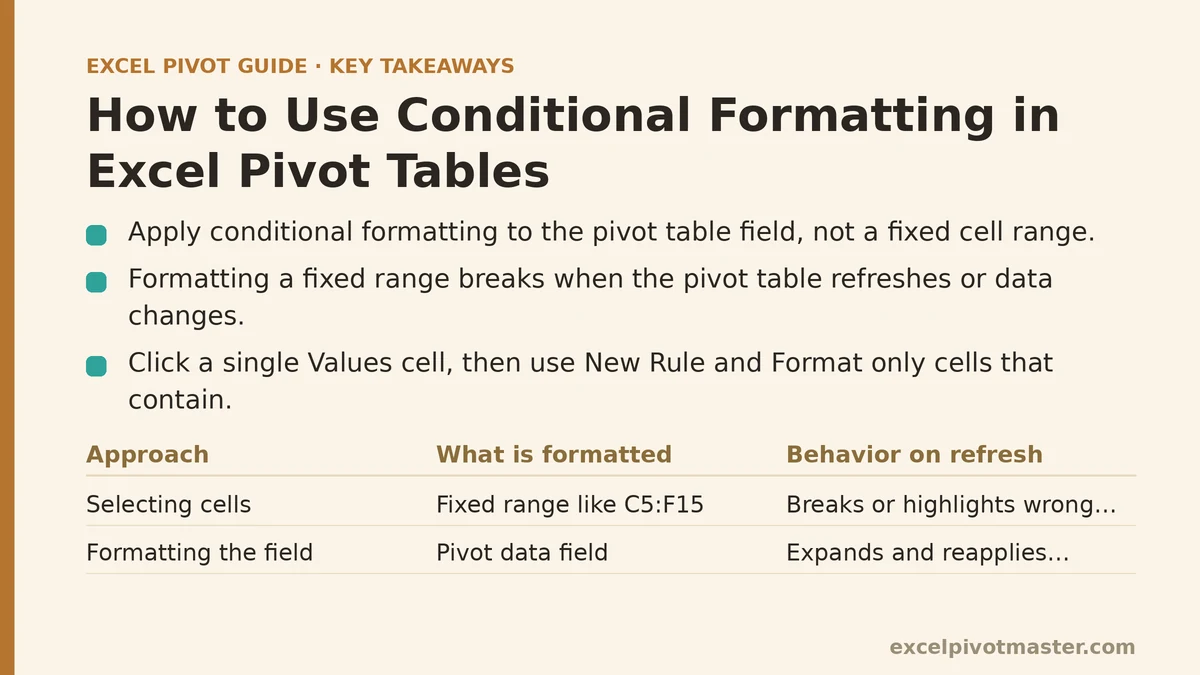
Her first attempt involved selecting the values area of the pivot table (for example, the range C5:F15) and applying the rules from the Home tab. It looked great — right up until the underlying data updated, a new employee was added, and the range C5:F15 no longer covered the correct cells. This is the sand trap almost everyone falls into at some point.
The Right Way: Formatting the Data Field, Not the Cells
The permanent, dynamic solution is to apply the formatting rule not to a fixed range of cells, but to the pivot table field itself. This anchors the rule to the data, so it automatically expands, contracts, and reapplies itself correctly no matter how the pivot table is filtered, sliced, or refreshed.
Here’s the step-by-step process we used to fix her report.
Step 1: Applying the “Over 40 Hours” Rule
First, we tackled the critical “over 40 hours” alert.
How to do this: Instead of selecting the whole data range, click on a single cell inside the Values area of your pivot table (any cell with a number in it works fine).
- Go to the Home tab, click Conditional Formatting, and select New Rule.
- In the “New Formatting Rule” dialog box, select the rule type: “Format only cells that contain”.
- In the rule description below, leave the first dropdown as “Cell Value”. Change the second to “greater than” and type 40 in the box.
- Click Format… and choose a bright red fill color. Click OK.
Now comes the part that actually matters. Before clicking OK on the main dialog, look at the very top. There’s a button or dropdown labeled “Apply rule to:”. By default, it says “Selected Cells.” This is the setting you need to change.
Click on it, and three options appear. The one you want is the third, which reads something like “All cells showing ‘Sum of Hours’ values for ‘Employee Name’ and ‘Project Phase’”.

Selecting this tells Excel: don’t apply this rule to a static block of cells — apply it to any value that ever appears in the “Sum of Hours” data field, period.
The moment we made that change, the pivot table lit up with red flags permanently and correctly anchored to the underlying data.
Step 2: Adding Data Bars for Relative Comparison
With the critical alerts in place, we layered on a second visual cue for at-a-glance comparison. The process is nearly identical, just with a different rule type.
How to do this: Again, with a single cell in the Values area selected:
- Go to Home > Conditional Formatting > Data Bars and pick a color (Gradient Fill Blue works well here).
- This applies the rule instantly, but its scope still needs verifying. Head to Conditional Formatting > Manage Rules.
- You’ll now see two rules listed: your “Cell Value > 40” rule and the new “Data Bar” rule.
- Select the Data Bar rule and click Edit Rule. Confirm its “Apply rule to:” setting is also set to “All cells showing ‘Sum of Hours’ values…”. Excel usually gets this right by default when you add data bars, but it’s worth double-checking.
With both rules now running simultaneously, Sarah’s pivot table gave a proportional sense of the numbers through the data bars, while the red fill acted as a specific, overriding alert whenever a value crossed the critical threshold.
The Payoff: A Truly Dynamic, Interactive Report
The real test came when we used the slicer. Sarah clicked on “Project Alpha,” and the pivot table instantly reconfigured to show only the four employees on that project. The conditional formatting re-evaluated without a hitch — the data bars adjusted their scale relative to the new maximum value on screen, and the red highlighting appeared only where hours for that specific project actually exceeded 40.
She clicked “Project Beta,” and the whole thing happened again, flawlessly. She refreshed the entire data source after adding a new employee, and the new row showed up in the pivot table with every formatting rule already in place.
That’s the difference. Tie the formatting to the pivot table’s own structure, and it becomes a living part of the report rather than a fragile, painted-on layer.
Why This Method is Non-Negotiable for Pivot Tables
Applying formatting to a static range like C5:F15 in a pivot table is like building a house on a beach. It looks fine for a moment, but the first time the tide — your data — shifts, the foundation washes away.
Applying formatting to the pivot table field, by contrast, is like pouring a concrete foundation. It becomes part of the structure. The data can change, the table can grow or shrink, but the foundation — and your formatting — stays intact and keeps doing its job. It’s the only approach that lets you hand off a dashboard or report with real confidence it won’t break the moment someone else starts clicking around in it.
What’s the single most important metric in your pivot tables that needs to stand out visually? Tell me what it is and whether you’re trying to spot high values, low values, or just relative differences, and the best formatting rule for the job can be suggested.
Related guides: How to Create a Pivot Chart from Pivot Table: A Complete Visual Guide, Data Model Relationship Errors in Excel Pivot Tables: 7 Common Failures and How to Troubleshoot Them, and How to Count Unique Values in Excel Pivot Tables: Myths vs. Reality.