The most common misconception about pivot tables is that they are connected to your worksheet. They are not. A pivot table is connected to a cache, and that cache is anchored to a fixed rectangle of cells captured when you built the table. Change anything outside that rectangle and the pivot has no way of knowing. This is why new rows added below your data never appear no matter how many times you press Refresh.
The correction is straightforward: build the pivot on an Excel Table (Ctrl+T) instead of a plain cell range. A Table is a named, self-expanding object. Add a row below the last one and the Table grows; the pivot reads the Table name, so the pivot grows with it on the next refresh. No manual range edits, ever.
The rest of this guide is organized as a checklist. Each entry names a symptom you might be seeing, explains the cause, and gives the fix. Work through the entries that match your situation rather than reading start to finish.
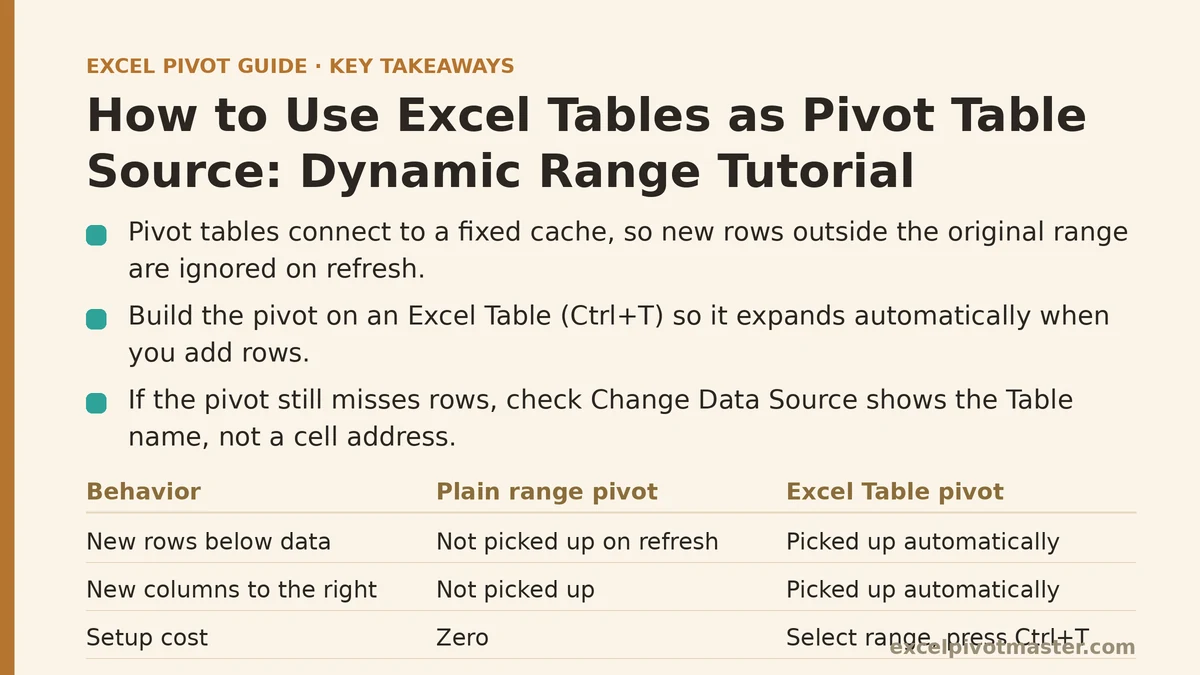
Quick Reference: Plain Range vs. Excel Table as Pivot Source
| Behavior | Pivot built on plain range | Pivot built on Excel Table |
|---|---|---|
| New rows added below the data | Not picked up on refresh | Picked up automatically |
| New columns added to the right | Not picked up; requires Change Data Source | Picked up automatically |
| Source range after inserting a row mid-data | Range may shift unpredictably | Table handles it without breaking |
| Formula references to the source | Must be updated manually | Use structured references, auto-adjust |
| Named in the PivotTable wizard as | Sheet1!$A$1:$F$400 | SalesData or Table1 |
| Deleting a row inside the data | Range shrinks but pivot may not follow | Table shrinks; refresh reflects it |
| Setup cost before building the pivot | Zero | Select range, press Ctrl+T |
If your pivot currently reads a range like Sheet1!$A$1:$F$400, converting to a Table is worth the two-minute investment on nearly any data set that will receive new rows.
Symptom: You Add a New Row and the Pivot Ignores It
Cause: The pivot cache points at a fixed cell address, not a named object. When you first built the pivot, Excel captured the rectangle of cells you selected — for example, rows 1 through 400 in columns A through F. Data appended in row 401 sits outside that rectangle. Refresh re-reads the exact same rectangle and finds nothing new.
Fix, if the source is not yet a Table:
- Click any cell inside your source data.
- Press Ctrl+T (or Insert → Table).
- Confirm the “My table has headers” checkbox if your first row contains field names.
- Click OK. Excel applies a default table style and gives the table a default name (Table1, Table2, and so on).
- Select a cell in the new Table, then go to Insert → PivotTable. The Table name appears in the Table/Range box automatically.
- Build the pivot as normal.
From now on, typing in the row directly beneath the last data row extends the Table. Pressing Refresh (or opening the file, if “refresh on open” is enabled) pulls the new rows into the pivot.
Fix, if the source is already a Table but the pivot still misses rows: Check the pivot’s source. It may have been built on the underlying cell range before the Table was created, which means the pivot does not recognize the Table as its source. Open PivotTable Analyze → Change Data Source and confirm the box shows the Table name, not a cell address. If it shows a range, type the Table name in place of it and click OK.
Symptom: The Table Grows but the Pivot Still Misses the Last Row
Cause: Usually one of two things. Either the row was added with a blank cell somewhere in the middle of the Table, which sometimes breaks automatic expansion if AutoCorrect’s “Include new rows and columns in table” option is off; or the pivot simply has not been refreshed yet.
Fix, in order:
- Press Refresh first. Ctrl+Alt+F5 refreshes every pivot cache in the workbook. Alt+F5 refreshes only the active table’s cache. If the row appears, you are done.
- Check AutoCorrect options. File → Options → Proofing → AutoCorrect Options → “AutoFormat As You Type” tab. Confirm “Include new rows and columns in table” is checked. Without this, typing below a Table does not always extend it.
- Extend the Table manually if needed. Click the small resize handle at the bottom-right corner of the Table and drag down one row. Any content pasted into the new row becomes part of the Table.
- Check for blank rows inside the Table. A completely blank row inside a Table is unusual but legal, and it can confuse the automatic row detection when you type below. Delete blank rows before adding new data.
Symptom: You Convert an Existing Range to a Table and the Pivot Breaks
Cause: Converting a range to a Table does not automatically repoint any pivot that was built on that range. The pivot still references the old cell addresses. If the column structure stayed the same, the pivot may still work but will not benefit from Table growth. If you also inserted or rearranged columns during conversion, the pivot may now show the wrong fields.
Fix:
- Do not rebuild the pivot yet. Open PivotTable Analyze → Change Data Source.
- In the Table/Range box, replace the cell address with the Table name. If you do not know the name, click inside the Table and read it from the Table Design ribbon (top-left “Table Name” field).
- Click OK.
- Refresh (Ctrl+Alt+F5).
The pivot is now bound to the Table and will expand as the Table does. Existing field layouts, calculated fields, and number formats are preserved through this change.
Recovery note: If you rebuilt the pivot before repointing its source, you may now have two pivots sharing a cache in an unexpected way. Delete the older duplicate to avoid the shared-versus-separate-cache problem covered further down.
Symptom: The Table Name Disappears from the Pivot Source Box
Cause: The Table was renamed or deleted. Renaming a Table does not break the pivot’s link — Excel updates the reference — but deleting the Table, or converting it back to a plain range using Table Design → Convert to Range, severs the link. The pivot then either points at a stale cell range or shows a refresh error.
Fix: Recreate the Table if it was deleted (select the range, Ctrl+T, give it the same name if you want the pivot to reconnect). If the pivot still refuses to refresh, open Change Data Source and either type the new Table name or select the Table on the sheet. Any formulas that previously used structured references like =SUM(SalesData[Amount]) will also need the Table to exist under the original name. If you renamed the Table before converting to a range and formulas broke, check them for #REF! errors and rewrite the references against the new Table name.
Symptom: Multiple Pivots on the Same Table Behave Differently
Cause: Two pivots can share one cache or hold separate caches even when both point at the same Table. Tables built by copying and pasting an existing pivot usually share a cache, so refresh one and the other follows. Tables built independently at different times each carry their own cache. Refresh one and the other silently shows stale data.
Fix: Check each pivot’s cache behavior individually.
- Select a cell in the first pivot. If you want a workbook-wide refresh in one keystroke, press Ctrl+Alt+F5.
- To consolidate caches, use PivotTable Analyze → Change Data Source on the second pivot and repoint it at the same Table name. This alone does not always merge caches; rebuilding the second pivot by copying the first one does.
- To reduce the number of pivots, consider whether the same Table can feed a single pivot with slicers or report filter pages instead of separate tables.
Symptom: A Formula That Referenced the Old Range Returns Wrong Values
Cause: Formulas like =SUM(A2:A400) were written against the original cell addresses. Once the source becomes a Table, the range in the formula does not expand with the Table. New rows past row 400 are silently excluded from the sum.
Fix: Rewrite the formula using structured references. Instead of =SUM(A2:A400), write =SUM(SalesData[Amount]), where SalesData is the Table name and Amount is the column header. As the Table grows, the structured reference grows with it. Anywhere you previously hardcoded a range that should track the Table, replace it with a structured reference.
Watch for: Named ranges that pointed at the original cell range. Those do not expand either. If you use a named range as a data source for charts or as an intermediary, redefine it in Formulas → Name Manager to reference the Table column rather than a fixed address.
Symptom: Inserting a Column Inside the Table Breaks the Pivot Layout
Cause: The Table absorbs the new column (that is the point of Tables), but the pivot was configured with a specific field list. Adding a column changes the field list, and Excel may not automatically place the new field anywhere. Your pivot still shows the old fields — good — but adding the new one requires a manual step.
Fix: Open the PivotTable Fields pane. The new column appears in the field list at the top. Drag it into the appropriate area (Rows, Columns, Values, or Filters). No need to refresh the source range; the field is already there. If the field list is missing, refresh the pivot with Alt+F5.
Common mistake: Confusing “inserting a column inside the Table” with “inserting a column outside the Table.” If you insert three columns to the right of the Table’s last column, those are outside the Table and will not be picked up. To add data columns, insert them inside the Table’s left and right edges.
Symptom: The Table Shows a Total Row That Duplicates the Pivot Grand Total
Cause: Excel Tables support an optional Total Row that sits one row below the last data row. It is a Table feature, not a data feature. If you build a pivot on the Table, the grand total in the pivot and the Total Row in the source both compute the same number — a visual duplication.
Fix options:
- Turn off the Total Row. Click inside the Table, go to Table Design, and uncheck “Total Row.” The Table shrinks back to data-only rows, and the pivot’s grand total is the only total on screen.
- Keep the Total Row as a sanity check. Side-by-side totals can be useful: if the pivot’s grand total and the Table’s Total Row ever disagree, they are reading different rows. This is a quick visual check that the pivot’s source range is correct.
Either approach works. The Total Row is included in the Table reference by default, so a pivot reading the Table name sees the total as a data row unless you exclude it — turning off the Total Row is the cleaner option.
What to Check Before Building Any Pivot on a Table
Run through this list once per new data set. It takes under two minutes and saves repeated range maintenance later.
- Headers are in row 1 with no blank rows above. Tables cannot merge with a title row above the header row. Delete title rows before creating the Table.
- Every column has a distinct header. Duplicate headers cause Excel to auto-suffix them (Amount2, Amount3), which pollutes the pivot field list.
- No blank rows inside the data. Blank rows inside a Table are legal but interfere with auto-expansion and can silently drop data from the Table’s row count.
- No blank columns inside the data. Same problem, harder to spot.
- The Table name is meaningful. Table1, Table2, and similar defaults are fine for a single Table, but on a workbook with multiple sources use names like SalesData, ReturnsData, CustomerList. You will type these names into formulas and pivot source boxes.
- Convert to a Table with Ctrl+T before inserting the pivot. Retro-converting forces you to repoint existing pivots, which is a few extra steps. Doing it first avoids the whole category of problems.
Common Mistakes When Working with Tables as Pivot Sources
- Building the pivot on a cell range, then converting to a Table later. The pivot does not auto-repoint. You must open Change Data Source and enter the Table name manually.
- Assuming the pivot refreshing on open is enough. Refresh on open reads the Table’s current contents, but if the Table itself was not extended (rows pasted outside it), refresh has nothing new to read.
- Renaming the Table and not updating formulas. Structured references like
SalesData[Amount]will return#REF!if SalesData is renamed without updating the reference. Excel’s Find and Replace can fix this quickly across the workbook, or use Name Manager. - Converting the Table back to a range “to simplify” and breaking every pivot that depends on it. Convert to Range severs the link. If you only wanted to remove table styling, use Table Design → Table Styles → None instead.
- Deleting a Table because the styling is unwanted. Deleting a Table removes the underlying data range entirely. To remove only the styling, clear the Table Style via the ribbon.
What to Do Next
Pick the workbook you most recently rebuilt a pivot in, and run this sequence today:
- Click inside the source data. If the Table Design ribbon appears at the top, the Table exists. If it does not, press Ctrl+T to create one.
- Open PivotTable Analyze → Change Data Source. Confirm the source box shows the Table name (SalesData, Table1, and so on), not a cell address like
Sheet1!$A$1:$F$400. - If it shows a cell address, type the Table name in its place and click OK. Refresh with Ctrl+Alt+F5 to confirm the pivot updates.
- Turn on “Refresh data when opening the file” (PivotTable Options → Data) if the workbook is shared.
That four-step pass closes the most common path by which a pivot table falls out of sync with its source. Once the source is a Table, new rows and new columns on the Table feed through on the next refresh with no range editing at all.
Related guides: Pivot Table Not Refreshing: Common Causes and Fixes, Fixing Pivot Table Refresh Errors and Stale Data Problems, and Pivot Table Not Showing All Data: Fix Guide for Every Cause.