Say you are trying to turn a year’s worth of transaction-level accounting data into something a finance director can glance at and understand in ten seconds — revenue by month, expenses by category, a variance against budget, maybe a running total for the year to date. The raw export from your accounting system has none of that. It has one row per transaction, a date column, an account name, and an amount, sometimes with negative numbers for credits and positive for debits, sometimes not even consistent about that.
A pivot table can get you from that raw export to a clean financial summary faster than any formula-based approach, but only if you set it up in the right order. Skip a step — say, forgetting to fix the sign convention before you build the report — and you’ll spend an hour debugging numbers that look wrong for reasons that have nothing to do with the pivot table itself. Below is the sequence I’d walk through, in the order it actually needs to happen.
Step 1: Get the Source Data Into a Proper Table Structure
Before you touch the Insert menu, make sure your data is arranged the way a pivot table expects: one header row, no merged cells, no blank rows breaking up the range, and no subtotal rows already baked into the export. Accounting exports are notorious for including a “Total” row at the bottom of each account, which a pivot table will happily treat as just another transaction and add into your totals, quietly doubling your numbers.
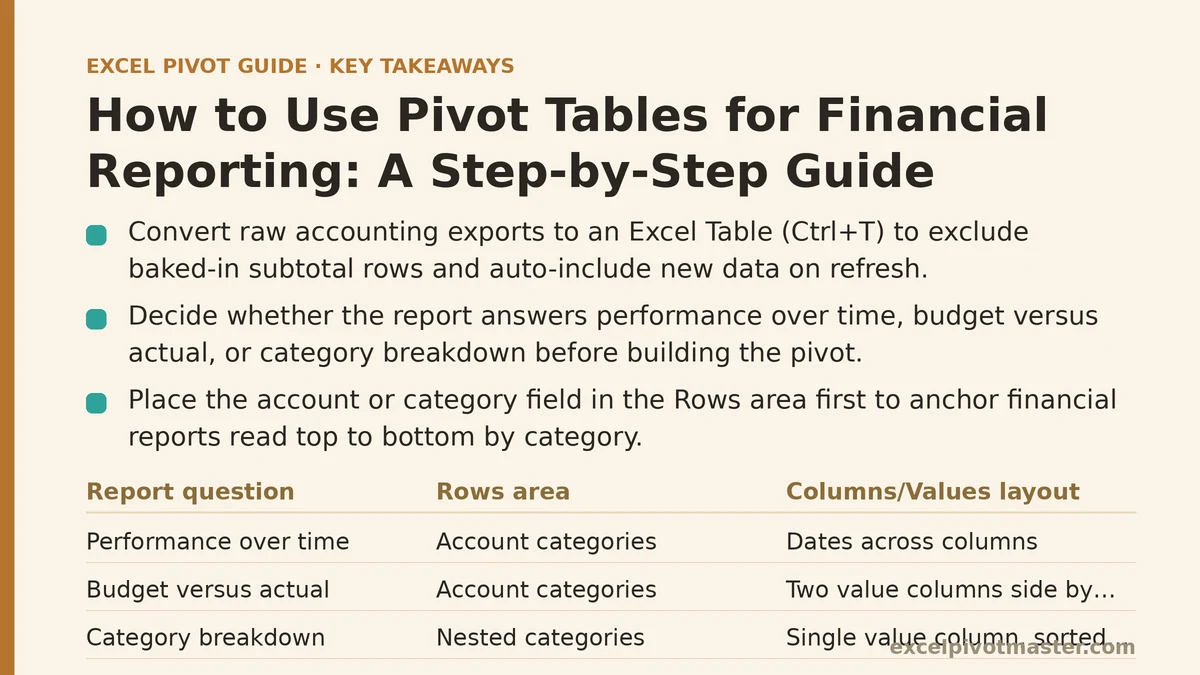
Select the full range and convert it to an Excel Table (Ctrl+T). This does two things that matter specifically for financial reporting: it forces consistent column headers, which prevents the pivot table from misreading a shifted column, and it means any new transactions added later — next month’s data, for instance — get included automatically the next time you refresh, without you needing to reset the source range.
Step 2: Decide What the Report Needs to Answer Before You Build Anything
This step gets skipped constantly, and it’s the reason so many financial pivot tables end up cluttered with fields nobody reads. A financial report usually needs to answer one of three questions: how did we perform against a prior period, how did we perform against budget, or what’s the breakdown by category within a single period. Each of those implies a different layout.
A performance-over-time report wants dates across the columns and account categories down the rows. A budget-versus-actual report wants two value columns side by side rather than a time breakdown. A category-breakdown report wants a single value column with categories nested in the rows, sorted largest to smallest. Pick one of these before you open the PivotTable dialog, because retrofitting a report built for the wrong question usually takes longer than starting over.
Step 3: Build the Base Pivot Table With Account Category in Rows
Insert the pivot table, and put your account or category field in the Rows area first — not the date field, not the amount field. Financial reports are read top to bottom by category (Revenue, Cost of Goods Sold, Operating Expenses, and so on), so that’s the structural anchor everything else attaches to.
Drag Amount into the Values area. It will default to Sum, which is correct for financial totals — resist the temptation to change it to Average or Count unless you have a specific reason, since averaging financial line items rarely produces a number anyone asked for.
At this point you’ll have a bare-bones list of categories with a total next to each one. It won’t look like a finished report yet, but the structural skeleton is right, and everything from here is refinement rather than rebuilding.
Step 4: Fix the Sign Convention Before You Add Anything Else
If your source data mixes signs — expenses stored as negative numbers in one export and positive in another, or revenue and refunds both showing as positive — check this now, while the pivot table is still simple. A financial report where expenses accidentally add instead of subtract will produce a bottom-line total that’s wrong in a way that isn’t obvious just from looking at it.
The cleanest fix happens back in the source data: a helper column that standardizes the sign based on account type, using something like an IF formula tied to a lookup table of account categories. Fixing it in the pivot table after the fact, through calculated fields or manual sign flips, tends to be fragile and breaks the next time the source data structure shifts slightly. Five minutes spent here saves an afternoon of “why doesn’t this total match the general ledger” later.
Step 5: Add the Time Dimension With Grouping, Not a Manual Date Field
Drag your date field into Columns, then right-click any date value in the pivot table and choose Group. Group by Month, and add Year as well if your data spans more than one calendar year — grouping by Month alone across multiple years will merge every January together, which is rarely what a financial report needs.
This is also the point where you decide whether the report should show every month individually or roll up to quarters. For a board-level summary, quarters often communicate better; for an operations review, monthly detail usually matters more. You can select both Month and Quarter in the grouping dialog if you want a report that shows monthly columns with quarter subtotals inserted automatically.
Step 6: Add a Running Total for Year-to-Date Figures
Right-click the Amount field a second time and drag another copy into Values, so you have two columns per period: the standalone monthly figure and a cumulative one. On the second copy, right-click, choose Show Values As, then Running Total In, and set the Base Field to your date grouping.
This gives readers both numbers without forcing them to do mental addition — what happened this month, and where that leaves the year-to-date position. For financial reporting specifically, year-to-date figures usually matter more than any single period in isolation, since budget tracking and forecasting both depend on the cumulative view rather than a monthly snapshot.
Step 7: Add a Variance Column If You’re Comparing to Budget
If you have a separate budget figure sitting in your source data — or in a second table you can bring in through the Data Model — add it as a second value field alongside Actuals. Then insert a calculated field for the variance: Actual minus Budget, or Actual divided by Budget minus one if you want a percentage rather than a dollar figure.
Right-click any value in the pivot table, choose Fields, Items & Sets, then Calculated Field, and build the formula referencing your existing fields by name. Percentage variance tends to read better for line items with wildly different dollar magnitudes, since a $500 miss on a $2,000 budget line and a $500 miss on a $200,000 budget line mean very different things, and a flat dollar variance column hides that distinction.
Step 8: Apply Financial Number Formatting Consistently
Right-click any value in the Values area, choose Value Field Settings, then Number Format, and set it explicitly rather than relying on whatever formatting the source cells happened to carry over. Negative numbers in parentheses rather than with a minus sign, a consistent number of decimal places, and thousand separators are the baseline expectation for anything a finance audience will look at.
Do this for every value field individually — the Actual column, the Budget column, and the Variance column each need their own formatting pass, since Excel doesn’t automatically apply one field’s format to another just because they sit next to each other.
Step 9: Clean Up the Layout So It Reads Like a Report, Not a Data Dump
Go to Design, then Report Layout, and switch to Tabular Form with subtotals repeated at the top of each group. This is the layout closest to how financial statements are traditionally formatted, with category labels running down the left and clear subtotal lines breaking up the sections.
Turn off Grand Totals for columns if the report doesn’t need a single all-time figure, and turn off the +/- expand buttons under PivotTable Options if the report is meant to be viewed rather than interactively explored. A report with visible expand toggles looks like a working file, not a finished document — small detail, but it’s the kind of thing that separates a report someone forwards to leadership from one that gets sent back with formatting notes.
Step 10: Refresh Discipline and What to Check Every Period
Set the pivot table to refresh on file open (PivotTable Options, Data tab) so it never gets presented with stale numbers from the last time someone happened to hit refresh. But don’t treat refresh as a substitute for reviewing the output — after each refresh, check that your account categories haven’t shifted (a renamed account in the source system will show up as a brand new row rather than merging into the existing category), and that new transactions haven’t introduced a sign convention issue you haven’t seen before.
This step matters more than it sounds like it should, because financial reports built on pivot tables tend to run unattended for months at a time, and the failure mode isn’t a crash — it’s a subtotal that’s quietly wrong because a new expense account showed up with the opposite sign from everything else in its category.
What Each Step Is Actually Protecting Against
| Step | If you skip it |
|---|---|
| Table structure (Step 1) | Baked-in subtotal rows double-count in your totals |
| Sign convention (Step 4) | Expenses add instead of subtract, bottom line is wrong |
| Date grouping (Step 5) | Multiple years of “January” collapse into one bucket |
| Consistent number formatting (Step 8) | Report reads as a spreadsheet, not a financial statement |
| Refresh discipline (Step 10) | New accounts silently break the sign or category structure |
Financial reporting pivot tables fail less often because of Excel mechanics and more often because a step got done out of order — formatting applied before the sign convention was fixed, or a running total added before the date grouping was finalized. Work through the sequence above in order once, and the report tends to stay stable through months of refreshes without needing to be rebuilt from scratch.
Related guides: Pivot Tables vs. SUMIF Formulas: A Beginner’s Guide to Building Your First Pivot Table in Excel, A Beginner’s Step-by-Step Guide to Creating Your First Data Model Relationship in Excel, and How to Add Slicers to Your Pivot Table: A Beginner’s Step-by-Step Checklist.