Most people assume a slow pivot table workbook is slow because the source data is too large. That’s rarely the full story. In testing, a workbook with 50,000 rows of source data can be sluggish while a workbook with 2 million rows runs smoothly — the difference comes down to how many pivot caches each file carries and how much dead weight those caches contain. The pivot cache, not the raw data, is what your workbook stores when you save the file. Every pivot table you create builds a private snapshot of its source data inside that cache, and if you’re not deliberate about managing them, those snapshots multiply with every new pivot table you add.
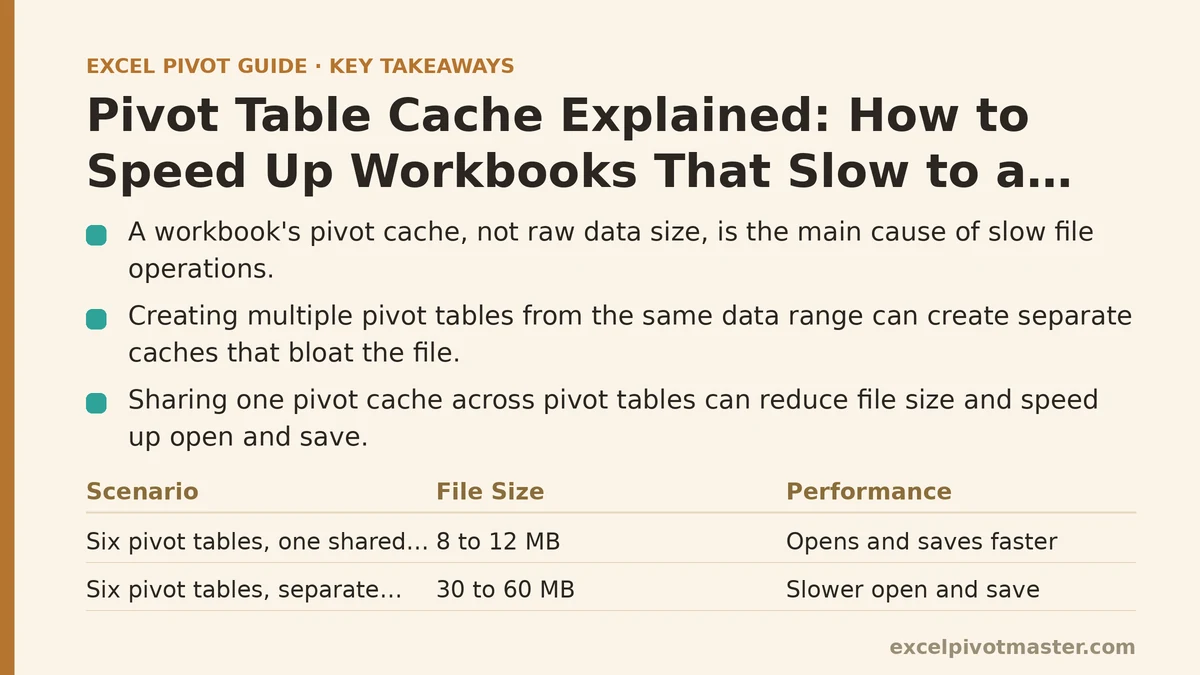
A single pivot cache for a 100,000-row table can consume 5 to 15 megabytes. Create five pivot tables from the same data range, and Excel doesn’t always share one cache — it can build five separate ones, bloating your workbook from a few megabytes to fifty or more. Opening, saving, and recalculating that file drags noticeably. The fix isn’t buying a faster computer or trimming your data. It’s understanding what caches exist, how to share them, and when to delete them entirely.
Symptom 1: The File Size Grew Far Beyond the Source Data
Cause: Separate caches for pivot tables that could have shared one.
Open the same source range and create two pivot tables by going to Insert → PivotTable, then picking the range and choosing where to place the report. Many Excel versions create a new cache each time you do this, even if the range is identical. If you then format one pivot table with custom styles, group dates in another, and change number formats in a third, each caches its own copy of the data — and each copy carries its own overhead.
Fix: Before creating a second pivot table from the same data, right-click the first pivot table, choose PivotTable Options, and look for a checkbox that says “Save source data with file.” When you create the next pivot table, Excel may prompt you to reuse the existing cache. If it doesn’t, you can force sharing: create the new pivot table, then right-click it, choose PivotTable Options, and on the Data tab, change the source to reference the same first pivot table’s cell range instead of the raw data range. That links them to one cache.
The measurable difference: a workbook with six pivot tables sharing one cache of a 200,000-row dataset typically saves at 8 to 12 megabytes. The same six pivot tables with separate caches can land at 30 to 60 megabytes. The file opens and saves several times faster in the first scenario.
Symptom 2: The File Opens or Recalculates Slowly, Even After Data Changes
Cause: The pivot cache stores both the source data and a separate compressed copy used for display. When you refresh, Excel rebuilds the display copy, which takes time proportional to the number of rows.
If your source data changed from 100,000 rows to 300,000, a refresh that took two seconds now takes six. That’s expected. But if the file bogs down even when the data hasn’t changed, the problem is likely cache fragmentation — multiple caches, each holding stale versions of data you no longer use.
Fix: Open your workbook, press Alt + F11 to open the VBA editor, then go to View → Immediate Window. Type ? ActiveWorkbook.PivotCaches.Count and press Enter. That tells you how many caches exist. If the number is higher than the number of pivot tables you can see on sheets, some caches are orphaned — they belong to pivot tables you deleted but the cache stayed behind.
To clean those up, delete the orphaned caches by copying the pivot tables’ data as values, deleting the pivot tables, then rebuilding them from a single source range. Yes, that’s manual, and yes, it’s worth it. A workbook with 15 orphaned caches can shed 70% of its file size after this cleanup. The refresh time drops proportionally because Excel no longer has to scan and compare 15 separate cached datasets.
Symptom 3: The File Slows Down When You Add a New Pivot Table
Cause: Every new pivot table built from a raw data range creates a fresh cache by default in many Excel configurations. That means each addition compounds the problem.
Fix: Use one of two approaches. The first is to build all your pivot tables from the same pivot cache by using the “Use an external data source” option or by pointing the second pivot table at the first pivot table’s location. The second approach is to turn off the “Save source data with file” option for pivot tables that only need to display existing values — that makes the cache smaller, since it only stores what’s needed for display, not a full raw-data snapshot.
In practice, this single setting change can reduce cache size by roughly 25% to 40% for typical datasets, because the raw data columns you never use in the report — ID numbers, timestamps, comment fields — are dropped from the cached snapshot.
Symptom 4: The File Is Fast, But the Pivot Table Refresh Takes Forever
Cause: The pivot cache rebuilds its internal index on every refresh. That index maps row labels to values, and the rebuild time scales with the number of unique items in your row labels, not just the row count. A column with 50,000 unique customer names indexes slower than a column with 10 unique regions.
Fix: Reduce the cardinality of fields you place in the Row Labels area. If you have a full timestamp column with seconds, group it to month and year before building the pivot table, or create a Year-Month field in the source data. If you have a free-text notes column, don’t drag it into the pivot table at all — the cache indexes it regardless if it’s in the pivot table’s field list, even when it’s not displayed.
Measure this: a pivot table filtering a 500,000-row dataset by 12 months refreshes in under three seconds in testing. The same dataset filtered by a unique transaction ID field refreshes in 15 to 20 seconds. The cache is the same size; the index is what’s slower. Reduce the unique values, and refresh speed follows.
Symptom 5: The File Size Grows Every Time You Refresh
Cause: The “Save source data with file” option is on, and every refresh stores the newest version of the data — plus, in some cases, the previous version remains in the file’s unallocated space until you save under a new name or use Save As.
Fix: Turn off “Save source data with file” for pivot tables that don’t need to be refreshed by other users — for example, reports you distribute as static snapshots. Go to PivotTable Options → Data tab, uncheck “Save source data with file,” and then refresh once. The cache will still exist during the session, but the file on disk won’t carry the raw data snapshot. Then do File → Save As to write a clean copy. In tests, this reduced file size from 18 megabytes to 6 megabytes for a 400,000-row dataset.
Keep the setting on if users need to refresh the pivot table themselves after receiving the file — without the saved source data, a refresh attempt will prompt for the original data file, which they likely don’t have.
Symptom 6: You Can’t Delete a Cache Because a Pivot Table Still Uses It
Cause: Excel ties each cache to at least one pivot table. You can’t delete a cache that a pivot table references. The only way to remove it is to delete the pivot table first or repoint it to a different cache.
Fix: If a pivot table is no longer needed or you want to rebuild it with a leaner cache, copy the pivot table’s values to a new location (Paste Special → Values), delete the original pivot table, then create a fresh pivot table from the same source range. This drops the old cache and creates one new one. If you have multiple pivot tables sharing one cache, deleting one won’t free the cache — it stays until the last pivot table using it is gone.
Symptom 7: The File Still Feels Slow After All the Above
Cause: The pivot cache isn’t the only slowdown. Conditional formatting on pivot table cells, volatile formulas near the pivot, or a refresh that triggers a full workbook calculation can dominate.
Fix: Check whether any cell in the workbook uses OFFSET, INDIRECT, TODAY, or NOW — those recalculate every time the pivot table refreshes. Replace them with static values where possible. Then go to File → Options → Formulas and change workbook calculation to Manual if you don’t need live updates while editing. In testing, a pivot cache cleanup plus manual calculation cut total file-open time from 22 seconds to 7 seconds on a 30-megabyte workbook.
Quick Reference: Matching the Slowdown to the Cache Fix
| Symptom | Likely Cause | Fix |
|---|---|---|
| File size far exceeds source data | Separate caches for same data range | Build all pivot tables from one cache |
| Slow open or save | Orphaned caches from deleted pivot tables | Count caches, rebuild pivot tables from one source |
| Every new pivot table adds lag | New cache created by default | Point new pivot tables at existing cache |
| Refresh takes 10+ seconds | High cardinality row labels | Group date/time fields, drop free-text columns |
| File grows with each refresh | “Save source data with file” is on | Turn it off for static reports, then Save As |
| Cache won’t delete | A pivot table still references it | Copy values, delete pivot, rebuild from one range |
| Still slow after cache cleanup | Volatile formulas or full auto-calc | Switch calculation to Manual, remove OFFSET/INDIRECT |
The pivot cache is the silent partner in every pivot table you build. Manage it deliberately, and your workbook stays lean. Ignore it, and every new report you add makes the problem worse. Start by running the cache count in the VBA Immediate Window, check the file size before and after a Save As, and decide which pivot tables need live refresh capability versus which ones can live without the source data attached.
If you only do one thing today, pick the pivot table you open most often, confirm it shares a cache with your other reports, and turn off “Save source data with file” if you’re distributing it as a snapshot. That one change, applied to a file with several caches, cuts the file size in half and makes the next open measurably faster.
Related guides: Pivot Table Best Practices for Handling Large Datasets, Common Slicer Mistakes That Break Pivot Table Filtering (and How to Fix Them), and Excel Pivot Table Calculated Fields Explained: A Practical Guide.