Say you are trying to rearrange a pivot table’s fields, only to click inside it and find that the Field List pane — the panel on the right where you normally drag fields into Rows, Columns, Values, and Filters — simply isn’t there. The pivot table itself still displays fine. The data still refreshes. But the one panel you need to actually modify the layout has vanished, and clicking around inside the table doesn’t bring it back.
This happens more often than you’d expect, and it rarely has a single cause. Work through the steps below in order, since each one rules out a specific culprit before moving to the next, and most people find the fix within the first three or four steps.
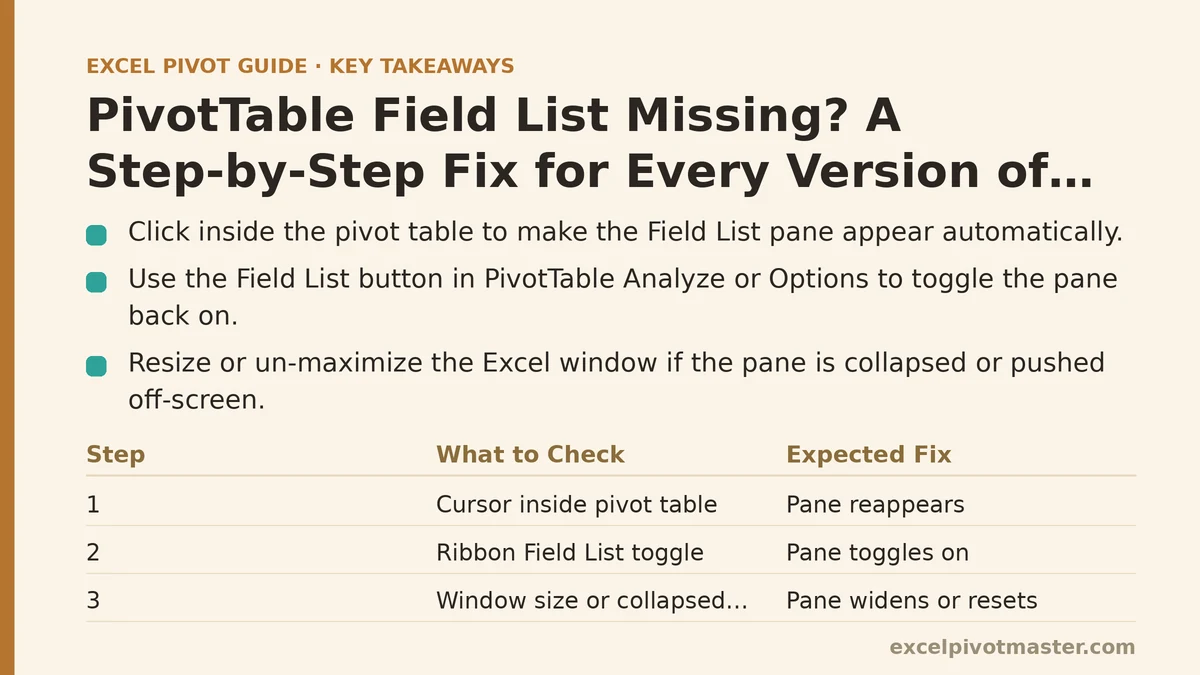
Step 1: Confirm Your Cursor Is Actually Inside the Pivot Table
The Field List only appears when the active cell sits somewhere inside the pivot table’s range. Click a cell outside the table, and the pane hides itself automatically — this is expected behavior, not a bug, but it’s the single most common reason people think the pane has disappeared entirely.
Click directly on any cell that’s part of the pivot table — a row label, a column header, a value cell — and check whether the pane reappears on the right side of the window. If it does, the problem is solved and you can stop here. If clicking inside the table changes nothing, move to the next step.
Step 2: Check the Ribbon Toggle for Field List Visibility
Excel has a dedicated on/off switch for this pane, and it’s easy to hit by accident, especially if you or a coworker recently clicked around the ribbon without paying close attention.
With your cursor still inside the pivot table, go to PivotTable Analyze (in older versions this may read Options), then look in the Show group for a button labeled Field List. Click it once. If the pane was toggled off, this brings it back immediately. If it was already toggled on and the pane still isn’t visible, something else is going on, and the toggle itself isn’t the issue.
Step 3: Widen the Excel Window or Check for a Docked-But-Collapsed Pane
Sometimes the Field List hasn’t disappeared at all — it’s collapsed to a thin sliver at the edge of the window, or pushed off-screen because Excel is running in a small window or a low resolution, especially after connecting to a second monitor or projector.
Look carefully at the far right edge of your Excel window for a thin vertical bar that might be the collapsed pane. If you spot one, try dragging its border leftward to widen it back to a usable size. If Excel is currently maximized, try un-maximizing and resizing the window manually, then maximizing again — this occasionally resets a pane that got stuck in an odd position after a display change.
Step 4: Rule Out a Floating Pane Sitting Behind the Main Window
Less common, but it happens: the Field List has been undocked at some point (dragged away from its default position) and is now floating as a separate window, possibly sitting behind your main Excel window or off the edge of your visible screen entirely.
Minimize Excel and check your taskbar or window switcher for any additional small windows associated with Excel. If you find one, restore it and drag it back near the main window, then right-click its title bar (if it has one) to see if there’s a “Dock” option. If nothing shows up here, this isn’t your problem, and the cause lies elsewhere.
Step 5: Test Whether the Issue Is Specific to This Workbook or Global to Excel
This step matters because it tells you whether you’re chasing a setting inside one file or a problem with your Excel installation as a whole — and those two situations call for completely different fixes.
Open a new, blank workbook, insert a small pivot table from any sample data, and check whether the Field List appears normally there. If it does, the problem is isolated to your original file — something in that workbook’s settings or a corrupted pivot cache is interfering, and you should focus your attention back on that specific file rather than on Excel generally. If the Field List is missing even in a fresh workbook with a brand-new pivot table, the issue is broader than any single file, and you should continue to the next steps, which deal with add-ins and application-level settings.
Step 6: Disable Add-Ins That May Be Interfering With the Task Pane
Third-party add-ins occasionally hook into Excel’s interface in ways that suppress or override native panes, and the Field List is one of the panels that can get caught in the crossfire, especially with older or poorly maintained add-ins.
Go to File, then Options, then Add-ins. At the bottom of the window, find the Manage dropdown, select COM Add-ins, and click Go. Uncheck everything in the list, click OK, and restart Excel. Open your pivot table again and see if the Field List returns. If it does, re-enable your add-ins one at a time, restarting Excel between each one, until you find the specific add-in causing the conflict — then decide whether you need it enabled at all times or only when required.
Step 7: Repair Office if the Pane Is Missing Across Every Workbook and Add-Ins Aren’t the Cause
If you’ve ruled out everything above and the Field List still won’t appear in any workbook, on any pivot table, with add-ins disabled, the underlying files that control Excel’s interface elements may have become corrupted. This is uncommon, but it does happen, particularly after a botched update or an interrupted installation.
On Windows, go to Control Panel, then Programs and Features, find your Microsoft Office installation, and choose Change. Select Quick Repair first, since it’s faster and resolves most corruption issues without needing to redownload anything. If the Field List is still missing after a Quick Repair, run the more thorough Online Repair, which reinstalls the full application and typically clears up interface glitches that a quick repair can’t reach.
A Summary Table for Quick Diagnosis
| What You Observe | Likely Cause | Where to Go |
|---|---|---|
| Pane hides when clicking outside the table | Expected behavior | Click inside the pivot table (Step 1) |
| Pane doesn’t appear even with cursor inside table | Toggle switched off | PivotTable Analyze → Show → Field List (Step 2) |
| Thin sliver visible at window edge | Pane collapsed or resized | Drag the border wider (Step 3) |
| No pane anywhere, possibly floating off-screen | Undocked floating window | Check taskbar for a separate window (Step 4) |
| Missing only in one file, fine in new workbooks | File-specific setting or corrupted cache | Focus on that workbook only (Step 5) |
| Missing everywhere, in every workbook | Add-in conflict | Disable COM add-ins (Step 6) |
| Missing everywhere, add-ins already ruled out | Office file corruption | Quick Repair, then Online Repair (Step 7) |
Most cases resolve at Step 1 or Step 2 — a missing Field List is usually a click away from coming back, not a sign of anything seriously wrong with your installation. Work through the steps in order rather than jumping to a repair or reinstall right away, since that’s the slowest fix and, in most cases, entirely unnecessary.
If you’ve gone through all seven steps and the pane is still missing, note which version of Excel you’re running (Microsoft 365, 2019, 2016) and whether the problem started after a specific update — that detail usually narrows down the remaining possibilities fast.
Related guides: How to Remove Blanks from Excel Pivot Tables: Every Cause and Fix, Excel Pivot Table Common Errors and Fixes: A Real Troubleshooting Walkthrough, and Pivot Table Not Showing All Data: Fix Guide for Every Cause.