A commission report grouped by rep and a commission report grouped by region look like the same table with a different field dragged into Row Labels. They are not. Group by rep and you are answering a payroll question — what does each person earn, and does it match their contract. Group by region and you are answering a budget question — what did each territory cost in variable pay, and is the rate of commission per dollar of revenue drifting. The same pivot cache can serve both, but the calculations, the sorting, and the error checks differ.
This guide works through the questions that come up when you build either version, in the order you would ask them.
What Does the Source Table Need Before You Build Anything?
Five columns is the minimum. Get these right and the pivots downstream are almost trivial; skip one and you will be patching formulas inside the pivot instead of outside it.
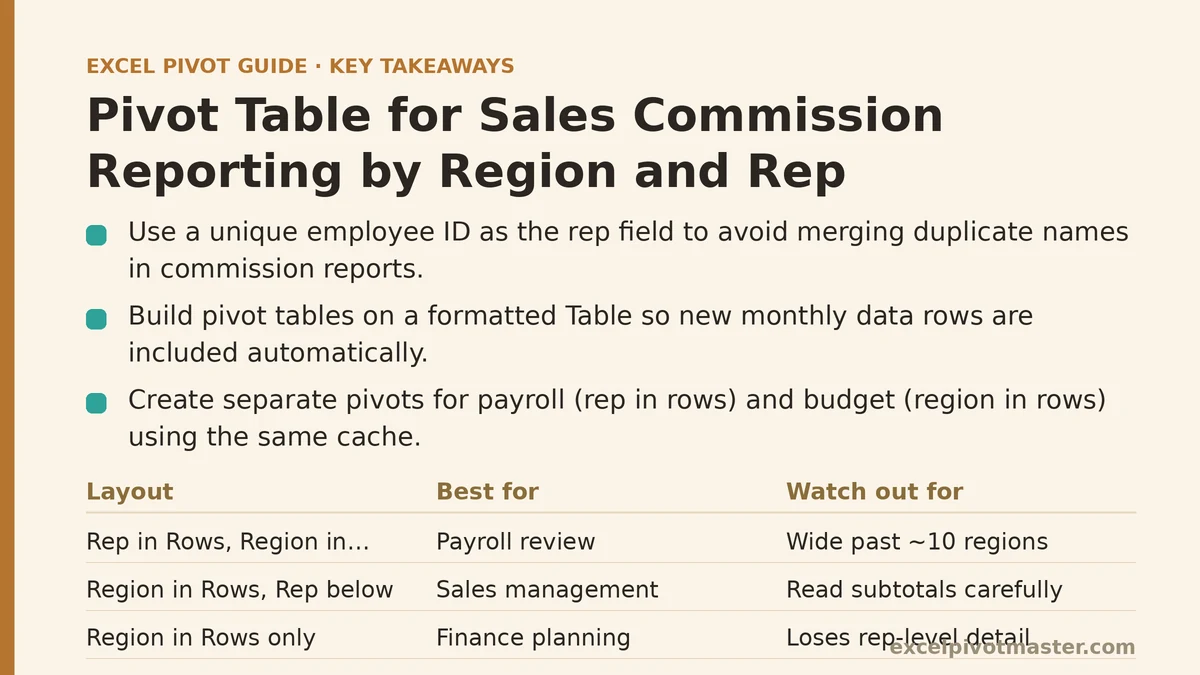
- Rep name — a unique identifier, not a display name. Two “J. Smith” records merged into one row label is a commission dispute waiting to happen. Use an employee ID as the field and put the display name in a lookup if you need it.
- Region — the reporting hierarchy you settle against. Keep it a single column with a consistent spelling; “Northeast” and “NE” are two regions to a pivot.
- Sale date — a real Excel date value, not text. Commission periods are date filters, and text dates break them.
- Revenue (or margin) — the number the rate applies to. Decide once whether commission is paid on gross booking, invoiced revenue, or collected cash, and label the column to match. Mixing them across reps is the most common source of disputes.
- Quota or target — needed if any part of the plan is tiered or has an attainment threshold.
Two optional columns pay for themselves: deal ID (so a refund or credit note can be matched back and reversed) and rate override (for a rep on a special plan). Keep the rate table itself in a separate sheet and look it up, rather than typing rates into the transaction rows.
Convert the whole block to a formatted Table with Ctrl+T and build the pivot on the Table name. Commission source data gets appended to every month without exception, and a range-anchored pivot will silently drop the newest rows.
Should You Put Rep in Row Labels and Region in Column Labels, or the Reverse?
This is the first real decision, and the answer depends on the reader.
| Layout | Looks like | Best for | Watch out for |
|---|---|---|---|
| Rep in Rows, Region in Columns | One row per rep, one column per region | Payroll review, rep-level statements | Wide once you pass ~10 regions; totals compress on screen |
| Region in Rows, Rep in Rows below it | Collapsible territory tree | Sales-management review, budget by territory | Rep subtotals inside region totals must be read carefully |
| Region in Rows only | One row per territory | Finance and headcount planning | Loses rep-level detail entirely |
| Rep in Rows only, Region as a filter | One row per rep | Single-territory statements | Easy to forget the filter is on and report a partial total |
The practical rule: build two pivots on the same cache, one for each audience. A stacked layout with Region in Rows and Rep beneath it gives management the territory rollup and the rep detail in one object — turn on Subtotals for Region and set them to “At each group,” then collapse the rep rows when the meeting starts. For payroll, a flat rep-in-rows pivot with Region as a slicer is easier to reconcile line by line.
Whatever you choose, do not put both fields in Rows and both in Columns. A cross-tab of rep against region produces a grid of mostly blanks, since each rep usually sells in one territory, and the subtotals become hard to trust.
How Do You Calculate Commission Inside a Pivot When the Rate Is Tiered?
A pivot table cannot apply a tiered rate on its own. Calculated fields in a pivot evaluate per row of the source data and then aggregate, which does not match how tiered plans work — the second tier rate applies once cumulative revenue crosses a threshold, not to every row. There are two workable approaches.
Approach 1 — add a helper column to the source table. Add a column called Commission that looks up the rep’s plan and multiplies revenue by the applicable rate for that transaction, using the cumulative-to-date revenue to pick the tier. Then the pivot simply sums that column. This is the most transparent method: every line of commission is auditable, a disputed payment can be traced to a specific deal, and the pivot only needs a Sum of Commission.
The cost is that the helper formula must reference a running total, which means it needs a stable sort order by date and rep. Sort the Table by rep and date before writing the formula, and use structured references so the formula extends down automatically as rows are added.
Approach 2 — calculate the commission outside the pivot and use the pivot only for the report. Export the pivot’s aggregated revenue per rep to a small calc sheet, apply the tier logic there, and present the result. This keeps the rate table visible on one screen, which helps when the plan has three or four tiers and an accelerator above quota. Its weakness is that it is a manual step each period, and manual steps get skipped.
A note on “percent of total.” The built-in Show Values As → % of Grand Total is useful for showing each rep’s share of regional revenue, but it is not a commission rate. Do not use it as a stand-in for a rate table unless the plan is a flat percentage of everything, applied uniformly.
How Do You Show Each Rep’s Attainment Against Quota?
Attainment is revenue divided by quota, and the pivot cannot compute that division as a single step unless both numbers are in the source data at the transactional level.
The clean method is a quota column on the source table. Each transaction row carries the rep’s period quota in a column (a lookup from a plan sheet, or copied in when the data is prepared). Then in the pivot, add a calculated field:
Attainment = Revenue / Quota
Because both fields sum to the same rep total, the calculated field returns the right ratio at the rep level and at the region level, provided quota is stored per rep per period and not duplicated across transactions in a way that inflates it. Check the quota total against the plan sheet before trusting the ratio — a quota column that repeats the full-period figure on every transaction row will sum to something many times the real quota, and attainment will read near zero.
If quota lives in a separate table, a simpler route is to skip the calculated field and place a small side table next to the pivot: one column of rep names, one column of SUMIFS quota, one column of GETPIVOTDATA revenue, one column of the ratio. It is a few minutes of setup and it keeps the quota source of truth in one place rather than baked into every transaction row.
Conditional formatting on the attainment column — say, below 80% in amber and below 50% in red — turns the pivot into a flag list without any extra formulas.
Why Do Regional Totals Not Match the Sum of the Rep Rows?
Three causes account for nearly all of these mismatches.
- An unassigned rep. Source rows with a blank or misspelled rep name roll up into a
(blank)row. The region total includes them; the named-rep rows do not. Filter or fix the blanks, then refresh. - A rep appearing in more than one region. If the region field is the deal’s territory rather than the rep’s home territory, a rep who sells across territories will appear under more than one region, and the rep-level pivot will not tie to the region-level one without a mapping.
- Stale cache items. Reps who left the company and no longer appear in the source can remain in the row labels with zero values beneath them, inflating the row count and confusing anyone reading the total line. Set PivotTable Options → Data → Number of items to retain per field to None, then refresh.
Run one cross-check every period: compare the pivot’s overall grand total to =SUM() of the revenue column on the source sheet. If those two numbers differ, the cache is anchored to the wrong range — extend the source or rebuild on the Table name. If they match, any discrepancy at the rep level is an assignment problem, not a calculation problem.
How Should You Handle Mid-Period Plan Changes and Adjustments?
Commission plans change, reps move territories, and credits and refunds arrive after the fact. Two practices keep the report defensible.
First, record adjustments as separate rows, not as edits to the original sale. A negative revenue row with a reason in a notes column flows through the pivot automatically: the period total nets out, and the adjustment stays visible when someone asks why a rep’s number moved. Overwriting an original sale destroys the audit trail.
Second, keep the plan effective date in the plan sheet and have the helper commission column pick the rate by the transaction date. A rep who moves from a 5% to a 7% plan mid-quarter will then show two blended rate lines in a date-grouped pivot, which is exactly what payroll needs to see. Grouping sale dates by month in the pivot (right-click a date → Group → Months) makes this readable across a quarter.
If a rep changes region mid-period, split the assignment in the source — the commissions before the move stay with the old region, the ones after go to the new one. Expect the rep to appear in two regions for that period; that is correct, and the region subtotals will still tie to the grand total.
What Should the Final Report Include Before It Goes Out?
A commission pivot that is accurate but unreadable still causes rework. Run this checklist before distribution:
- Grand total ties to the source.
SUM()of revenue on the source sheet equals the pivot grand total. - No
(blank)rows. Every transaction has a rep and a region. - No orphan items. Old reps do not appear with zero values.
- Quota total ties to the plan sheet. A quota column that sums to more than the sum of all assigned quotas means it is duplicated across transaction rows.
- Rate column is visible. Show the effective rate beside the commission total so a rep can self-check the arithmetic.
- Refresh on open is on if anyone else reads the file. PivotTable Options → Data → Refresh data when opening the file.
- A period filter is applied and labeled. A commission report without a visible date range invites someone to quote a partial month.
Sort the rep rows by commission descending before saving — the reader’s first question is usually “who earned the most and who is behind plan,” and a pre-sorted list answers it in one glance.
What to Do Next
Take the commission data you would report on this period and do three things today:
- Convert the source range to a Table (Ctrl+T) and rebuild both pivots on the Table name. This is the step that stops next month’s rows from disappearing.
- Set “Number of items to retain per field” to None on any pivot whose source drops departed reps, then refresh.
- Add the quota and commission helper columns to the source table if they are not there, and cross-check the quota total against the plan sheet before the numbers go to payroll.
If the rep-level and region-level totals still disagree after those three steps, the cause is almost always an assignment problem — a blank rep, a rep spanning two territories, or a plan change not reflected in the rate table — rather than a broken calculation.
Related guides: Pivot Table Not Refreshing: Common Causes and Fixes, Fixing Pivot Table Refresh Errors and Stale Data Problems, and Pivot Table Not Showing All Data: Fix Guide for Every Cause.