By the end of this post, you’ll know how to combine multiple Excel tables into a single PivotTable without merging a single cell, without a single VLOOKUP, and without bloating your file size into the hundreds of megabytes. You’ll understand the three main approaches to this problem, why two of them are outdated habits worth breaking, and exactly how to set up the one method that professional analysts rely on.
That third approach — chaining together dozens of VLOOKUP or INDEX/MATCH formulas to pull data from separate tabs into one giant sheet — is one of the most common and painful misunderstandings in Excel. Workbooks can balloon to hundreds of megabytes and take minutes just to open, all because someone believed they needed every scrap of data mashed into a single flat table before a PivotTable would work. That belief is a holdover from an older way of working. For years now, Excel has offered a cleaner, faster way to build a PivotTable from multiple, separate tables: the Data Model.
To appreciate why the Data Model changed the game, it helps to look at the methods it replaced. Below are the three main ways to solve this problem, ranked from the classic but brittle approach to the modern standard.
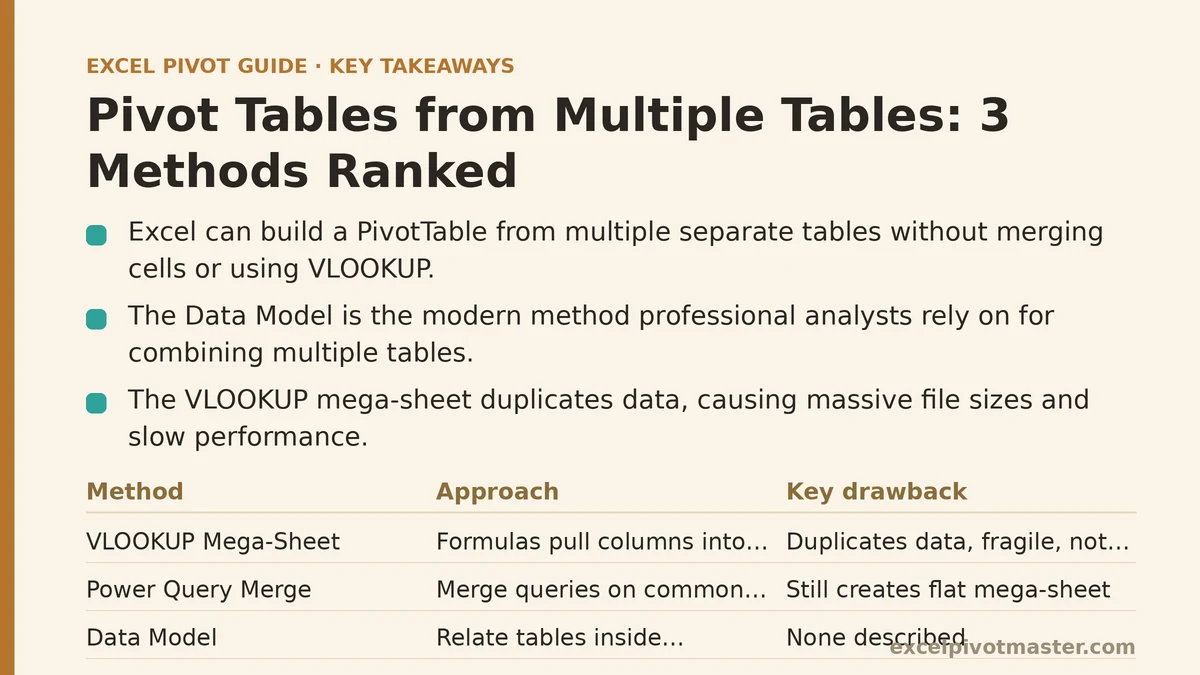
The 3 Ways to Combine Data, Ranked from Worst to Best
Picture a typical scenario: a main transaction table (Sales) alongside several lookup tables (Product Details, Customer Info, Region Managers). Your goal is to analyze all of them together. Here’s how that’s traditionally been done, and why the top method is worth switching to immediately.
Method 3: The VLOOKUP “Mega-Sheet” (The Old, Brittle Way)
This is the classic fix: start with your main Sales table, then use VLOOKUP or INDEX/MATCH to reach into other tables one column at a time. Pull in Product Category from Products, then Region Name from Regions, and keep going until you’ve built one enormous, sprawling table.
Why it is the worst choice:
- Massive File Size & Slow Performance: Every lookup duplicates data. If 100,000 sales rows share the same product, that
Product Categorytext gets stored 100,000 separate times in your mega-sheet. File sizes balloon and calculations slow to a crawl. - Extremely Fragile: Add a column to a source table, and your VLOOKUPs can break outright. Change a lookup value, and
#N/Aerrors ripple across the sheet. The whole structure is a house of cards demanding constant manual upkeep. - Not Scalable: Once your dataset grows into the hundreds of thousands of rows, this approach becomes unmanageable — a near-guaranteed way to crash Excel.
Method 2: Power Query Merge (A Huge Step Up)
Power Query — found under the Data tab as “Get & Transform Data” — is a genuinely capable tool for data prep. Load your separate tables into the Power Query editor, use “Merge Queries” to join them on a common key like ProductID, and output the result as one combined table on a worksheet. From there, you build your PivotTable off that merged table.
Why it is a good choice (but not the best):
- Robust and Refreshable: Unlike VLOOKUP, a Power Query merge is a defined, repeatable process. When source data changes, hit “Refresh All” and the merge reruns automatically — far more dependable than chasing broken formulas.
- Handles Large Data Better: Power Query is built to run these operations more efficiently than worksheet functions, so it holds up under larger data volumes without buckling.
Where it falls short for this specific task:
- Still Creates a Flat “Mega-Sheet”: The output is functionally the same as the VLOOKUP method — one large, combined table. The process is better, but you’re still left with a denormalized structure that can strain under truly massive datasets. It fixes the workflow, not the underlying data structure.
Method 1: The Data Model (The Modern, Professional Way)
This is the tool built specifically for this exact problem. The Data Model — sometimes called Power Pivot — lets you load your tables into a behind-the-scenes database inside Excel and define relationships between them. The tables stay separate and lean; you’re simply telling Excel how they connect.
How to do it:
- Format each data range as an official Excel Table (Insert > Table). Give them clear names like
Sales,Products, andRegions. - For each table, go to the Power Pivot tab and click “Add to Data Model.”
- On the Power Pivot tab, click “Manage” to open the Data Model window, then click “Diagram View” under the Home tab.
- Your tables will appear as boxes. Drag the key field from one table onto the matching key field in another to build a relationship — for instance, drag
ProductIDfromSalesontoProductIDinProducts. A connecting line confirms the link. - Close the window and insert a PivotTable (Insert > PivotTable). In the “Create PivotTable” dialog, select “Use this workbook’s Data Model” as your source.
From there, your PivotTable Fields list shows every table at once. Drag Sales Amount from Sales into Values, Product Category from Products into Rows, and Region Name from Regions into Filters. Everything works together seamlessly, even though you never manually merged a single table.
Why it is the best choice:
- Maximum Efficiency: Data isn’t duplicated. Tables remain in their original, normalized form, which means dramatically smaller file sizes and faster performance. A bloated 200MB file could realistically shrink to 20MB using this approach.
- Ultimate Flexibility: Fields from any related table behave as if they all lived in one place, minus the performance penalty.
- Scalability: The Data Model’s engine handles millions of rows, well past the worksheet’s one-million-row ceiling.
- Clarity and Maintainability: Relationships are laid out visually in Diagram View, making the whole model easy to follow and adjust. This is the standard approach for serious business intelligence work.
The Real Shift: From Merging Data to Relating Data
VLOOKUP and Power Query Merge both stem from the same old mindset: force everything into one flat file before you can even begin analyzing it. The Data Model asks you to think differently. It lets you work with data in its natural, relational structure — much like a proper database — which turns out to be more efficient, more scalable, and more powerful all at once.
Getting comfortable with the Data Model is arguably the single biggest step toward moving from casual Excel user to serious data analyst. It opens the door to reports that simply aren’t possible using worksheet functions alone, all while keeping your files lean and easily refreshable.
| Feature | Method 3: VLOOKUP | Method 2: Power Query Merge | Method 1: Data Model |
|---|---|---|---|
| File Size | Very Large | Large | Small & Efficient |
| Performance | Very Slow | Moderate | Very Fast |
| Scalability | Poor | Good | Excellent (Millions of Rows) |
| Maintainability | Fragile & Manual | Refreshable | Robust & Clear |
| Best For | Quick, small jobs | Data cleansing & prep | Professional BI & Reporting |
What separate tables are you trying to bring together, and what key field links them? Tell me how your data is structured, and you can then walk through building the exact relationships needed in the Data Model.
Related guides: Customer Segmentation with Pivot Tables: A Beginner-to-Advanced Roadmap, Data Model Relationship Errors in Excel Pivot Tables: 7 Common Failures and How to Troubleshoot Them, and Excel Pivot Table Calculated Items: A Complete Guide.