Say you are trying to close out a monthly report. You add the final week of transactions to your source sheet, press Refresh, and the grand total does not move. You press it again. Still nothing. Or the numbers do shift, but the region you removed last Tuesday is still sitting in the row labels, contributing to a subtotal someone is about to copy into a board deck. Either way, the pivot table is now describing a version of your data that no longer exists, and there is no warning on screen telling you so.
A refresh that quietly does nothing is harder to catch than one that throws an error, because the table still looks plausible. This guide is organized as a symptom-first checklist. Find the symptom that matches what you are seeing, read the cause, apply the fix, and then move on. Working in that order is faster than toggling settings at random, since most refresh failures trace back to one of about eight distinct causes.
How to Tell Whether Refresh Is Failing at All
Before diagnosing, confirm the problem exists. Three quick signals separate “refresh did nothing” from “refreshed correctly but the data looks wrong.”
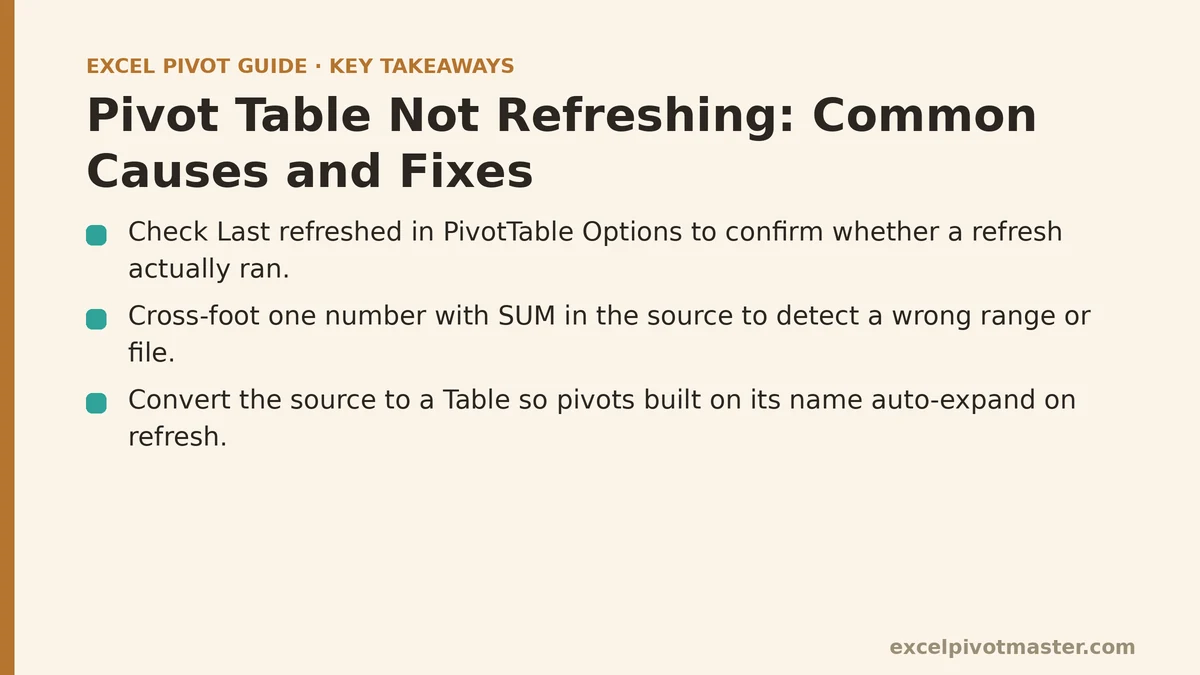
- Check the timestamp. Right-click the pivot table and open PivotTable Options → Data. The “Last refreshed” line shows when the cache was last re-read. If it matches the last time you clicked Refresh, the refresh worked and your problem is elsewhere — probably a wrong source range or a stale item list.
- Cross-foot one number by hand. Sum a single column in the source sheet with
SUM()and compare it to the pivot’s grand total. A mismatch means the pivot is reading a different range or a different file than you think. - Count the rows. If the source sheet has 1,240 data rows and the pivot’s row labels cover a subset, the cache range is the likely culprit.
If any of those three checks points at a problem, work the checklist below. Each entry lists the symptom first, then the cause, then the fix.
Symptom: Refresh Completes but New Rows Never Appear
Cause: The pivot cache is anchored to a fixed cell range, not to a live connection. When you built the table, Excel captured a snapshot of a specific rectangle — say Sheet1!$A$1:$F$400 — and every refresh since re-reads exactly that rectangle. Data appended in row 401 or added in column G sits outside the snapshot and will never show up, no matter how many times you refresh.
Fix, if your source is a formatted Excel Table (Ctrl+T): Convert the range to a Table if it is not already one, then rebuild the pivot on the Table name rather than a cell address. Tables expand automatically as rows are added below the last one, and any pivot built on the table name picks up the growth on refresh with no manual step. This single change removes most range-related refresh problems permanently.
Fix, if you are stuck with a plain range: Go to PivotTable Analyze → Change Data Source and extend the endpoint well past where your data currently ends — for example, to row 5000 when you only have 400 rows today. Excel tolerates blank rows inside a referenced range, so over-provisioning costs nothing and buys headroom for future data.
Recovery note: If you already rebuilt the pivot several times on the wrong range, delete the duplicate tables before rebuilding again. Leaving them in place creates the shared-versus-separate cache problem covered further down.
Symptom: A Refresh Error Dialog Appears Before Anything Changes
Cause: The message sounds like a data problem, but almost every refresh error is a connection, path, or permission problem. The three families are:
- Range or source missing — the sheet, workbook, or named table the cache points at has been renamed, moved, or deleted.
- External connection failure — the pivot is fed from a database, a CSV on a network share, or another workbook that is currently closed, offline, or behind a login.
- File locked or read-only — a second user or process has the source workbook open, or the file sits on a shared location where you lack write access. Excel needs to write back into the cache during refresh.
Fix: Identify the family first, then the specific message. Restore the original sheet or table name for missing sources; reopen the external file or confirm credentials for connection failures; close the other user’s copy or move the file to a writable location for lock errors. Do not start hunting for corrupted cells — the cell values are almost never implicated.
Symptom: Totals Update but Deleted Categories Stay in the Row Labels
Cause: The pivot cache is holding onto old field items. This is a cache setting called Number of items to retain per field, which defaults to Automatic. In that mode Excel keeps old items in the cache list so existing filters and layouts do not break when the source shifts. It is a durability feature that doubles as a staleness trap: you delete two regions from the source data, refresh, and the totals change while the two orphan category names remain in the labels, showing blank or zero beneath them.
Fix: Right-click the pivot table → PivotTable Options → Data tab → change “Number of items to retain per field” from Automatic to None. Click OK, then refresh. The orphan items disappear from both the row labels and the filter dropdowns. Set this at build time on any pivot whose source data gets rows deleted, not just appended.
Common mistake: Applying this setting after the fact but forgetting to refresh again. The change only takes effect on the next refresh.
Symptom: You Refresh One Table and the Others Go Stale
Cause: Multiple pivot tables in the same workbook can share a cache or each hold their own, depending on how they were created. Tables built by copying and pasting an existing one, or built through the same source range in the PivotTable wizard, typically share a single cache — refresh one and the rest follow. Tables built independently at different times each carry their own cache reading the same range, so refreshing one leaves the others untouched.
Fix: Check each table individually. Select a cell inside it, open PivotTable Analyze → Change Data Source, and note the range. If you want to consolidate, delete the redundant tables and rebuild them by copying the finished master table. For a workbook-wide refresh, press Ctrl+Alt+F5 to refresh every pivot cache in the file at once. Alt+F5 refreshes only the active table’s cache, which is faster but easy to misremember as covering everything.
Symptom: Numbers Are Stale Every Time the File Is Opened
Cause: The setting Refresh data when opening the file is off. It sits under PivotTable Options → Data. Leaving it off means the table shows whatever was in the cache when the file was last saved, which could be weeks old. If the file is opened by colleagues, they see stale totals with no indication anything is wrong.
Fix: Turn it on for any pivot that lives in a file someone else opens. The cost at open time scales with the size of the source range — a few thousand rows refreshes in well under a second, while a hundred thousand rows may add a noticeable pause. A brief pause is preferable to a wrong number on a shared report.
Symptom: A Pivot Chart or Slicer Lags Behind the Table
Cause: A pivot chart built directly on a pivot table normally updates when the table does. A regular chart whose series happen to reference pivot output cells is a different animal — it reads the cells, and if the pivot’s row count changed (three regions last month, five this month), the chart’s series range may not have grown to cover them. Slicers connected to a different cache in the same workbook also do not follow a refresh of the table you touched.
Fix: After every refresh, check the chart’s axis and legend against the pivot’s row count. If they disagree, reset the chart’s source range. For slicers, rebuild the connection so the slicer shares the pivot table’s cache rather than referencing a separate one.
Symptom: The Pivot Reads Data From the Wrong Workbook Entirely
Cause: When a pivot’s source points at an external workbook and that file is renamed or moved, Excel may re-point the connection to a file of the same name in a different folder, or leave the cache reading an old path with no visible error.
Fix: Open Change Data Source and read the full path in the source box, not just the file name. Confirm it matches the file you intend. For workbook-to-workbook pivots, prefer importing the data into the same file, or use Power Query with an explicit file path, so the dependency is visible and easy to update.
Before and After: What Correct Refresh Behavior Looks Like
| After updating source data and refreshing | Stale table | Correctly configured table |
|---|---|---|
| New rows appended below the old range | Do not appear | Appear immediately |
| Deleted categories | Still listed in row labels | Removed from labels and filters |
| Shared file opened by a colleague | Shows last-saved numbers | Shows current numbers |
| Multiple pivots on separate caches | Only the active one updates | All update with Ctrl+Alt+F5 |
| Pivot chart beside the table | May show old category count | Matches the table row for row |
If any row on the left matches what you see, work the checklist entries above until it moves to the right-hand column.
Common Mistakes When Chasing a Refresh Problem
- Rebuilding the pivot before checking the source range. Rebuilding on a wrong range produces the same failure, and now you have two stale tables instead of one.
- Assuming an error dialog means corrupted data. Nine times out of ten it is a path, permission, or lock issue. Check access before touching cell contents.
- Setting “Number of items to retain per field” to None and forgetting the follow-up refresh. The change applies on the next refresh, not immediately.
- Using Alt+F5 and assuming every table updated. That refreshes only the active table’s cache. Use Ctrl+Alt+F5 for a workbook-wide refresh.
- Leaving “Refresh data when opening the file” off in a shared workbook. Colleagues read stale numbers without any warning on screen.
What to Do Next
Open the workbook you refreshed most recently and run these three checks in order, today:
- Change Data Source — confirm the pivot points at the full current range, or better, at a named Excel Table.
- PivotTable Options → Data → Number of items to retain per field — set to None on any table whose source data has rows deleted.
- PivotTable Options → Data → Refresh data when opening the file — turn on if the file is shared.
Each check takes under a minute. If the problem persists after all three, note which symptom in this checklist matches what you are seeing and which error message appeared — that combination narrows the cause faster than rechecking settings you have already ruled out.
Related guides: Excel Pivot Table Common Errors and Fixes: A Real Troubleshooting Walkthrough, Fixing Pivot Table Refresh Errors and Stale Data Problems, and Pivot Table Not Showing All Data: Fix Guide for Every Cause.