By the end of this post, you’ll be able to write a basic VBA macro that refreshes, filters, or rebuilds a pivot table on command, and — more importantly — you’ll know how to diagnose the specific error VBA throws back at you instead of rewriting the whole macro from scratch every time something breaks.
Pivot table automation has a reputation for being harder than it needs to be, and that reputation is mostly earned by one bad habit: recording a macro once, on data that happens to be clean and stable, and assuming it’ll behave the same way forever. It won’t. Pivot caches shift, field names change, sheet names get typed differently than the recorder captured them, and a macro that ran perfectly last Tuesday throws “Run-time error ‘1004’” the following Monday for reasons that aren’t obvious from the error message alone. Work through the steps below in order and you’ll build a macro that survives contact with real, changing data.
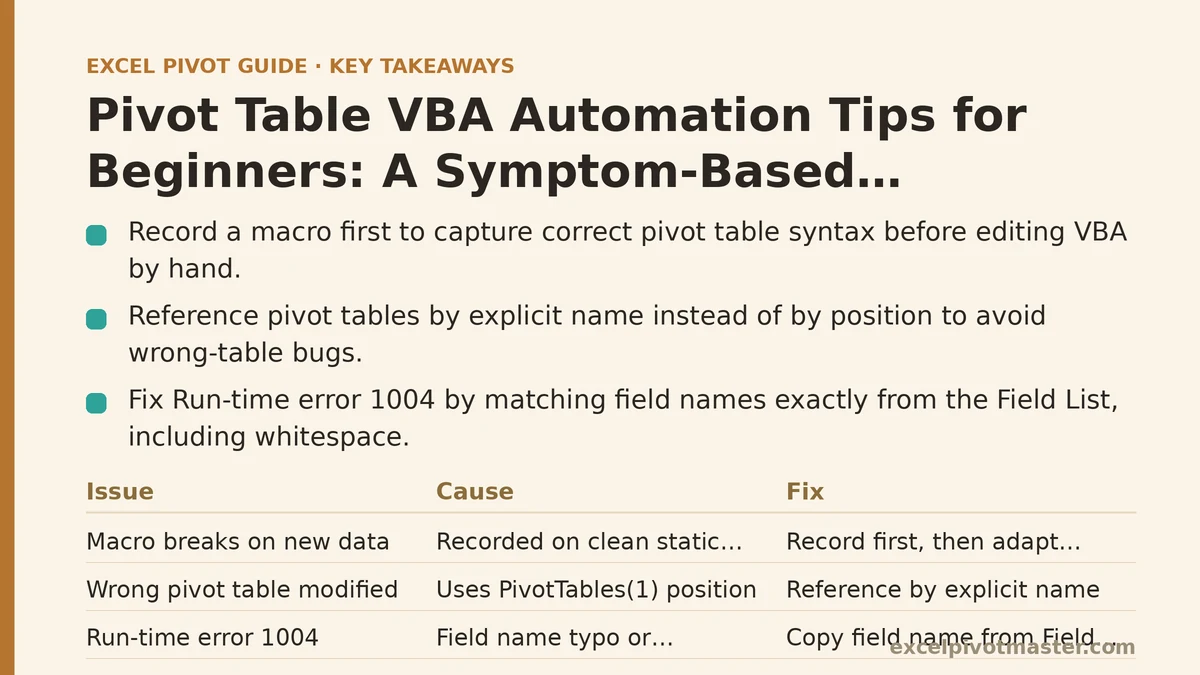
Step 1: Record a Macro First, Even If You Plan to Edit It Later
Before writing a single line of VBA by hand, turn on the macro recorder (Developer tab, Record Macro) and manually perform the pivot table action you want to automate — refreshing it, changing a filter, or rearranging a field. Stop recording, then open the VBA editor with Alt+F11 and look at what got generated.
This step matters more than it sounds. The recorded code gives you the exact object names, method calls, and property syntax Excel expects for pivot tables specifically, which is different from the syntax used for ranges or charts. You don’t need to keep the recorded macro as-is — recorded code is often bloated with settings you didn’t intend to change — but it’s a working reference you can trim down rather than a blank editor window you’re guessing into.
Step 2: Reference the Pivot Table by Name, Not by Position
The single most common beginner mistake shows up here. Recorded macros frequently reference a pivot table using something like ActiveSheet.PivotTables(1), which grabs whatever pivot table happens to sit in the first position on the sheet. That works fine until a second pivot table gets added above it, or the sheet gets reorganized, at which point the macro silently starts modifying the wrong table.
Give your pivot table an explicit name instead. Click anywhere inside it, go to PivotTable Analyze, and check the name field in the top-left corner — rename it to something descriptive like SalesPivot if it’s still stuck on the default PivotTable1. Then reference it in code by that name:
Dim pt As PivotTable
Set pt = Worksheets("Dashboard").PivotTables("SalesPivot")
This one change eliminates an entire category of “my macro touched the wrong pivot table” bugs before they ever happen.
Step 3: Fix “Run-time Error ‘1004’: PivotTable Field Not Found”
This error means your macro is trying to reference a field by a name that doesn’t currently exist in the pivot cache — usually because the field name in your code has a typo, extra whitespace, or was renamed at some point after you wrote the macro.
Open the pivot table manually and check the Field List against the exact string in your VBA code. Field names are case-insensitive in VBA but whitespace-sensitive, so "Sales Amount" and "Sales Amount" (with a double space) are two different strings as far as Excel is concerned, even though they look identical on screen. Copy the field name directly from the Field List rather than retyping it, and this error usually disappears.
If the field name is correct and the error still appears, the field may have been removed from the pivot table layout since the macro was written — check whether it’s sitting in the “not currently in the report” section of the Field List rather than the report itself.
Step 4: Fix a Macro That Runs Once and Then Fails on the Second Run
A macro that works the first time and errors out the second time almost always means it’s trying to add something that’s already there — a calculated field, a new grouping, or a field placed in the row area for a second time.
The fix is to check for existence before creating. Instead of blindly adding a calculated field every time the macro runs, test whether it already exists first:
Dim fld As PivotField
On Error Resume Next
Set fld = pt.CalculatedFields("Margin")
On Error GoTo 0

If fld Is Nothing Then
    pt.CalculatedFields.Add "Margin", "=Profit/Revenue"
End If
This pattern — check first, act only if needed — solves most “works once, breaks the second time” complaints, and it’s worth applying anywhere your macro creates or adds something rather than just modifying an existing setting.
Step 5: Fix a Macro That Errors When the Source Data Range Has Grown
If your macro references the pivot cache’s source range using a fixed address like Sheet1!$A$1:$D$100, it’ll quietly stop capturing new rows the moment your data grows past row 100 — no error, just silently incomplete data feeding the report.
Replace the fixed range with a dynamic reference built from the last used row and column:
Dim lastRow As Long, lastCol As Long
lastRow = Worksheets("Data").Cells(Rows.Count, 1).End(xlUp).Row
lastCol = Worksheets("Data").Cells(1, Columns.Count).End(xlToLeft).Column

Dim srcRange As Range
Set srcRange = Worksheets("Data").Range(Worksheets("Data").Cells(1, 1), _
    Worksheets("Data").Cells(lastRow, lastCol))

pt.ChangePivotCache ThisWorkbook.PivotCaches.Create( _
    SourceType:=xlDatabase, SourceData:=srcRange)
Better still, convert the source data into an Excel Table (Ctrl+T) before building the pivot table at all, and reference the table name instead of a range. Tables expand automatically as rows are added, which means the pivot cache’s source reference stays accurate without any VBA recalculating boundaries at all.
Step 6: Fix “PivotTable.Refresh” Doing Nothing Visible
If your macro calls pt.RefreshTable and appears to run without error, but the numbers on screen don’t change, check whether the underlying pivot cache is actually shared with a different pivot table that’s pointed at older data, or whether the macro is refreshing before the source data finishes writing to the sheet.
That second scenario is common in macros that write new data and refresh the pivot table in the same procedure — if the write operation hasn’t fully committed before the refresh line executes, the pivot table refreshes against stale data. Add a DoEvents call between the write step and the refresh step to give Excel a moment to catch up:
' after writing new data
DoEvents
pt.RefreshTable
If multiple pivot tables share one cache and you only refreshed one of them, use pt.PivotCache.Refresh instead of pt.RefreshTable — this refreshes every pivot table built from that shared cache in one call, rather than just the single table your variable points to.
Step 7: Fix a Macro That Changes the Wrong Filter Because Field Names Match Loosely
If your macro sets a page filter with something like pt.PivotFields("Region").CurrentPage = "West", but the filter doesn’t apply the way you expect, check whether “Region” exists in more than one place in the pivot table — as both a row field and a filter field, for instance. VBA will grab whichever match it encounters based on the object hierarchy, and that isn’t always the one you meant.
Be explicit about which area you’re targeting by referencing the field through the correct collection — pt.PageFields for filters specifically, rather than the more general PivotFields — so there’s no ambiguity about which instance of the field name your code is modifying:
pt.PageFields("Region").CurrentPage = "West"
If “West” isn’t a valid item for that field, this line throws an error rather than silently failing, which is actually the more useful outcome — it tells you immediately that the item name doesn’t match what’s in the data, often because of a trailing space or a capitalization mismatch carried over from the source.
Step 8: Wrap the Whole Macro in Error Handling Before You Trust It
Once the macro does what you want under normal conditions, add basic error handling so a failure produces a readable message instead of a cryptic VBA dialog box that means nothing to whoever runs the macro next — including future you.
Sub RefreshSalesPivot()
    On Error GoTo ErrHandler

    Dim pt As PivotTable
    Set pt = Worksheets("Dashboard").PivotTables("SalesPivot")
    pt.PivotCache.Refresh

    Exit Sub

ErrHandler:
    MsgBox "Pivot table refresh failed: " & Err.Description, vbExclamation
End Sub
This isn’t about preventing every possible failure — it’s about making failures diagnosable. Err.Description usually points straight at the cause, and a message box that names the actual problem saves far more time than a macro that just stops running with no explanation.
Common VBA Pivot Table Errors and What They Usually Mean
| Error or symptom | Likely cause | Fix |
|---|---|---|
| Run-time error ‘1004’: field not found | Typo or renamed field in the code | Match the field name exactly from the Field List |
| Macro works once, fails on second run | Code adds a field or item that already exists | Check for existence before adding |
| Refresh runs but data looks stale | Cache shared across pivots, or refresh ran too early | Use PivotCache.Refresh, add DoEvents before refreshing |
| Macro modifies the wrong pivot table | Referencing by position instead of name | Name the pivot table and reference it explicitly |
| New source rows don’t appear after refresh | Fixed range reference doesn’t cover new rows | Use a dynamic range or convert source to an Excel Table |
| Filter applies to the wrong field instance | Ambiguous reference when a name appears twice | Use PageFields explicitly instead of general PivotFields |
Most VBA pivot table problems come down to one of two habits: referencing something by position or assumption instead of by explicit name, or writing code that assumes the data will never grow or change shape. Fix those two habits early, and the macros you build will keep working long after the data underneath them stops looking exactly the way it did on the day you wrote the code.
What part of your pivot table workflow are you trying to automate first — the refresh, the filtering, or the report layout itself? That answer usually determines which of these steps matters most to get right before the others. Related guides: How to Refresh a Pivot Table Automatically: Every Method That Actually Works, Excel Pivot Table Common Errors and Fixes: A Real Troubleshooting Walkthrough, and How to Create Your First Pivot Table in Excel: A Complete Beginner’s Guide.