After reading this, you will be able to take two or more sources of the same kind of data — monthly sales workbooks, regional exports, tabs in one file — and stack them into a single query in Power Query, ready to load into a pivot table or worksheet. The steps below cover what Append does, when to use it instead of Merge, how to handle mismatched column names, and what to do when the result comes out wrong.
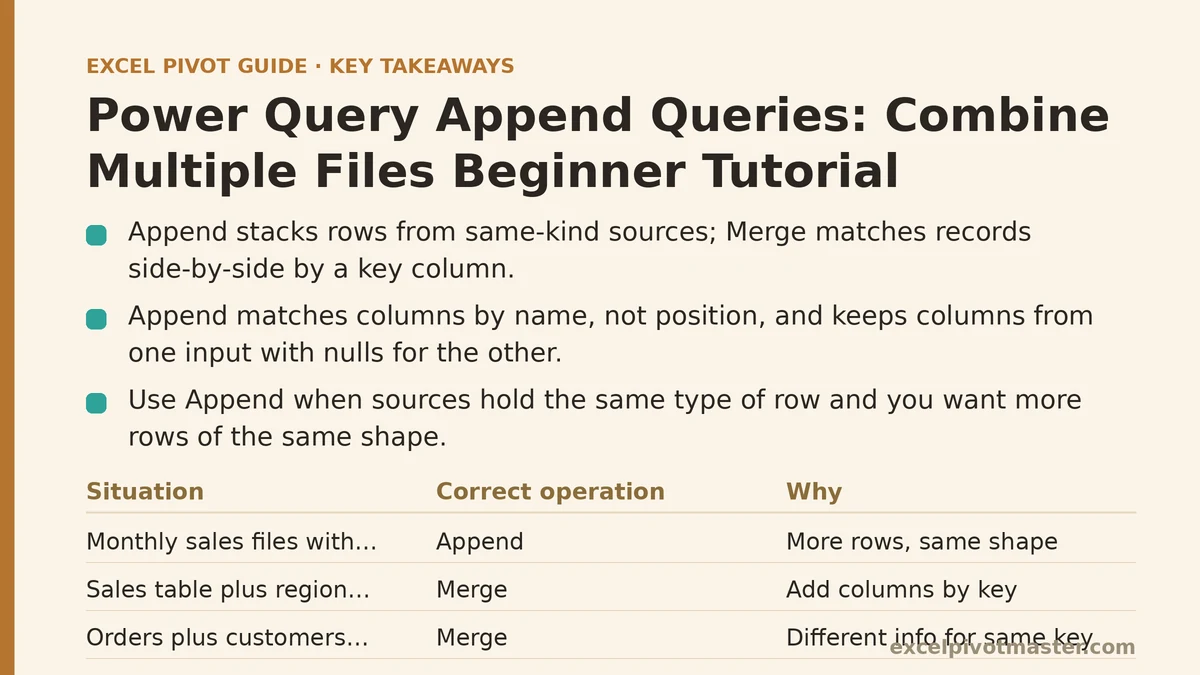
Appending is the operation that takes the rows from one table and places them underneath the rows of another. Where Merge matches records side-by-side by a key column, Append simply stacks. If your files share the same kind of row — one record per sale, per customer, per month — you want Append. If your files describe different things about the same entity, you want Merge. Getting that choice wrong is the most common reason a combined query produces a tangled result.
What does “append” mean in Power Query?
Append reads the rows of one query and adds them below the rows of another, producing a single table whose column count matches the widest input. If Query A has columns Order ID, Date, and Amount, and Query B has the same three columns, the appended result has those three columns and the sum of both row counts.
Two behaviors are worth stating up front because they surprise first-time users:
- Columns are matched by name, not by position. Order ID in A and Order ID in B line up even if the columns sit in different places in the two sources.
- A column that appears in one input but not the other is kept in the output, with null (empty) values filled in for rows that came from the source that lacked it.
That second point is where most beginner confusion starts. The append does not fail when the schemas differ — it silently produces a wider table with gaps. If you expected a clean stack of identically shaped data and instead see extra columns with blanks, the inputs had different column sets and the append did exactly what it was told.
When should I use Append instead of Merge?
Use Append when both sources hold the same type of row and you want more of them. Use Merge when the two sources hold different information about the same key and you want that information sitting together on one row.
| Situation | Correct operation |
|---|---|
| January, February, March sales files, each with the same columns | Append |
| Sales table plus a separate region lookup table keyed by Region ID | Merge |
| Three branches exporting the same report layout to separate workbooks | Append |
| Orders table plus a customers table, joined on Customer ID | Merge |
| Daily transaction logs accumulated across twelve files | Append |
If you find yourself wanting to add columns from another table, you want Merge. If you want more rows of the same shape, you want Append.
How do I append two queries step by step?
Get each source into Power Query as its own query first. For files, use Data → Get Data → From File → From Workbook (or From Folder if you have many). For sheets inside one workbook, use Data → Get Data → From Other Sources → Blank Query, then point at the table or range, or use the From Table/Range button on each sheet. Each source should end up as a named query in the Queries pane on the left of the Power Query Editor.
Click Home → Append Queries. In the dropdown, choose “Append Queries as New” if you want the combined result as a separate query and to leave the two originals intact. Choose “Append Queries” if you want to fold the second into the currently selected query. For a first attempt, use “Append Queries as New” — it is non-destructive and easier to inspect.
Select the two (or more) tables. In the Append dialog, choose “Two tables” for a simple pair, or “Three or more tables” to list them. Pick the queries from the dropdowns in the order you want.
Click OK and inspect the result. The new query appears in the Queries pane named something like “Append1.” Look at the column headers across the top. Confirm each expected column is present and that no column shows a wall of nulls where you expected values.
Close & Load when the shape looks right. The combined table drops into a worksheet, a data model, or a pivot table cache depending on your load settings.
The whole sequence takes about two minutes per pair of sources once you have done it once. The variables are the source setup and the schema match, not the append dialog itself.
What if the columns have different names in each file?
Append matches on name, so Amount in one file and Total in another will produce two columns, each half full of nulls. The fix happens before the append: rename the columns in each source query so the shared columns carry identical names.
Open each source query separately in the Power Query Editor, right-click the column header, and choose Rename. Give the same concept the same name everywhere — for example, make sure Amount, Total, and Sale Value all become Amount. Then run the append again.
Two supporting practices reduce this problem to near zero:
- Standardize before appending, not after. Renaming a column in the combined result does not merge two half-populated columns; it just renames one of them. The gap remains.
- Rename the step in the Applied Steps pane for clarity, so three months from now you can see what was renamed and why.
If the source files vary so much that renaming is impractical, the fallback is to load each into its own query, keep only the common columns, and append those trimmed versions. This throws away the extra columns deliberately rather than letting them stack up as null-filled noise.
Why do I see columns I did not expect in the append result?
Because one of your inputs has a column the other does not. The append keeps every column it sees anywhere in the inputs and fills the missing side with nulls. Two likely causes:
- A source file has an extra field that the others lack — a “Comments” column added last quarter, for instance.
- A source sheet has a merged header, an extra blank column, or a stray text row above the header, causing Power Query to treat an unintended row as a column header.
To find the offender, open each source query on its own and count the columns. Correct the source by removing the extra column in that query (right-click the header → Remove), then rerun the append. Adding a step that removes unneeded columns in each source is good hygiene before any append.
Why did the append add rows that look like duplicates?
Append does not remove duplicates. If the same order appears in the January file and again in the February file, the appended result contains it twice. Whether that is correct depends on your source:
- If the overlap is real (an order adjusted in February, captured in both files), duplicates in the stacked result are expected, and you’ll deal with them downstream — for example, by deduplicating on Order ID, keeping the latest date.
- If the overlap is accidental (the same data exported twice), the correct fix is at the source, not in Power Query. Remove the duplicated file and refresh.
A simple check before loading: after the append, click the row count in the bottom status bar. If the count is larger than the sum of the input counts you expected, something has been read twice. Investigate before loading.
How do I append three or more files at once?
Two routes, and the second is usually the better long-term choice.
Route A — Append dialog with “Three or more tables.” Load each file as its own query, then use Append Queries as New and add each query from the list. This works fine for a fixed handful of files and changes only when you add a new query.
Route B — Get Data → From Folder. Point Power Query at a folder containing all the files of the same kind. Power Query reads every file in that folder and produces one query with all rows stacked. The huge advantage: drop a new file into the folder, click Refresh, and the new data is included automatically. No editing of the query is needed.
Use Route A when the file list is stable and small. Use Route B when files arrive periodically — daily exports, monthly drops, per-branch submissions. The folder route scales to hundreds of files with the same one-time setup.
What should I check before loading the appended query?
Run this checklist before you close and load:
- Column names match the shared concepts. No half-null columns from name mismatches.
- Column count is what you expect. Extra columns mean an input has a stray field.
- Row count equals the sum of inputs (unless deduplication is intentional and handled downstream).
- Data types are consistent. A column that is text in one source and numeric in another will import as text or trigger a type error. Set the desired type explicitly with the Transform tab → Data Type dropdown.
- Header row is correct. If the first row of data was consumed as a header, you will see columns named “Column1,” “Column2,” and the real header names sitting one row down in the data. Fix by promoting the correct row to headers in the source query.
- Sort order is sensible. Append stacks in the order of the inputs. If order matters for reading, add an Index column or sort by date after appending.
How do I recover from a broken append?
Because every step is recorded in the Applied Steps pane, nothing is destroyed. To undo a mistake:
- Remove a step. Click the X next to the step name in the Applied Steps pane. The query re-evaluates from that point.
- Reopen the Append dialog. Click the gear icon next to the append step, change the table selection, and OK. The step updates in place.
- Delete the appended query and start over. Right-click the query in the Queries pane → Delete. The original source queries are untouched, so you can rebuild with different choices.
- Change load destination. If you loaded to a worksheet but wanted a pivot table cache, use Home → Close & Load To and pick the correct destination.
The one thing you cannot recover is a source-side mistake that has already been committed — such as a renamed column in a source file, outside Power Query. Revert the source and refresh.
When should you switch from Append to another approach?
If the shape of your combined data needs calculation on the fly — monthly averages, running totals, year-over-year comparison — appending into a worksheet and then building a pivot table usually beats building totals inside Power Query. Pivot tables recalculate faster and let you slice by field without editing the query.
If the same files arrive every month and the folder changes, Folder Append is the natural choice. If the data has hierarchical relationships across files (parent records in one, child records in another), the answer is Merge, then Append the results if needed.
The general rule: Append for stacking similar records, Merge for combining related attributes on the same row, and Pivot for aggregating the stacked result once it is loaded.
What to do next
Pick the folder where your most repetitive combined dataset currently lives — the one you stack by hand each month. Do this today:
- Load one file from that folder with Get Data → From File → From Workbook. Check the columns and their names.
- Load a second file the same way. Compare the column names between the two sources.
- If the names match, run Append Queries as New with those two. Inspect the result.
- If the names differ, rename the columns in each source query first, then append.
- Close & Load the appended query, point a pivot table at it, and confirm the row counts against your manual total.
Once the single pair works, replace the two manual sources with a single From Folder query and let Refresh do the stacking for every future file. That is the moment the monthly rebuild stops being a task and becomes a keystroke.
Related guides: Power Query Merge Tables: A Step-by-Step Tutorial for Beginners, Power Query Group By Beginner Tutorial: Summarize Data Like Pivot Tables, and Power Query Unpivot Columns: A Beginner Tutorial for Pivot-Ready Data.