A Power Query merge combines two tables into one by matching rows on one or more shared columns — a key column in the left table and a corresponding key column in the right table. The result is a single query that holds every column from both sources, aligned row by row where the keys agree. This is the operation that turns a separate “Orders” table and a separate “Customers” table into one flat table you can pivot, chart, or load back to a sheet.
Merging is the everyday workhorse of Power Query. It replaces the older VLOOKUP and INDEX/MATCH approach for combining tables, and it does so without cell references, without dragging formulas down a column, and without breaking when rows are inserted. Once you understand the join kinds and the expand step, you can combine almost any pair of tables in under a minute.
This guide is organized as a checklist: symptom in the left column of your thinking, cause in the middle, fix on the right. Work the entries in order if you are stuck, or read straight through if you are building your first merge.
The Two Tables You Need Before You Start
A merge requires exactly two queries as inputs: a left table (the one whose rows you want to keep as the backbone) and a right table (the one you are pulling extra columns from). In Excel, each table typically comes from a formatted Excel Table (Ctrl+T), a CSV, or an existing query. Load each one into Power Query first — Data → From Table/Range for sheet data, Data → Get Data for external files — so they appear in the Queries pane on the left.
Before merging, confirm three things on each table:
- The key column exists in both tables. Common keys are
CustomerID,OrderID,SKU, orEmployeeNumber. - The key data types match. A text
"1001"will not join to a number1001. Fix the type in Power Query before merging, not after. - The key values are clean. Trailing spaces (“ACME " vs “ACME”) cause silent row drops. Use Transform → Format → Trim on the key column of both tables.
If any of those three checks fail, the merge will still run and still produce a table — just with missing or mismatched rows. Fix the inputs first.
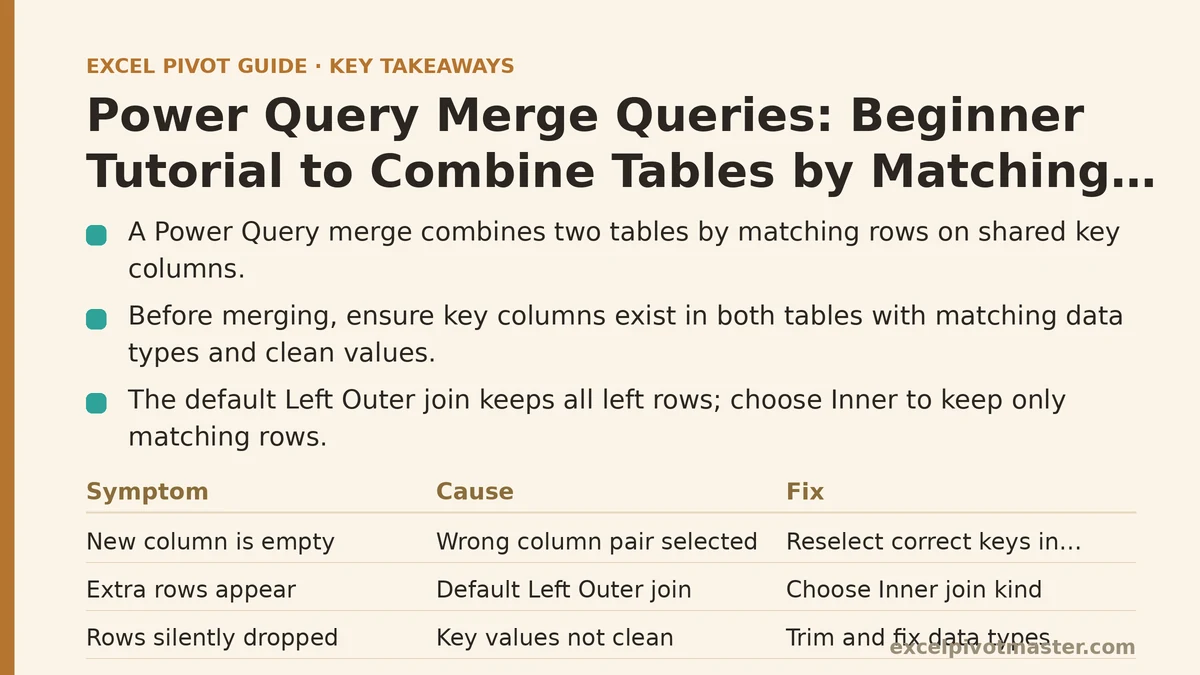
Checklist: Symptom → Cause → Fix
Symptom: The Merge Dialog Runs, but the New Column Is Empty
Cause: You selected the wrong column pair in the merge dialog. The dialog requires you to click the key column in the top table, then the matching key column in the bottom table, in that order. If you click the wrong column in either grid, Power Query matches unrelated values and finds no rows to join.
Fix: Reopen the merge step (Home → Merge Queries), clear the highlighted selections by clicking the selected column again, then click the correct key in the top grid first and the correct key in the bottom grid second. A small number 1 appears next to each selected column when matching keys are chosen. Confirm both show 1 before clicking OK.
Symptom: New Rows Appear That Should Not Be There
Cause: The default join kind is Left Outer, which keeps every row from the left table and adds matching right-side columns where a match exists. If you expected only rows that appear in both tables, the extra rows are working as designed — you wanted Inner, not the default.
Fix: In the merge dialog, open the Join Kind dropdown (bottom-left of the dialog) and pick the join that matches your intent. The five join kinds behave as follows:
| Join kind | Keeps rows from | Use when |
|---|---|---|
| Left Outer (default) | All left rows, matched right columns | Left table is the master list; missing right data is acceptable |
| Right Outer | All right rows, matched left columns | Right table is the master list (rare; usually swap tables instead) |
| Full Outer | All rows from both sides | You want to audit unmatched rows on both sides |
| Inner | Only rows with a match in both | You need a clean set of matched records only |
| Left Anti | Only left rows with no right match | Finding orphans — customers with no orders, for example |
| Right Anti | Only right rows with no left match | Finding unused records — products never sold |
Swap the two tables rather than using Right Outer when you have a choice. It keeps the mental model consistent and the Applied Steps readable.
Symptom: Row Count Explodes After the Merge
Cause: The right table has duplicate keys. If one left row (say OrderID = 5001) matches three right rows with the same key, the merge produces three copies of that left row, each with a different right-side value. This multiplies row counts and quietly inflates any totals downstream.
Fix: Before merging, open the right table and run Home → Group By on the key column to check for duplicates, or use Home → Remove Rows → Remove Duplicates if you intend the key to be unique. If the right table legitimately holds one-to-many data (a customer with multiple orders), decide whether you want to merge at all — merging one-to-many is usually better replaced with a one-to-many report built on a relationship, or by aggregating the right table first.
Symptom: A Column Is Missing From the Merge Result
Cause: The right table’s columns are not automatically added. After the merge step runs, you get a new column containing the word Table in every row — a nested table holding the matched right-side record. The actual columns arrive only after you expand them.
Fix: Click the expand icon (two arrows pointing outward) in the header of the new column, then check the boxes for the columns you want. Optionally uncheck Use original column name as prefix when the right table’s columns have distinct names — leave it on when both tables share a column name like Name or Date, so the two do not collide.
Symptom: The Key Values Look Identical but Rows Do Not Match
Cause: Data types diverge. One table’s key is stored as text ("0012"), the other as a number (12). Power Query compares them as different values, so no rows join.
Fix: Click the key column header, open the type dropdown to the left of the column name, and set both tables’ key columns to the same type — Text is the safest default when leading zeros matter, Whole Number when the values are genuine numbers. Re-run the merge step (Home → Refresh Preview) and confirm rows populate.
Two supporting causes also exist and share the same symptom:
- Trailing or leading spaces in one table’s key. Fix with Transform → Format → Trim.
- Case sensitivity mismatch, though this is uncommon in the default merge — if one table was imported from a case-sensitive source, the values may not compare as expected. Normalize with Transform → Format → Uppercase on both keys.
Symptom: The Query Slows to a Crawl After Several Merges
Cause: Each merge step re-reads both source queries. Stacking five or six merges on top of each other in the same query exponentially grows the work, and every downstream step has to recompute against the growing intermediate table.
Fix: Where possible, merge large tables once into a staging query, then build the final output on top of that query rather than chaining merges end-to-end. Disable the load of intermediate queries — right-click the query in the Queries pane and uncheck Enable Load — so only the final output lands in a sheet. Also turn off Data → Query Options → Data Load → Background refresh if you are editing, since it makes each keystroke re-run the query in the background.
Symptom: A Previously Working Merge Now Returns Errors
Cause: The right table’s schema changed — a column was renamed, a file was moved, or a source sheet was replaced with a differently structured one. Power Query points the merge at a column that no longer exists.
Fix: Open the merge step and re-select the keys. If the right table’s schema has grown or shrunk, the expand step that follows may also need reconfiguration — click the expand icon again and recheck the column boxes. For file-based sources, confirm the path in the Source step still points at the intended file. When the right table’s source is a folder of CSVs, ensure the folder only contains files with the same column layout.
Before and After: What a Correct Merge Produces
| Scenario | Common wrong result | Correct merge result |
|---|---|---|
| Orders table (500 rows) merged with Customers (80 rows) on CustomerID | 500 rows, blank CustomerName for everyone | 500 rows, CustomerName populated for each matched row |
| Left table has customer 999 not in right table, Left Outer join | Row dropped | Row kept, right columns blank |
| Same case with Inner join | Row kept | Row dropped intentionally |
| Right table has 3 duplicate CustomerID rows, merged Left Outer | 500 rows | 1,500 rows — one per right match |
| Key with trailing space in three left rows | Three rows unmatched | Zero rows unmatched after Trim |
If your result matches the right column, the merge succeeded. If it matches the middle column, recheck the corresponding symptom above.
Common Mistakes and How to Recover
- Merging before cleaning keys. Spacing issues, mixed case, or a text/number mismatch will silently drop rows. Clean both key columns before the merge step, not after.
- Forgetting to expand the merged column. The merge leaves a nested Table column until you expand it. Nothing is wrong with the merge — you just have not finished the step.
- Assuming the row count stays the same. Left Outer keeps the left count unless the right has duplicate keys; Inner can reduce it; Full Outer can grow it. Verify the row count after every merge.
- Numbering the wrong column as the key.
OrderIDin the orders table is not the key when matching against customers — that isCustomerID. Confirm the key’s name and content, not just its type. - Leaving intermediate queries loaded to a sheet. Each merge result becomes its own table, which balloons the workbook and slows refresh. Disable load on anything that is only used as an input.
What to Do Next
Open the workbook that has the two tables you want to combine — an orders table and a lookup table, or a transactions sheet and a product master — and run through these four steps today:
- Load both tables into Power Query. Select each Excel Table and use Data → From Table/Range. Confirm both appear in the Queries pane.
- Clean both key columns. Apply Trim and, if the key is numeric text, set the type to Text on both sides.
- Merge with the correct join kind. Use Home → Merge Queries, pick keys in left-then-right order, and choose Left Outer unless you need matched-only rows.
- Expand and verify. Expand the merged column, check the row count, and spot-check two rows with
VLOOKUPon the original sheets to confirm the alignment.
That sequence covers the vast majority of first-time merges. If a row count surprises you after step 4, walk back through the symptom checklist above and fix the cause, not the symptom.
Related guides: Pivot Table Not Refreshing: Common Causes and Fixes, Fixing Pivot Table Refresh Errors and Stale Data Problems, and Pivot Table Not Showing All Data: Fix Guide for Every Cause.