A common scenario involves preparing a monthly performance deck, where selecting the previous month’s data requires carefully holding the Control key and clicking thirty individual days in a standard filter dropdown, which can take several minutes. If he mis-clicked, he had to start over. It was slow, frustrating, and prone to error.
I showed him the Timeline feature. He inserted one, clicked a single “Month” button, and the report instantly updated. The look on his face was the reason Timelines are one of my favorite dashboard components — they replace tedious, error-prone clicking with an intuitive, visual interaction that feels natural.
While a Timeline seems simple, mastering its full capabilities involves more than just selecting a date range. Here are the four essential features of Pivot Table Timelines, ranked from the most basic function to the one that provides the most professional polish.
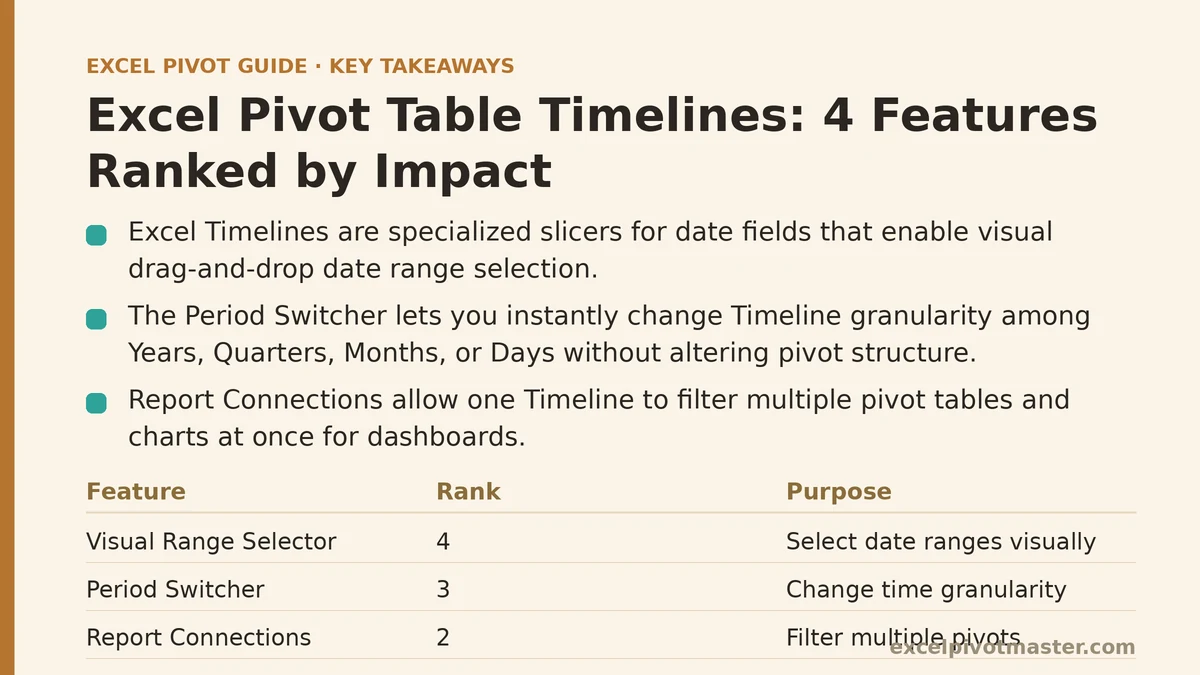
4. The Visual Range Selector: The Foundational “Wow” Moment
At its core, a Timeline is a specialized slicer designed exclusively for date fields. Its primary advantage over a standard filter or even a normal slicer is its visual, continuous nature.
To create one, click inside your pivot table, go to the Insert tab, and click Timeline. Excel will show you a list of all date-formatted fields in your source data; pick one and click OK.
What you get is a scrollable bar representing all the dates in your data. You can click and drag the handles on either end of the selected period to visually define a date range. Want to see sales from May 15th to July 22nd? Just drag the bars. This drag-and-drop interaction is fundamentally more intuitive for selecting a range than clicking dozens of checkboxes in a list. This is the baseline function, and for many, it is a complete game-changer on its own.
3. The Period Switcher: Changing Your Analysis on the Fly
The second most impactful feature is the small dropdown menu that appears on the Timeline itself, usually defaulting to “Months”. Clicking this allows you to instantly change the granularity of the entire Timeline to Years, Quarters, Months, or Days.
This is incredibly powerful for analysis. Imagine your manager asks to see the Q2 summary after you have just presented the June monthly results. Instead of re-filtering or re-grouping your pivot table, you simply change the Timeline’s period view from Months to Quarters and click “Q2”. The entire connected report updates instantly.
This ability to zoom in and out of your data’s time scale without ever touching the pivot table’s structure is what elevates a Timeline from a simple filter into a dynamic analytical tool. It allows the person viewing the report to explore the data at different levels of detail themselves.
2. Report Connections: The Dashboard Engine
This feature is identical in concept to the slicer equivalent, but it is the key to unlocking true dashboard functionality. By default, a Timeline only controls the pivot table it was created from. To make it a central control for an entire dashboard, you need to connect it to everything else.
Right-click the Timeline and select Report Connections. A dialog box will appear listing every pivot table in your workbook. Check the box next to every pivot table (and by extension, any pivot chart based on them) that should be filtered by this Timeline.
Now, selecting a date range on this single Timeline will filter multiple tables and charts simultaneously. You can have a summary table, a product detail table, and a trend chart all sitting on one sheet, and all of them will update in perfect sync from one central date control. This is what transforms a sheet with a few pivot tables into a cohesive, interactive dashboard.
1. Customization and Styling: The Professional Polish
The most overlooked feature, and the one that separates a functional report from a polished, professional one, is the ability to style the Timeline itself. When you click on a Timeline, a dedicated Timeline ribbon tab appears.
Here you can:
- Change the Color: Match the Timeline’s color scheme to your company’s branding or the theme of your dashboard.
- Remove Elements: For a very clean look on a finished dashboard, you can uncheck boxes to hide the Header (which shows the field name), the Selection Label (which shows the exact date range), the Scrollbar, and even the Time Level (the Year/Quarter/Month switcher).
- Resize and Align: Treat it like any other shape. Resize it to fit neatly across the top of your report and use the alignment tools to ensure it lines up perfectly with other slicers or charts.
Why does this rank #1? Because a cluttered or poorly formatted dashboard can undermine the user’s confidence in the data. A clean, well-styled, and intuitive Timeline that blends seamlessly into the report design makes the entire tool feel more authoritative and easier to use, ensuring that the end-user focuses on the data insights, not the interface. It’s the final ten percent of effort that makes all the difference in how your work is perceived.
From Filter to Interactive Experience
Ultimately, a Timeline’s purpose is to change the act of date filtering from a chore into an exploration. Each of these features builds on the last, moving you from simply selecting dates to creating a fully interactive and professionally presented dashboard that anyone can use to find their own answers within the data. It respects the user’s time and empowers them to self-serve, which is the goal of any great report.
What is the primary date range you find yourself filtering for in your reports — specific months, rolling quarters, or year-to-date? Let me know the context, and I can tell you exactly how a Timeline could streamline that specific task. Related guides: How to Connect Multiple Pivot Tables with One Slicer: The Complete Setup, How to Create a Dashboard Using Pivot Tables: A Practical Build Guide, and Pivot Table Print Settings for Clean Reports: 5 Fixes Ranked by Impact.